Incoming order
Introduction
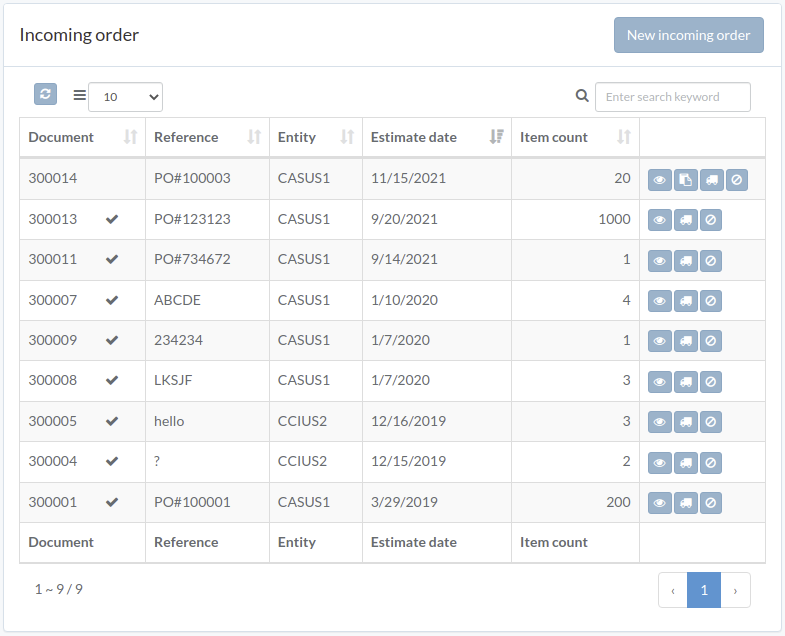
Following shows a sample window.
The chapter describes features available within the window.
Create order
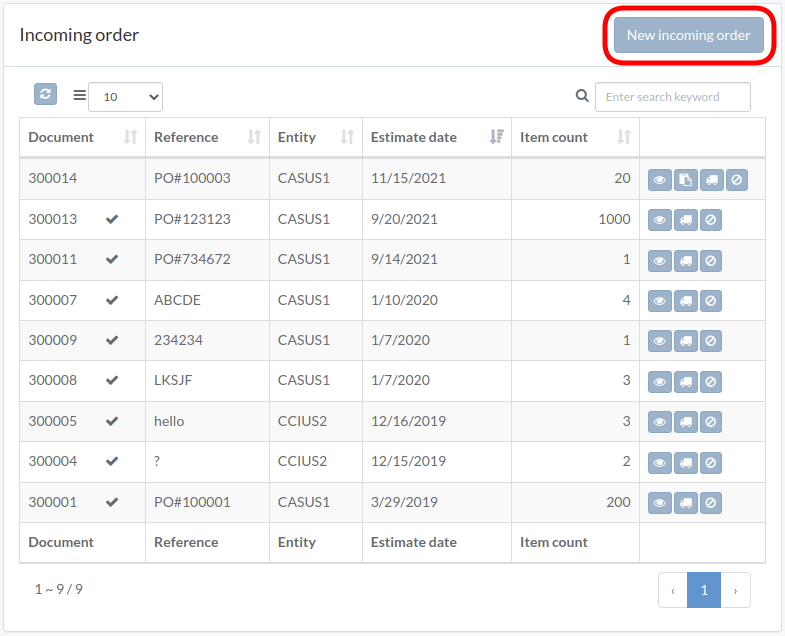
Click "New incoming order" on upper right corner of incoming-order table
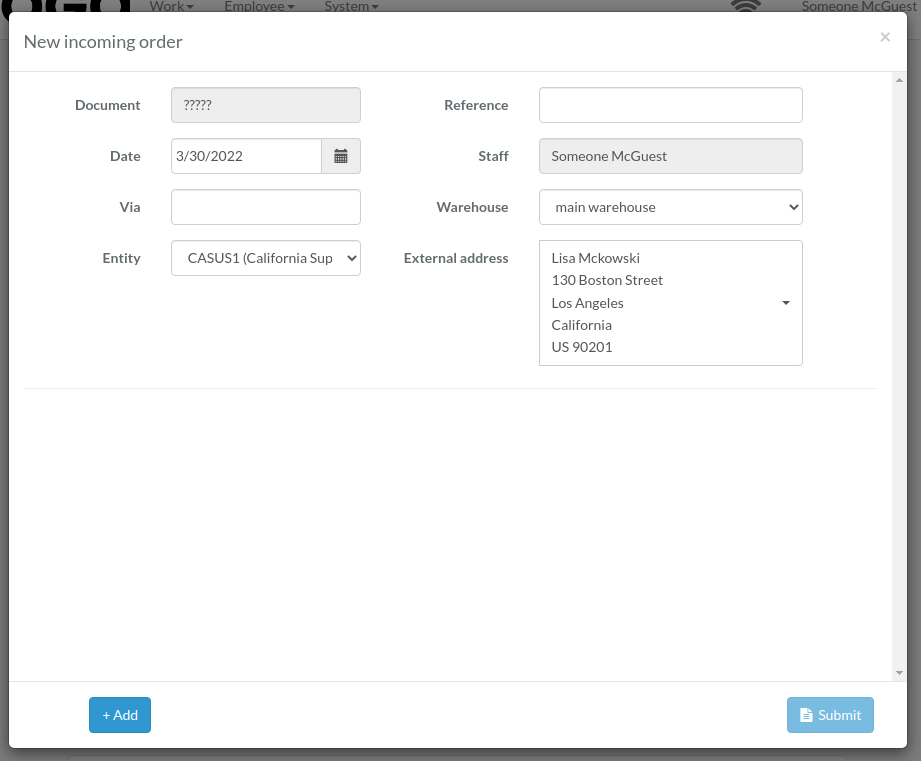
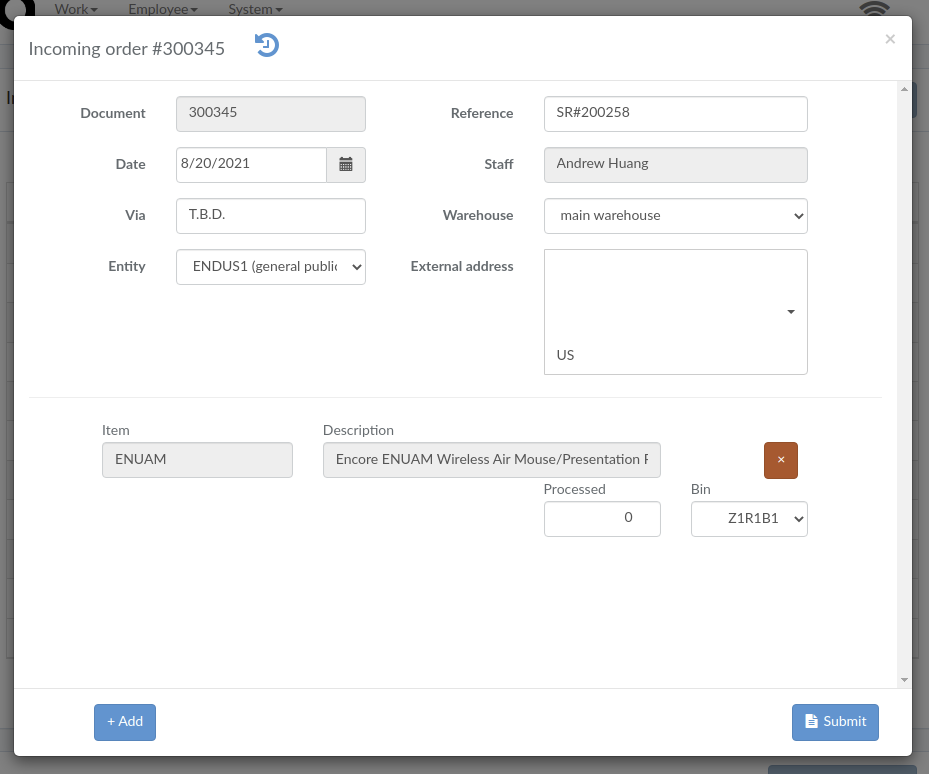
Enter order data, then click "Submit".
Click "+ Add" to add items into order
Process order
Click "Process" button on the right of order
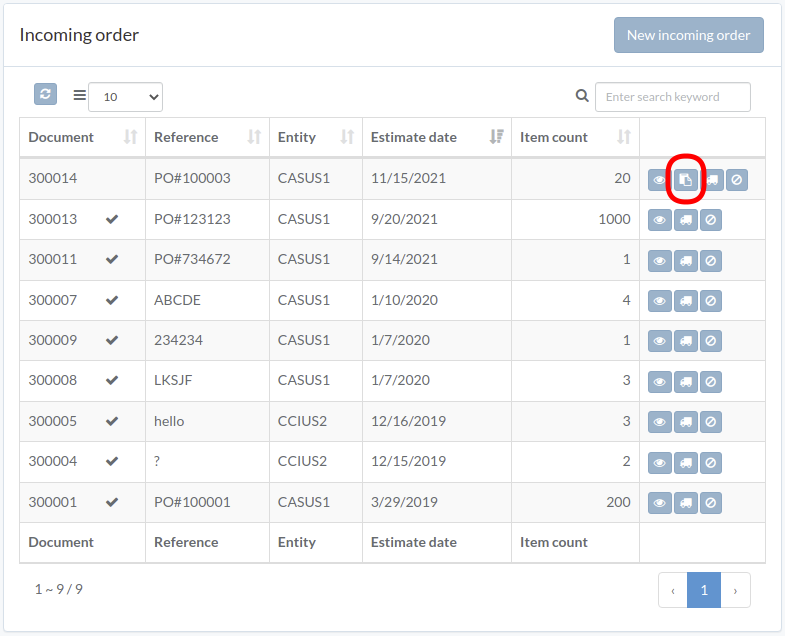
Enter order data and then click "Submit"
View order
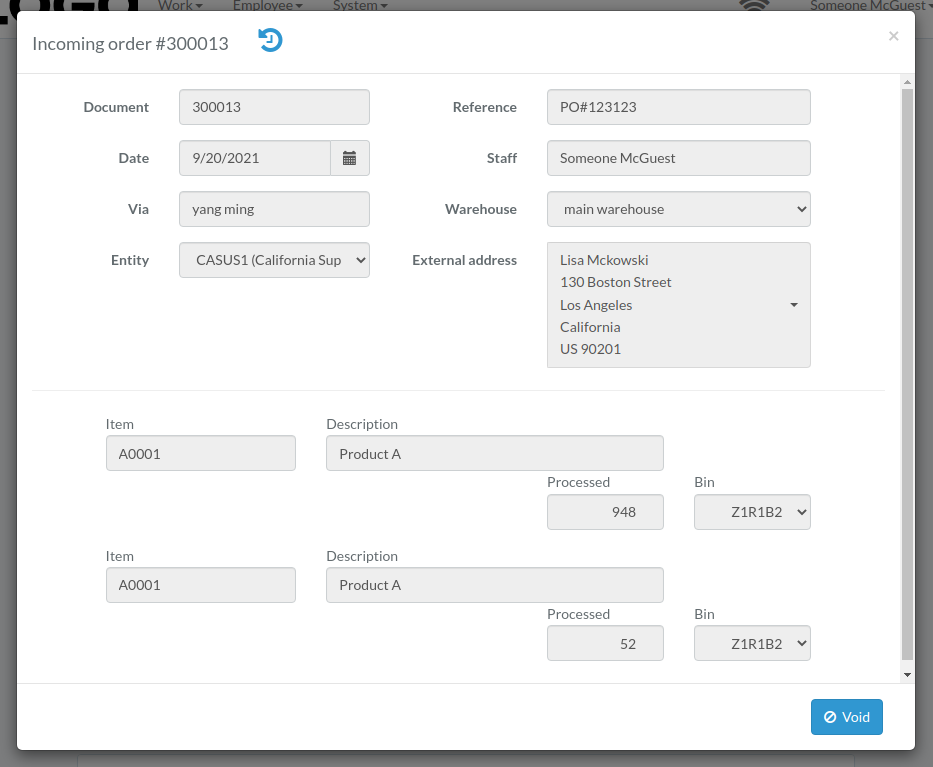
Click "View" button on the right of order
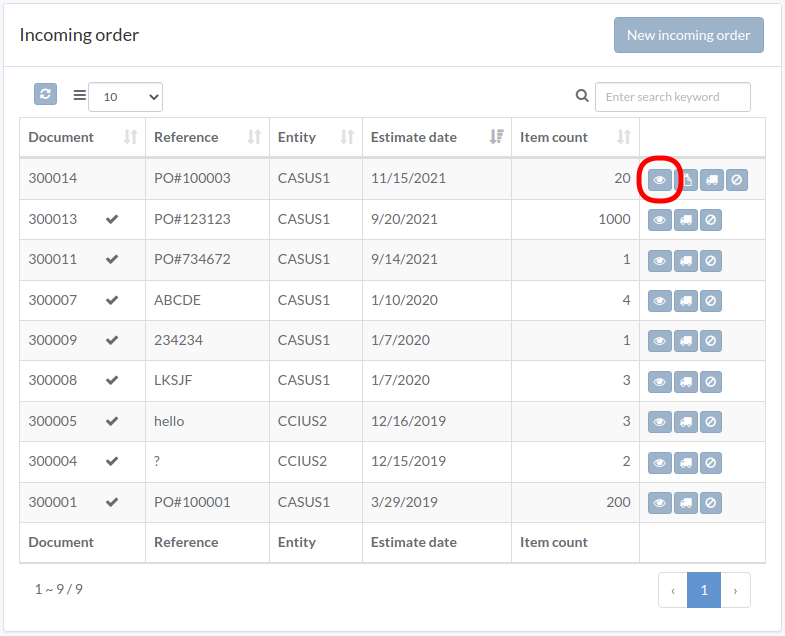
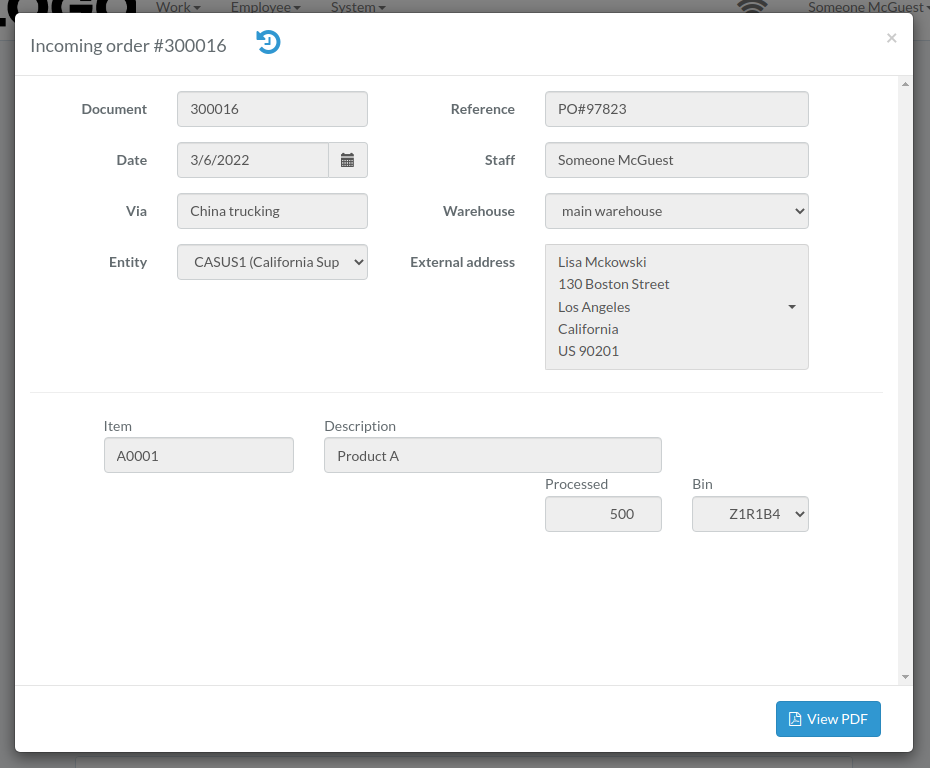
Order modal appears
Upload document
Click "Upload" button on right of the order
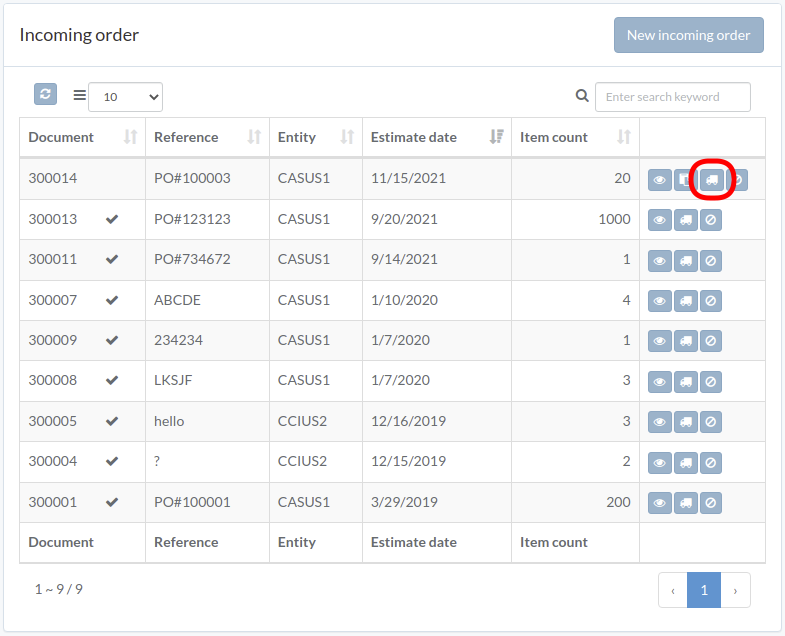
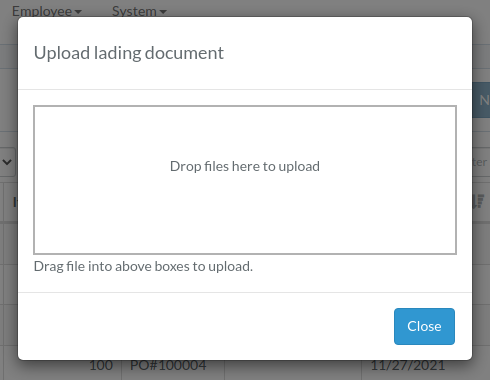
Upload file, then click "Close"
Void order
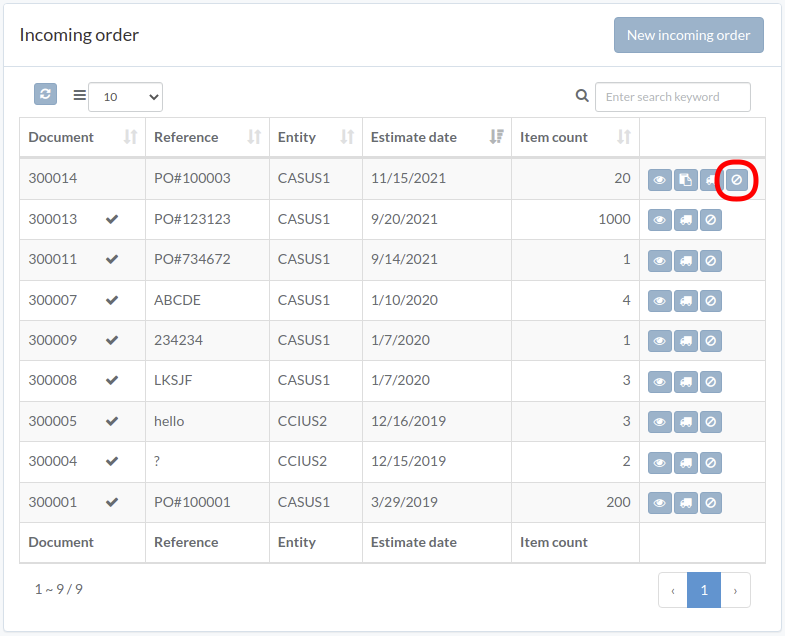
When order modal appears, click "Void" button to confirm