Order
Introduction
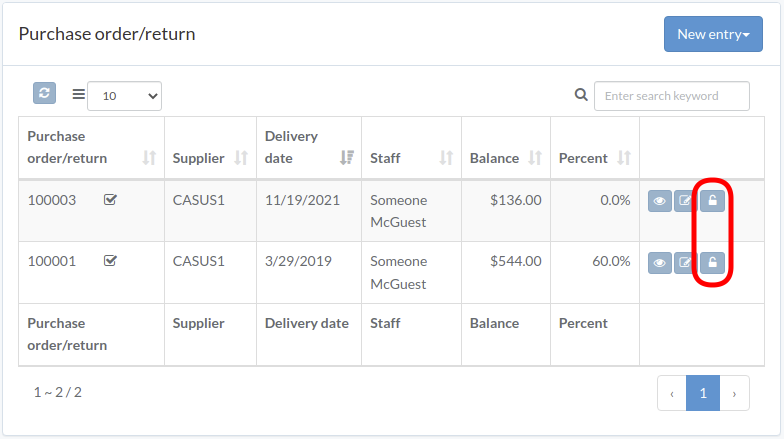
Following shows a sample window.
The chapter describes features available within the window.
Create Order
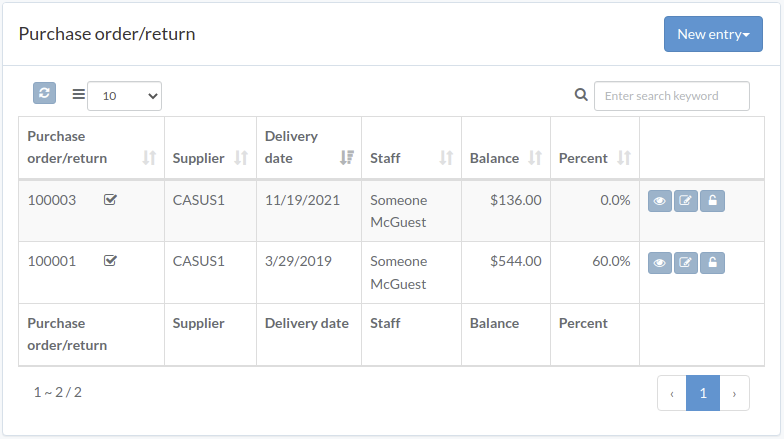
Click "New entry", and select order or return
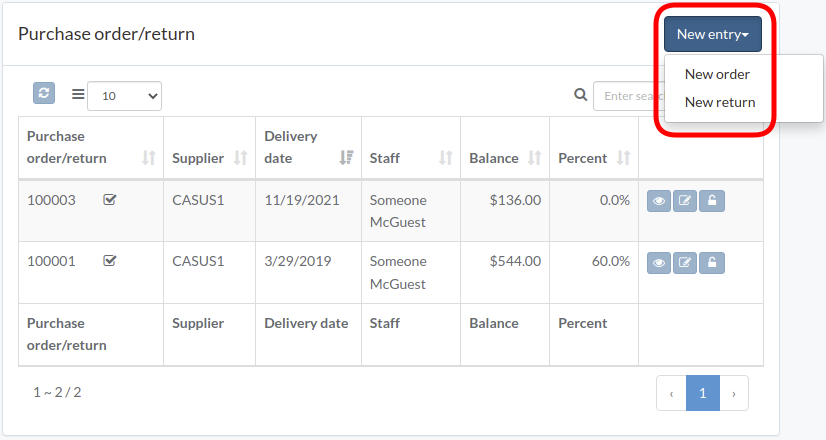
Enter order/return data, then click "Submit"
Click "+ Add line" if needed
Update Order
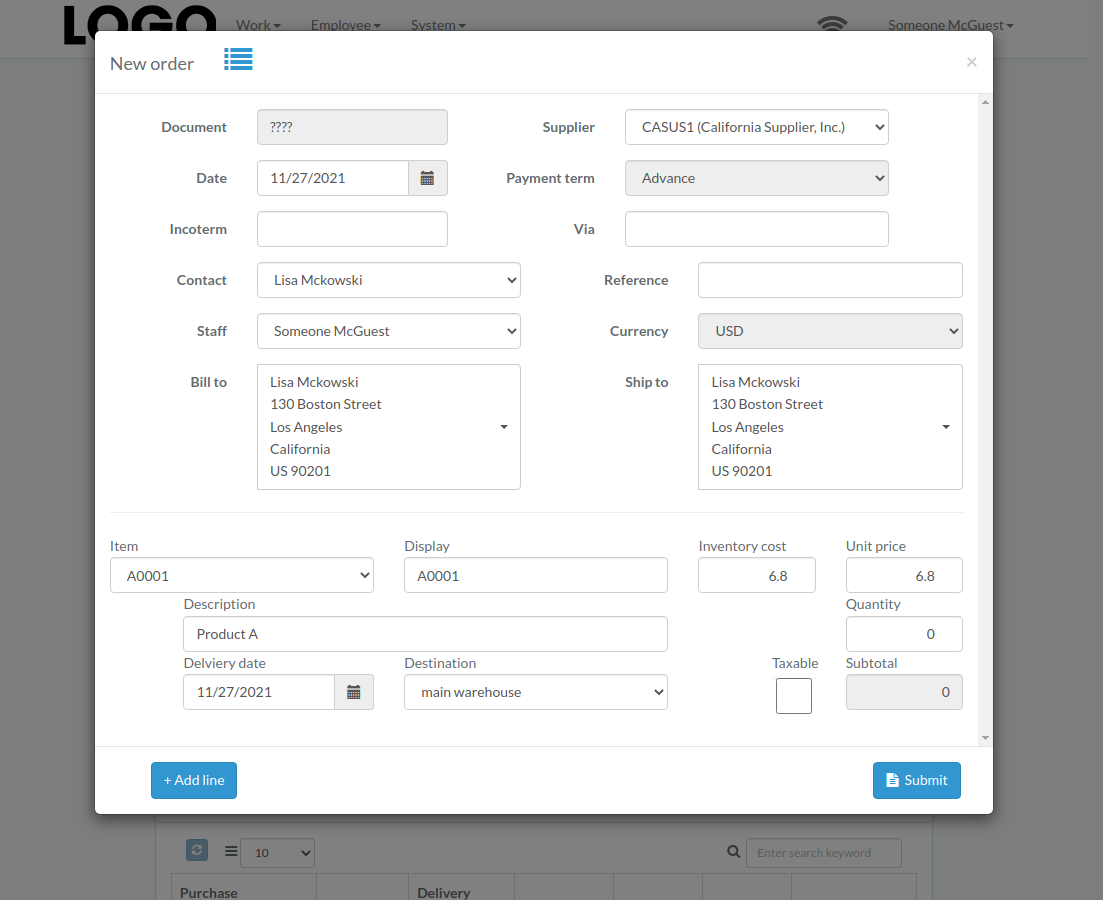
Click "Update" button on right of the order/return
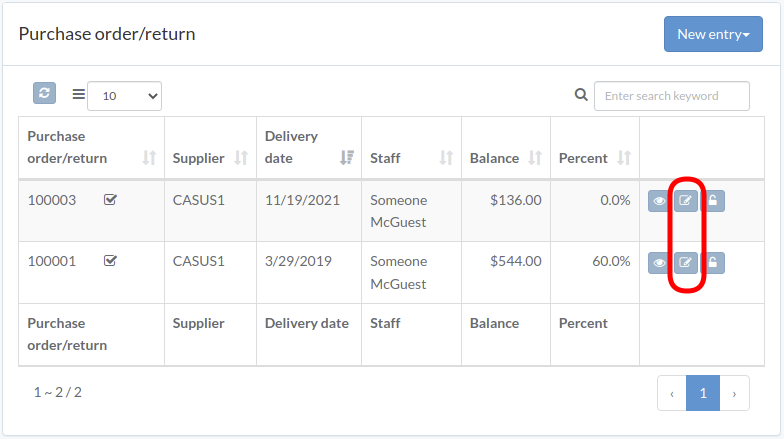
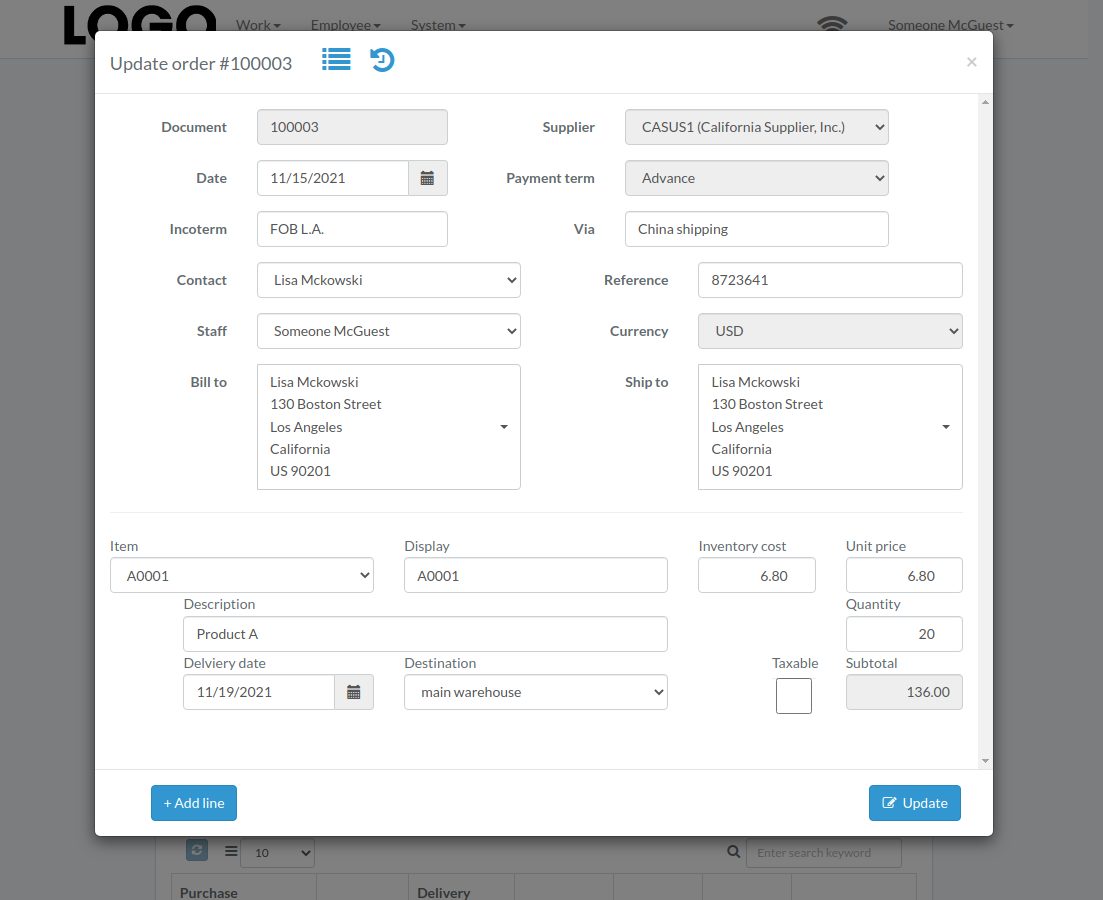
Update order/return data, then click "Update"
Click "+ Add line" if needed
View Order
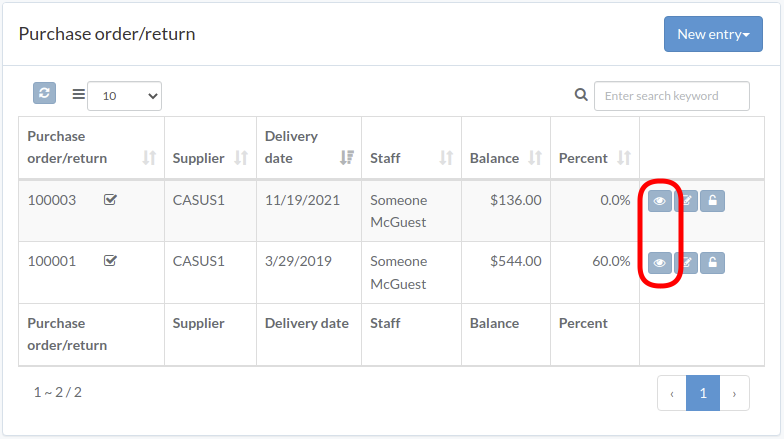
Order/return modal appears

Approve Order
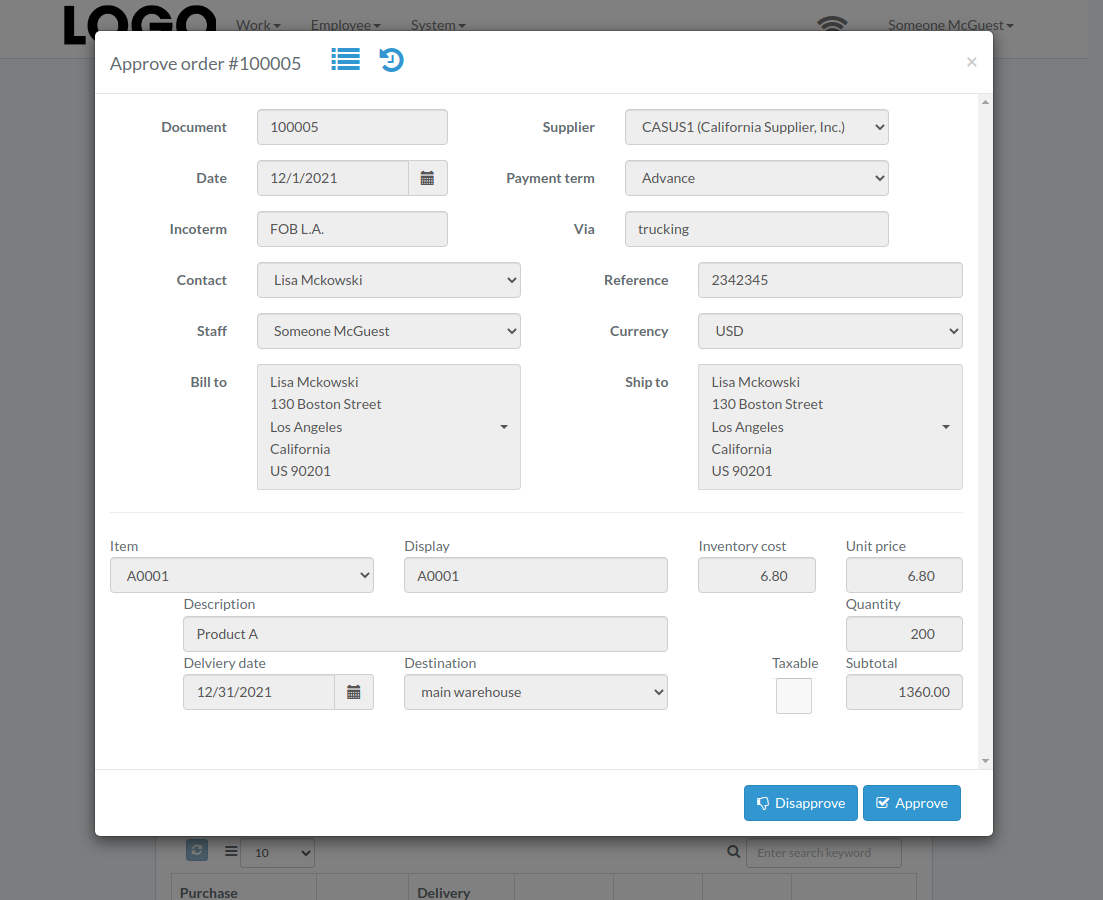
Click "Approve" button to right of the order/return
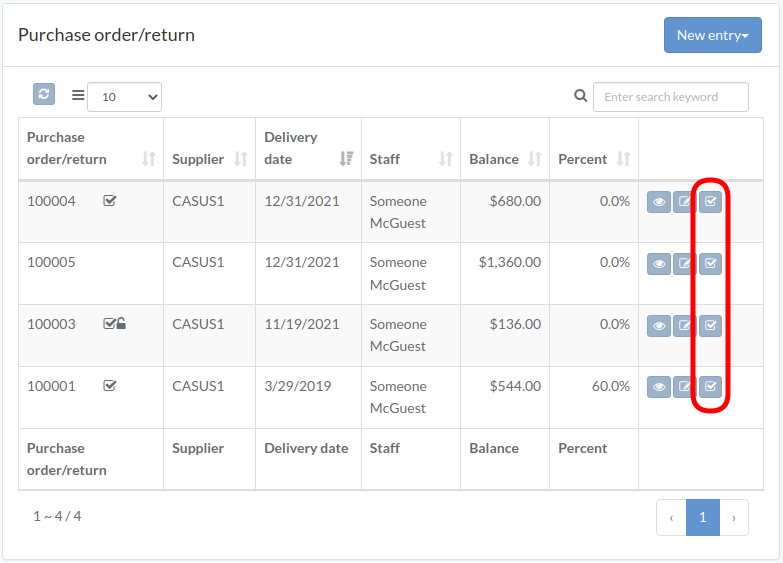
When order/return modal appears, click "Approve" or "Disapprove" button to confirm
Release Order
Click "Release" button to right of the order/return
An email with order/return attachment is sent to vendor