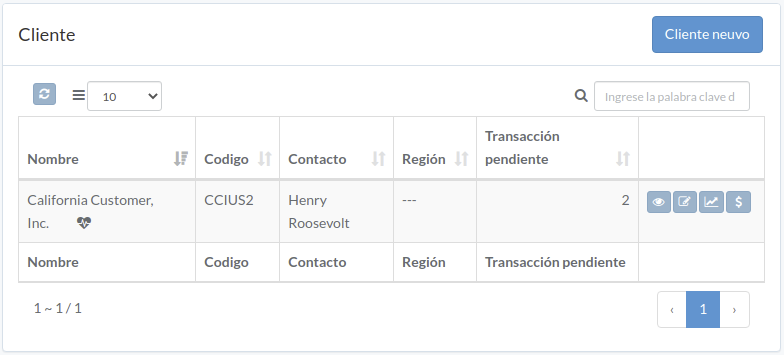
Cliente
Introducción
Following shows a sample window.
The chapter describes features available within the window.
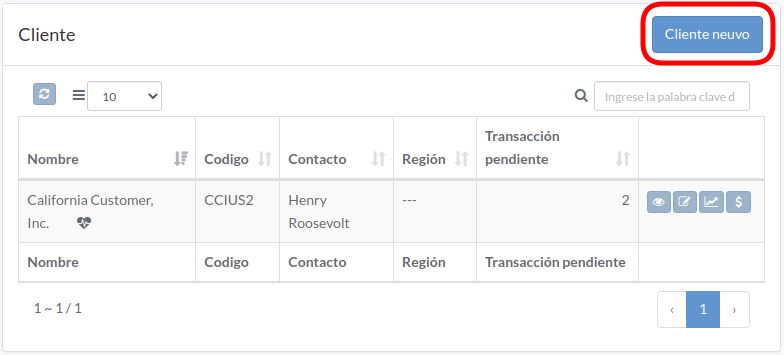
Crear Cliente
Click "New customer" on upper right corner of customer table
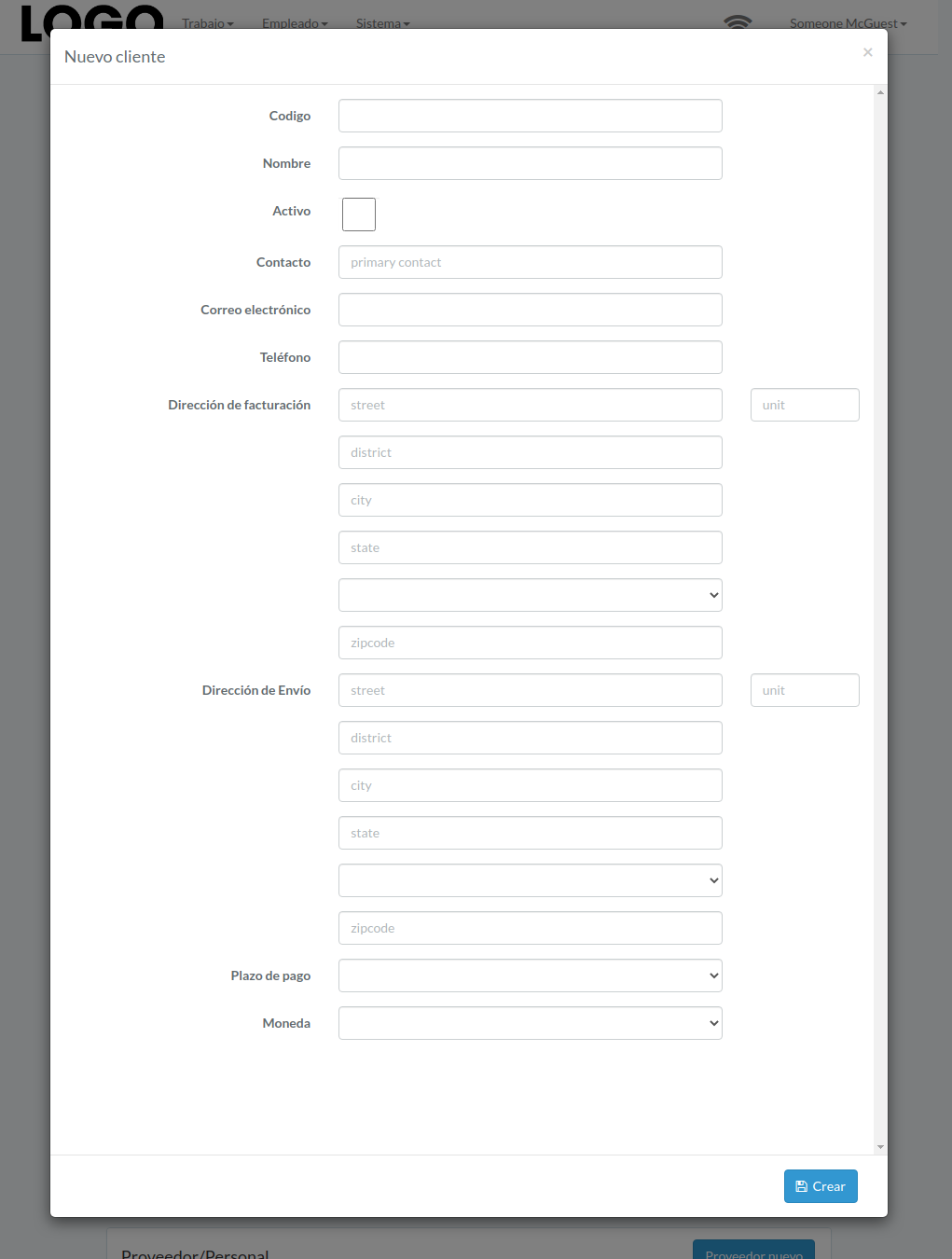
Enter customer data, then click "Create".
Actualizar Cliente
Click "Update" button on the right of customer
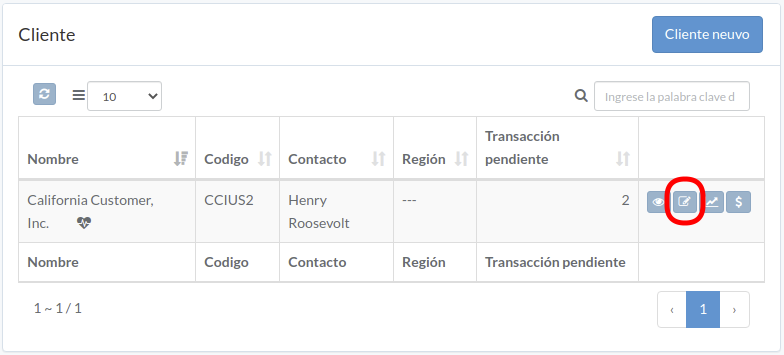
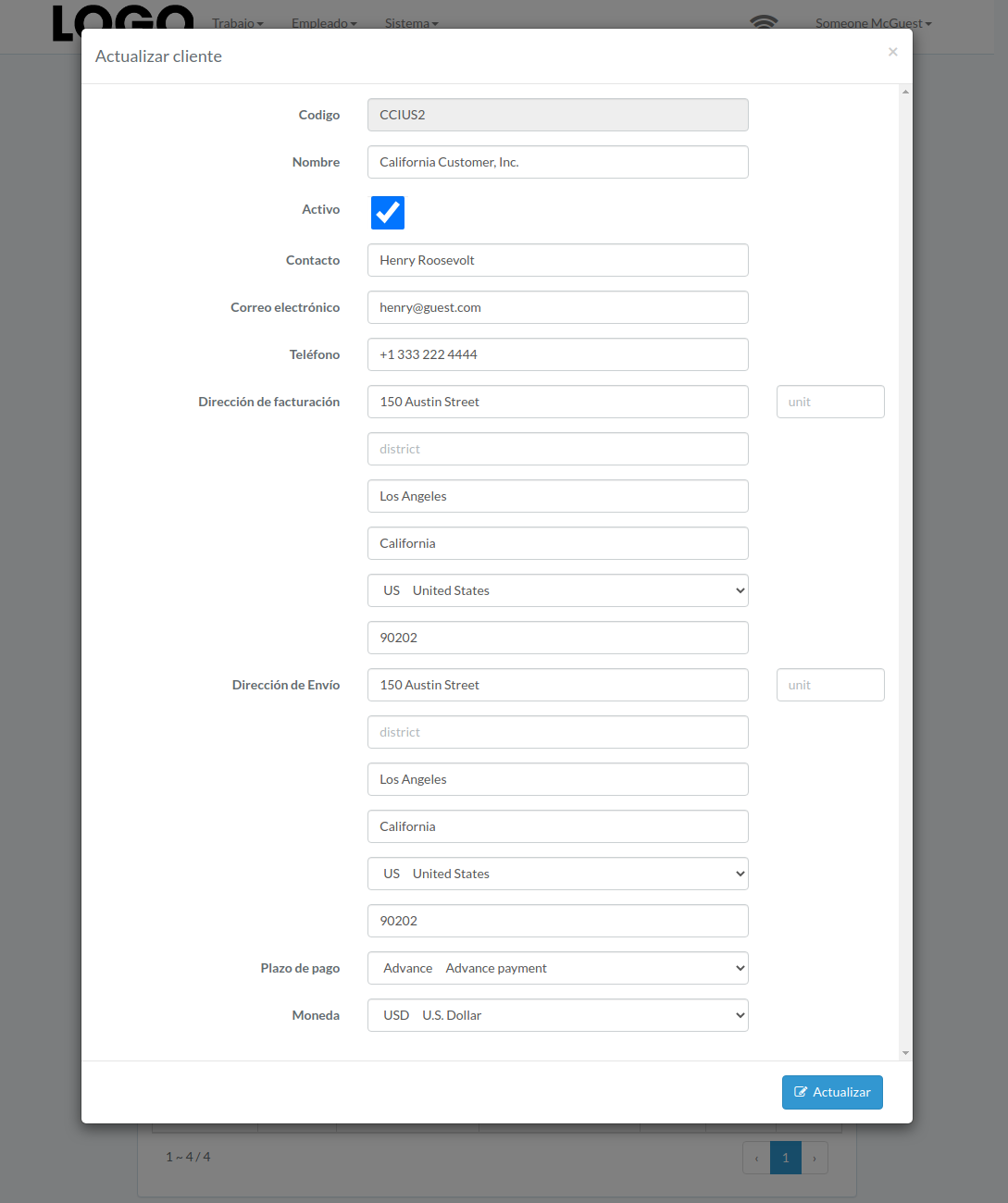
Update information, then click "Update".
Ver Cliente
Click "View" button on the right of customer
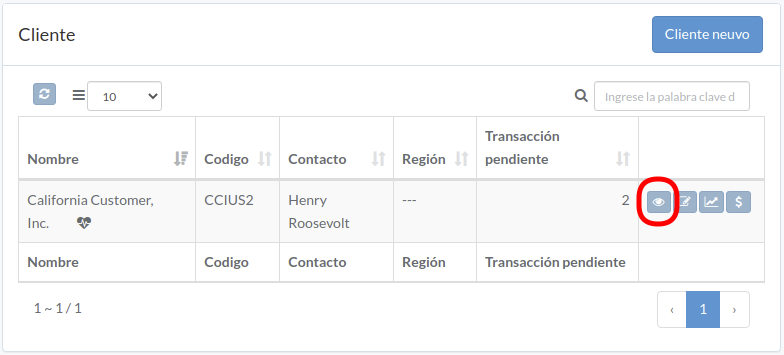
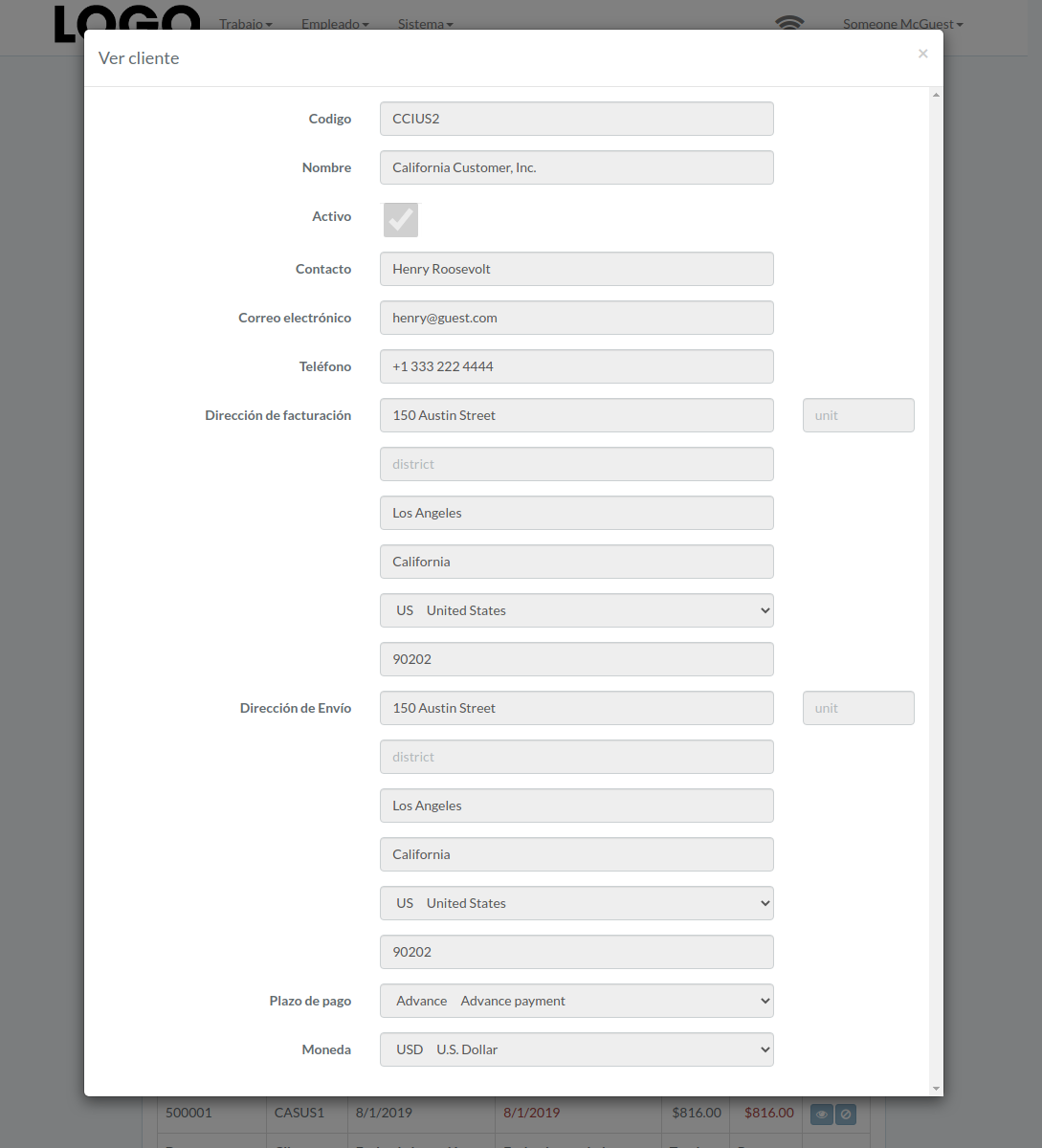
Customer modal appears
Rendimiento del cliente
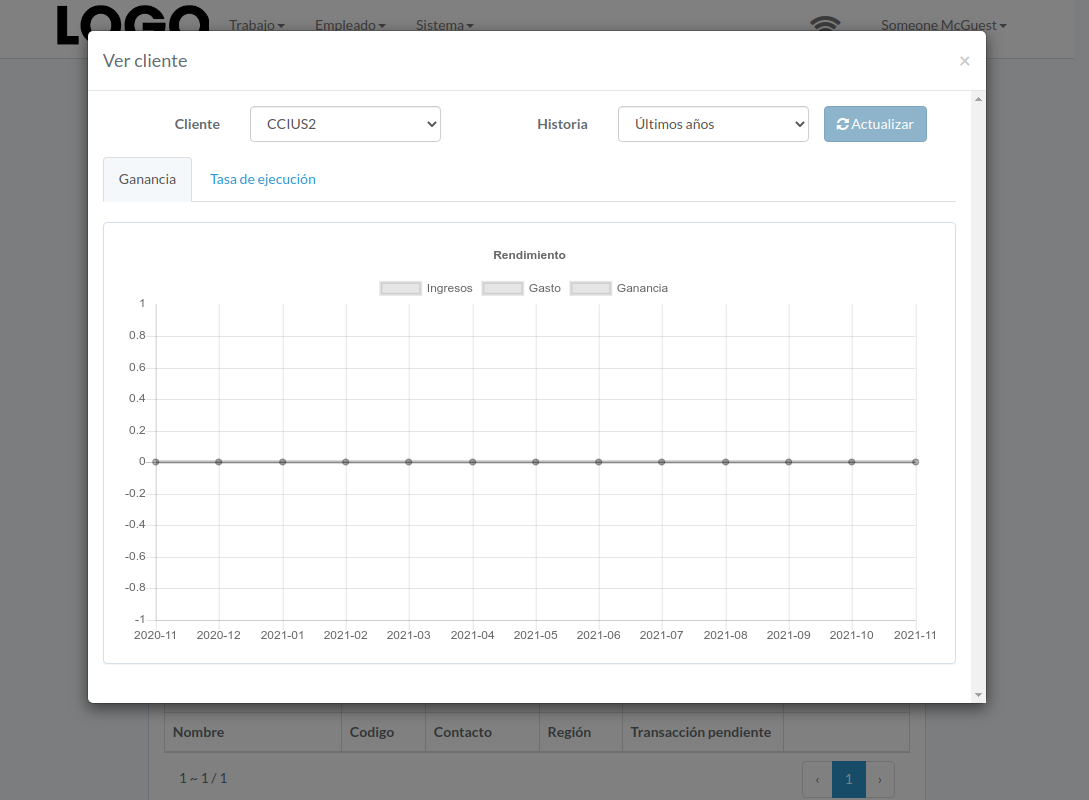
Click "View" button on the right of receivable
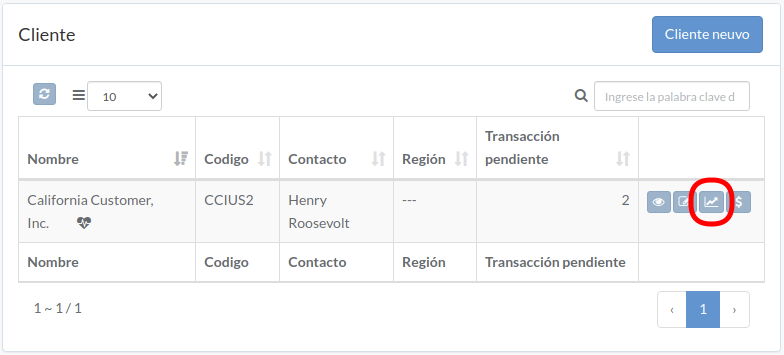
Performance modal appears
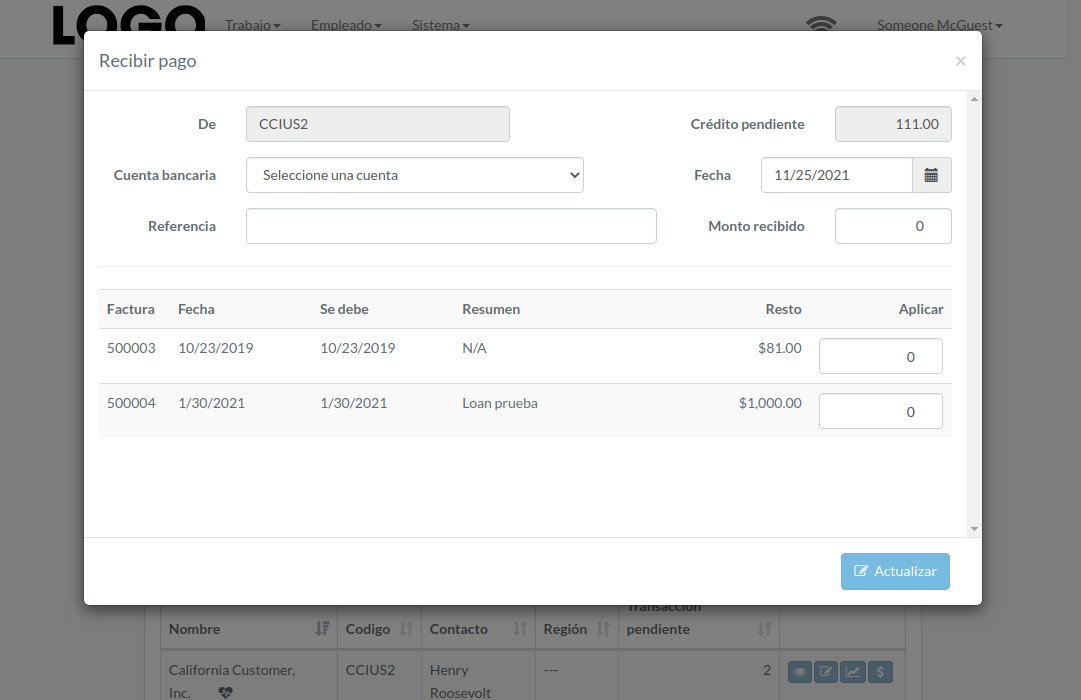
Recibir pago
Click "Receive" button on the right of customer

Enter date, bank-account, received-amount, applied-amount, etc., then click "Update"