Employee
Employee manual
- Introduction
- Calendar
- Document
- Expense
- Introduction
- Create Expense
- Update Expense
- View Expense
- Submit Expense
- Retract Expense
- Approve Expense
- Interaction
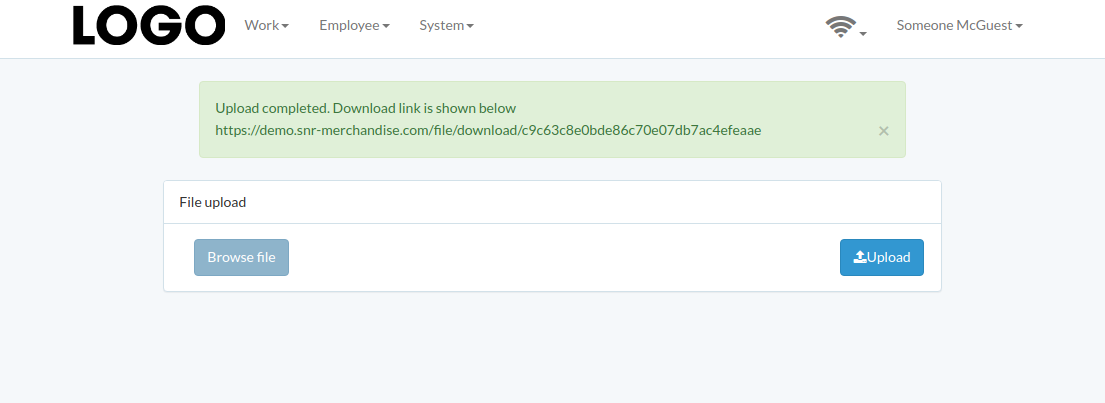
- File upload
Introduction
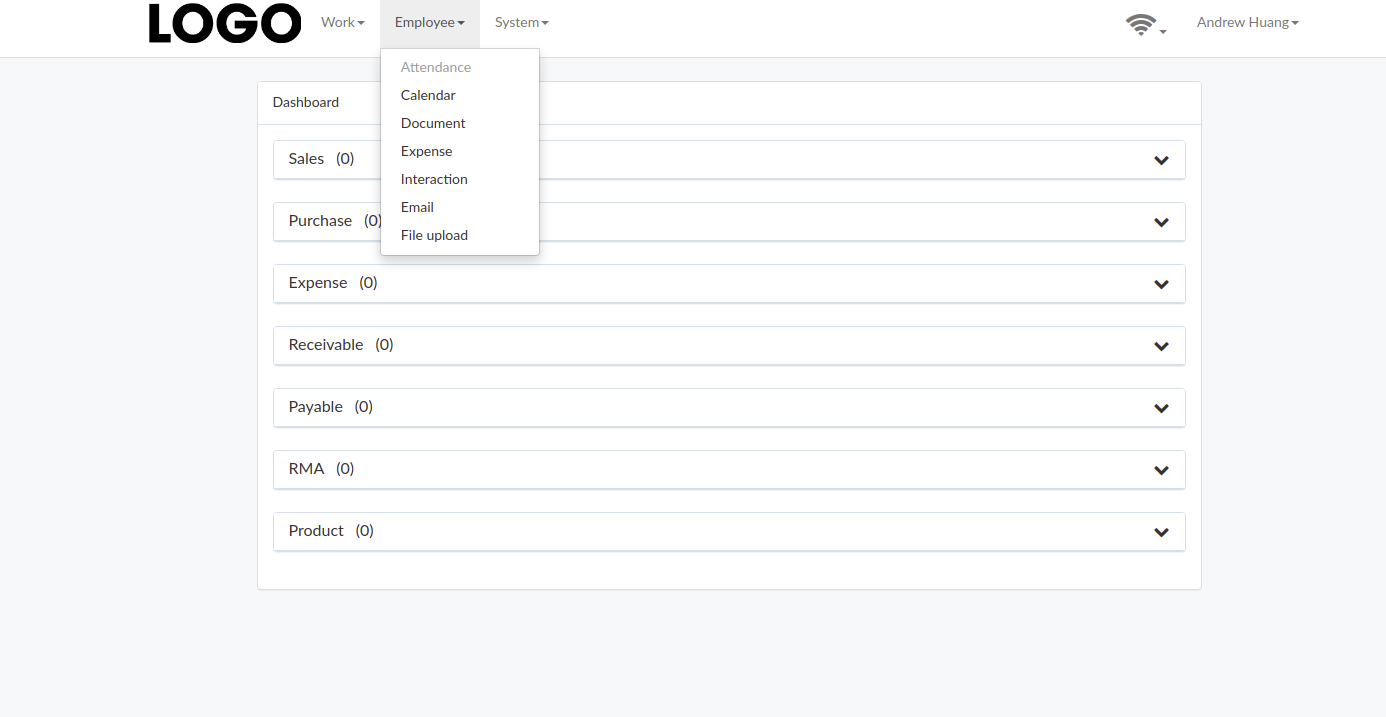
Employee tool can be found under "Employee" menu
Calendar
Document
Introduction
Following chapter describes document-related feature
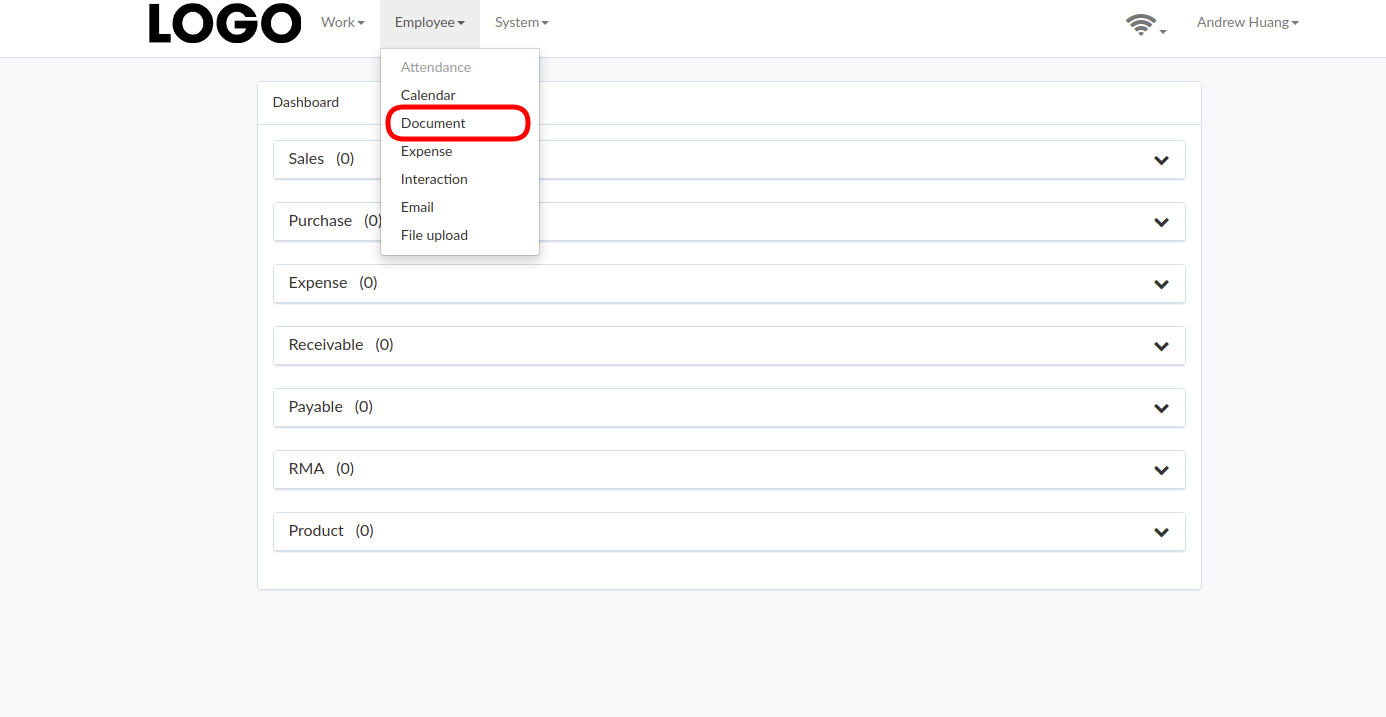
Click "Document" under Employee menu to access dashboard
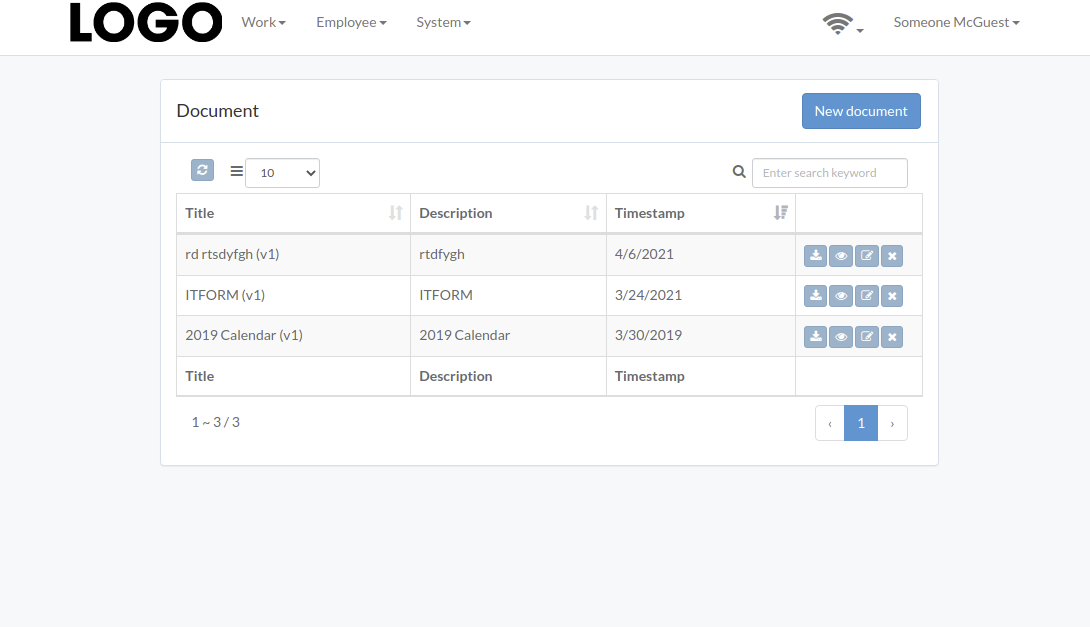
Following is a sample of document dashboard
The chapter describes features available within the dashboard.
Create Document
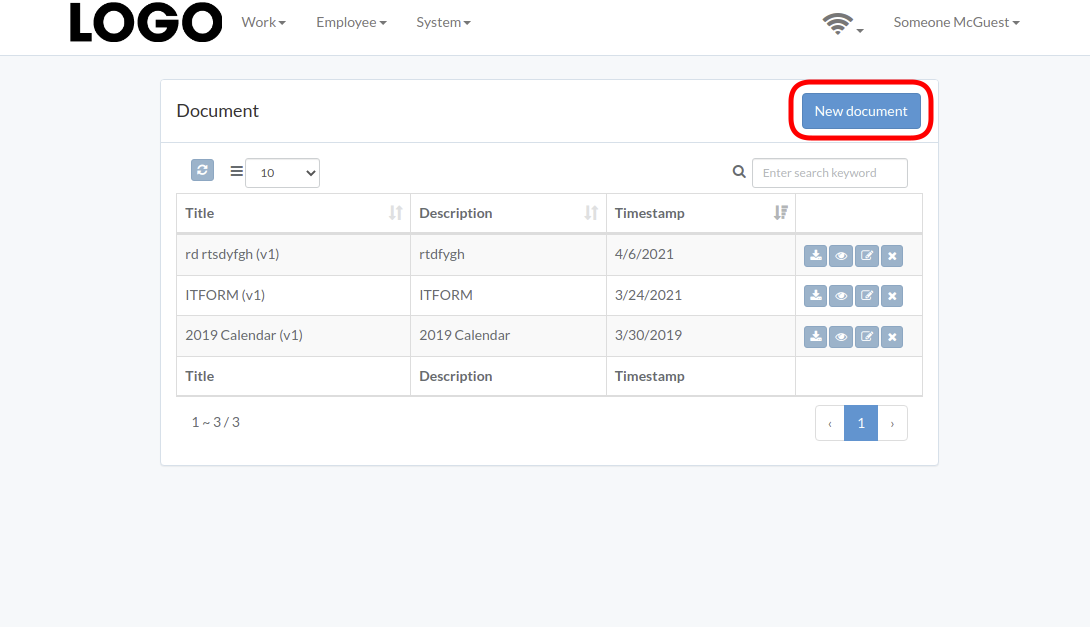
Click "New Document" on upper right corner of document table
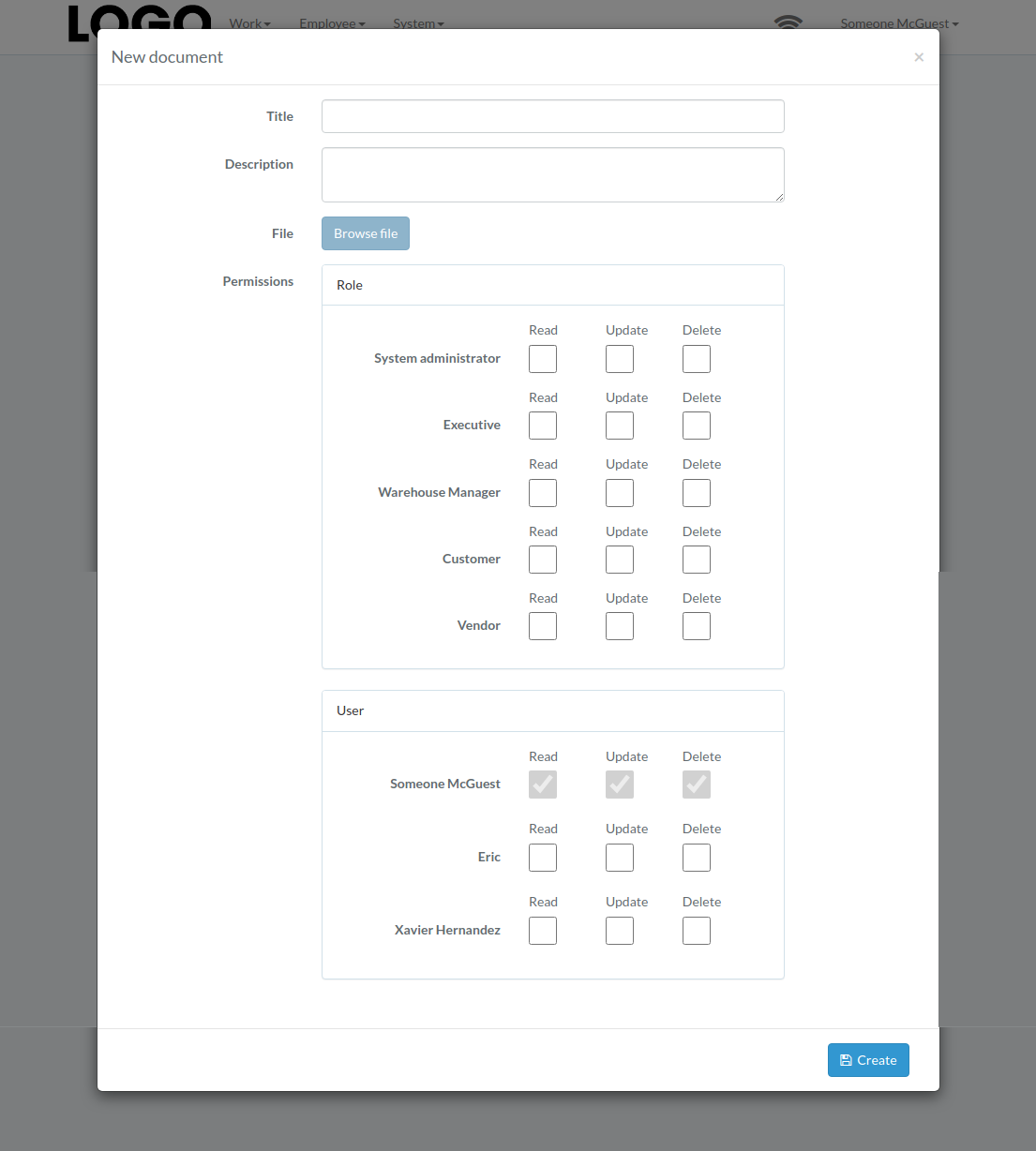
When document modal appears, enter all information and click "Create" button
Update Document
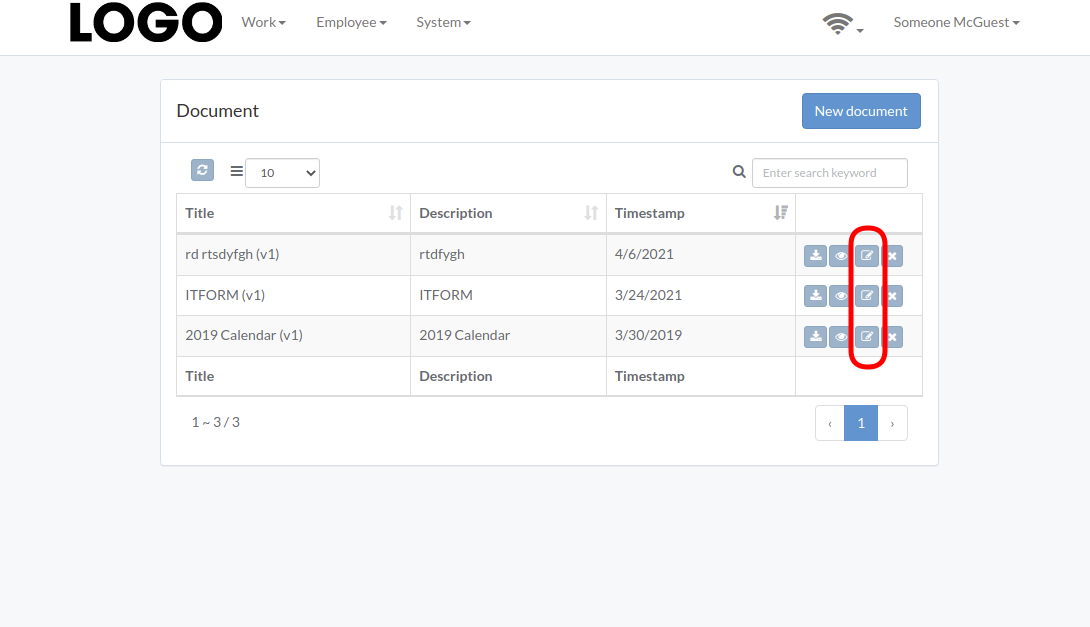
Click "Update" button to the right of the document
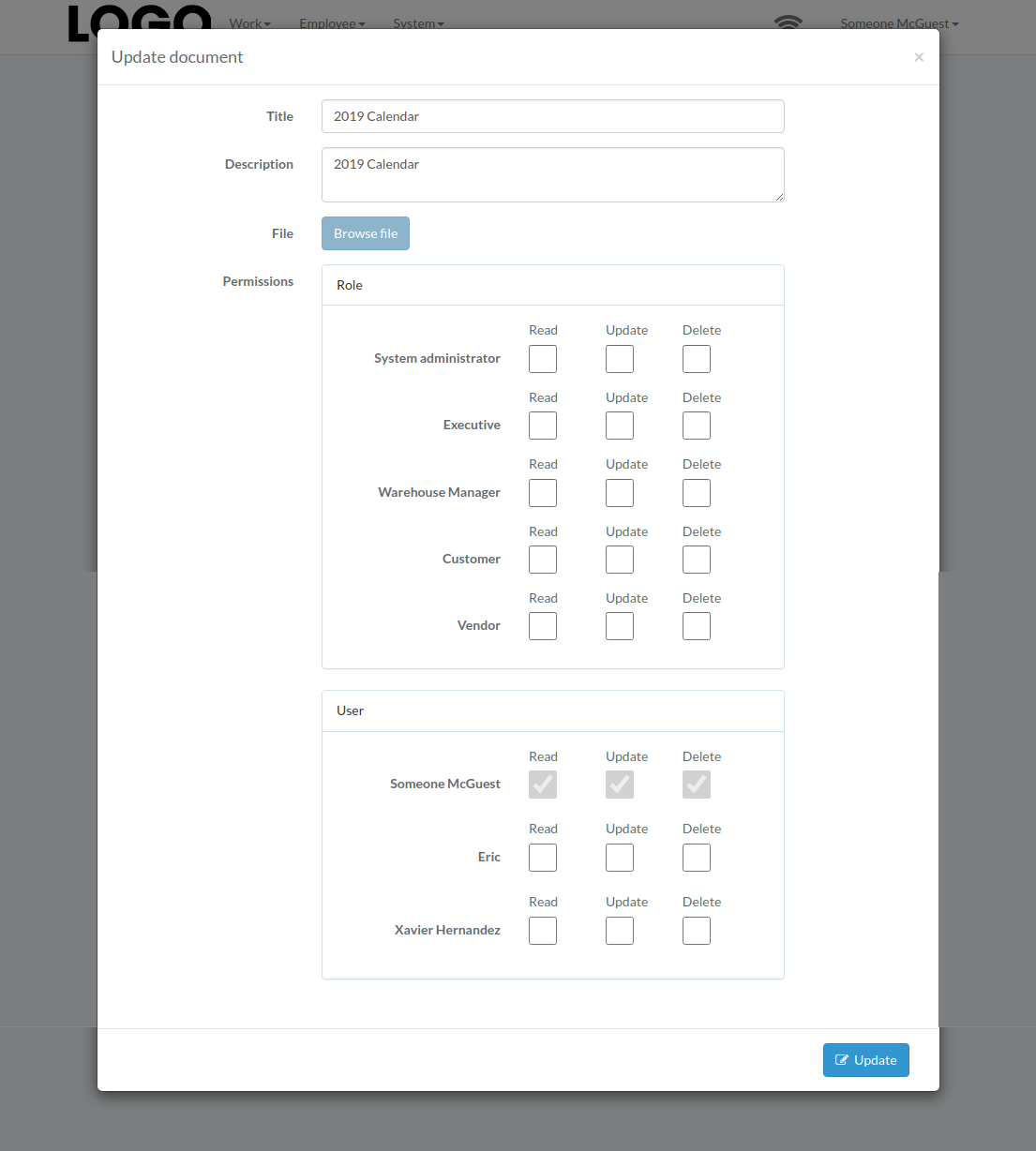
When document modal appears, update information and click "Update" button
View Document
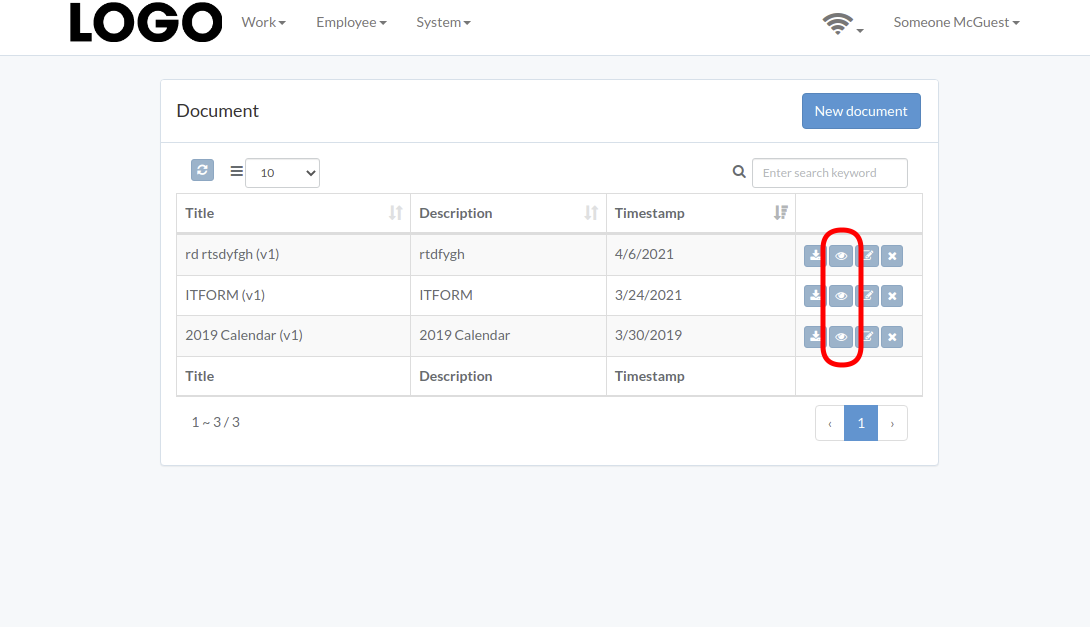
Document modal appears
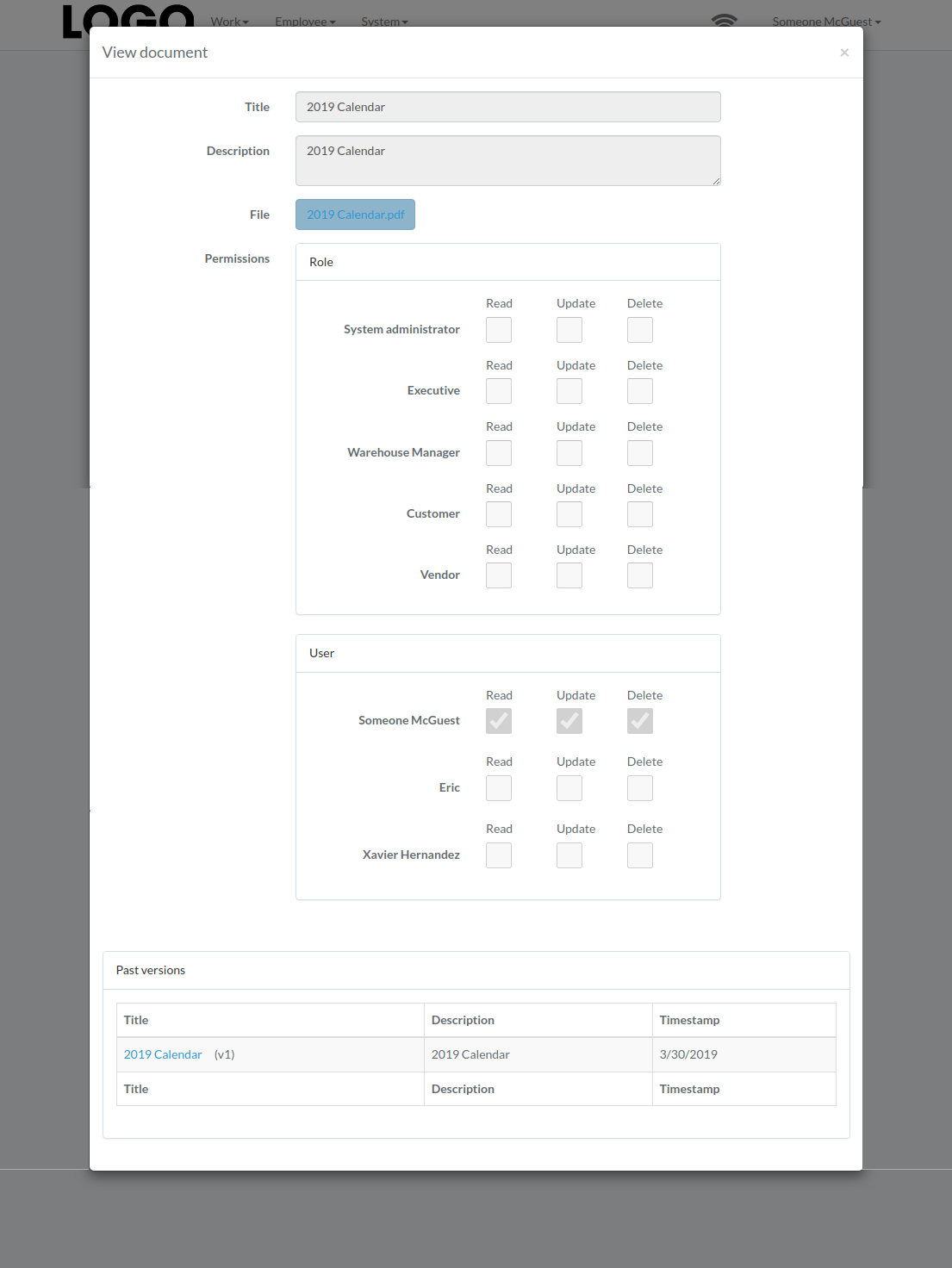
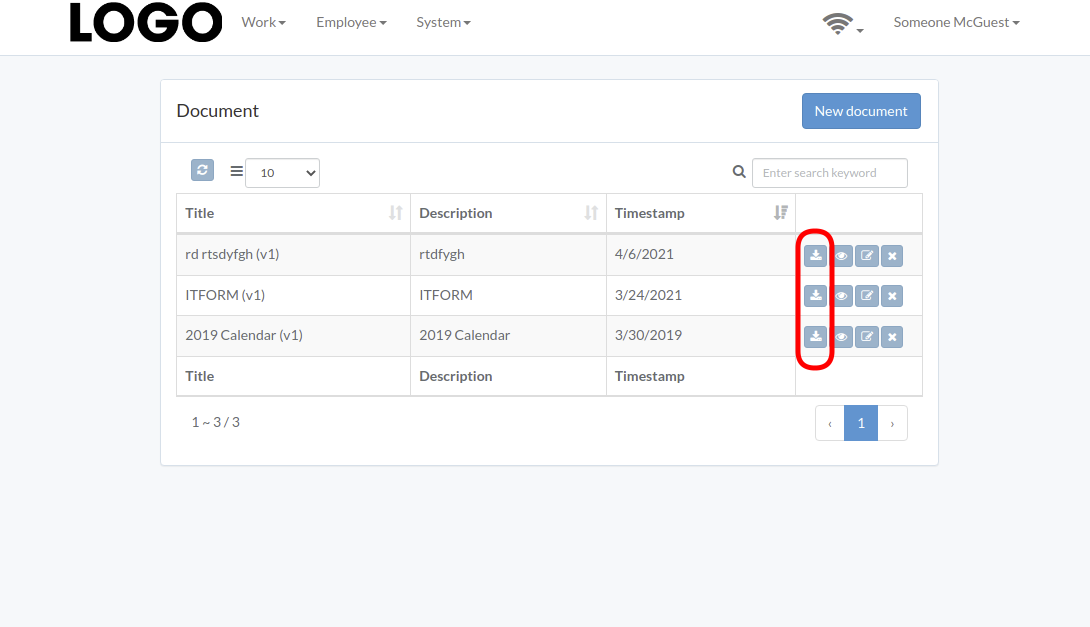
Download Document
Click "Download" button to the right of the document to trigger download
Delete Document
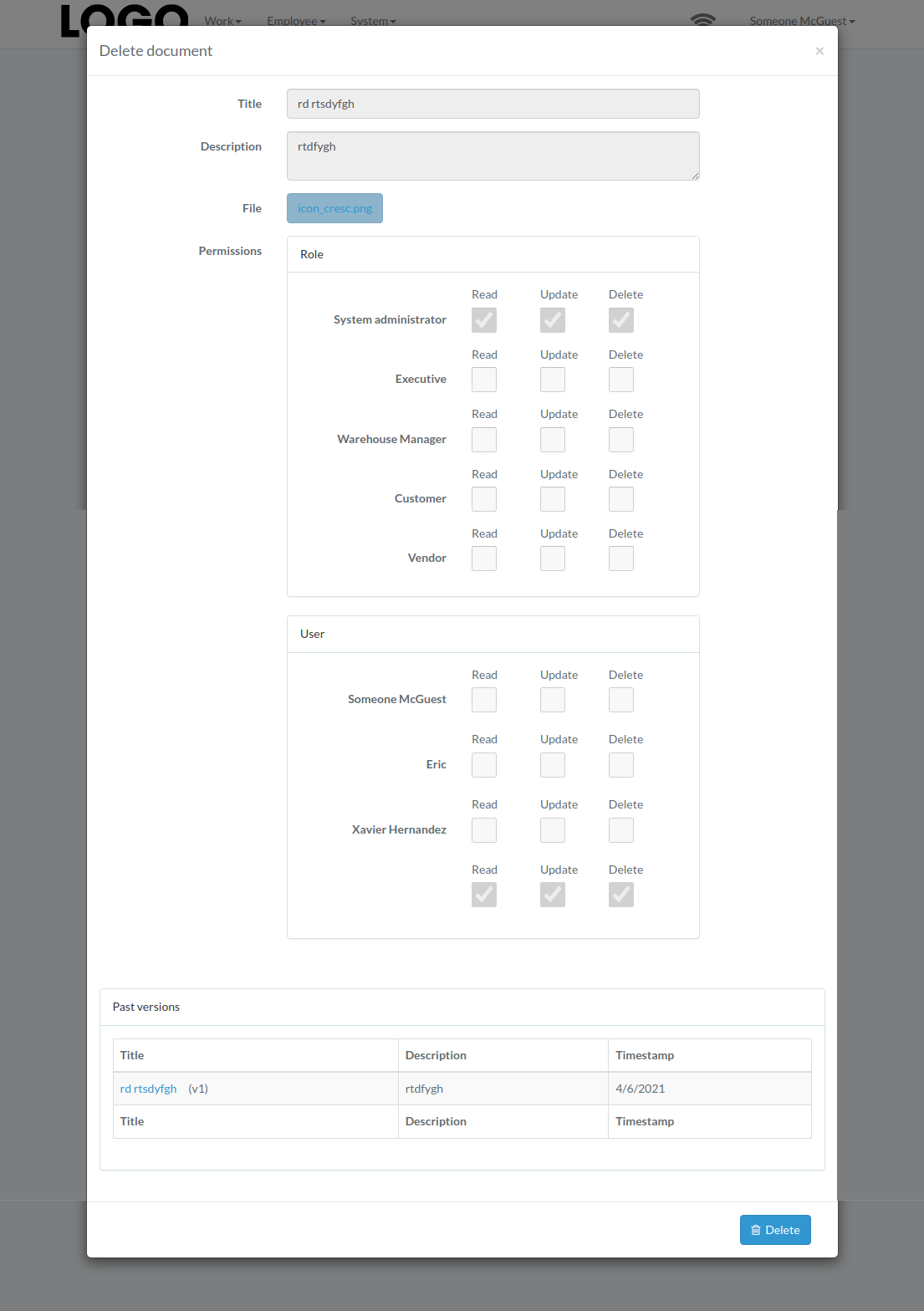
Click "Delete" button to the right of the document
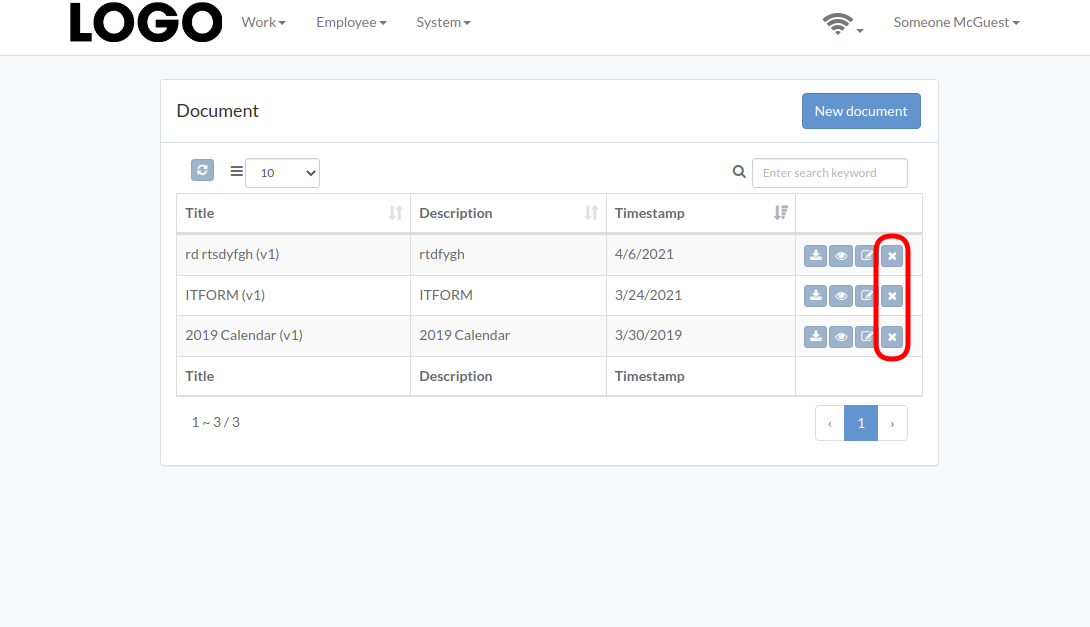
When document modal appears, click "Delete" button to confirm deletion
Expense
Introduction
Following chapter describes expense-related feature
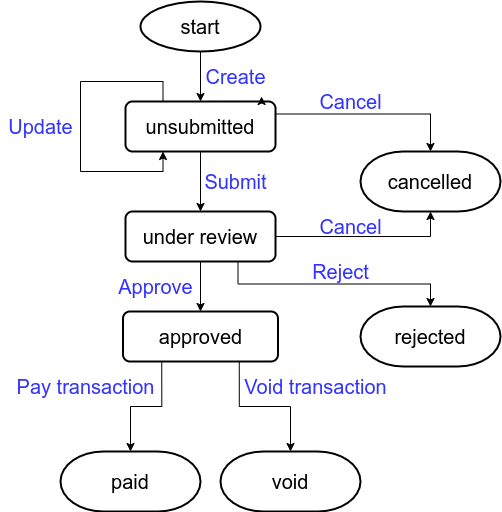
Any expense goes through life cycle illustrated in following flow-chart. Blue text denotes action; black text denote status
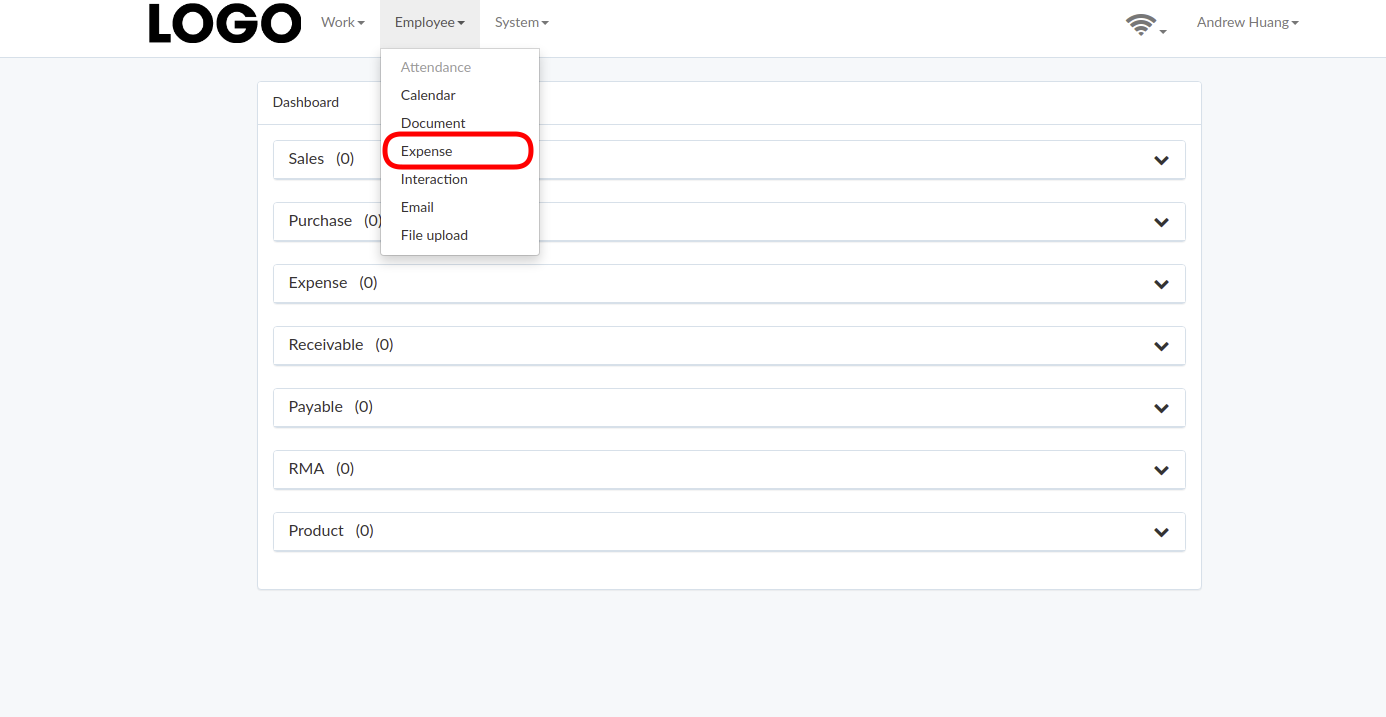
Click "Expense" under Employee menu to access dashboard
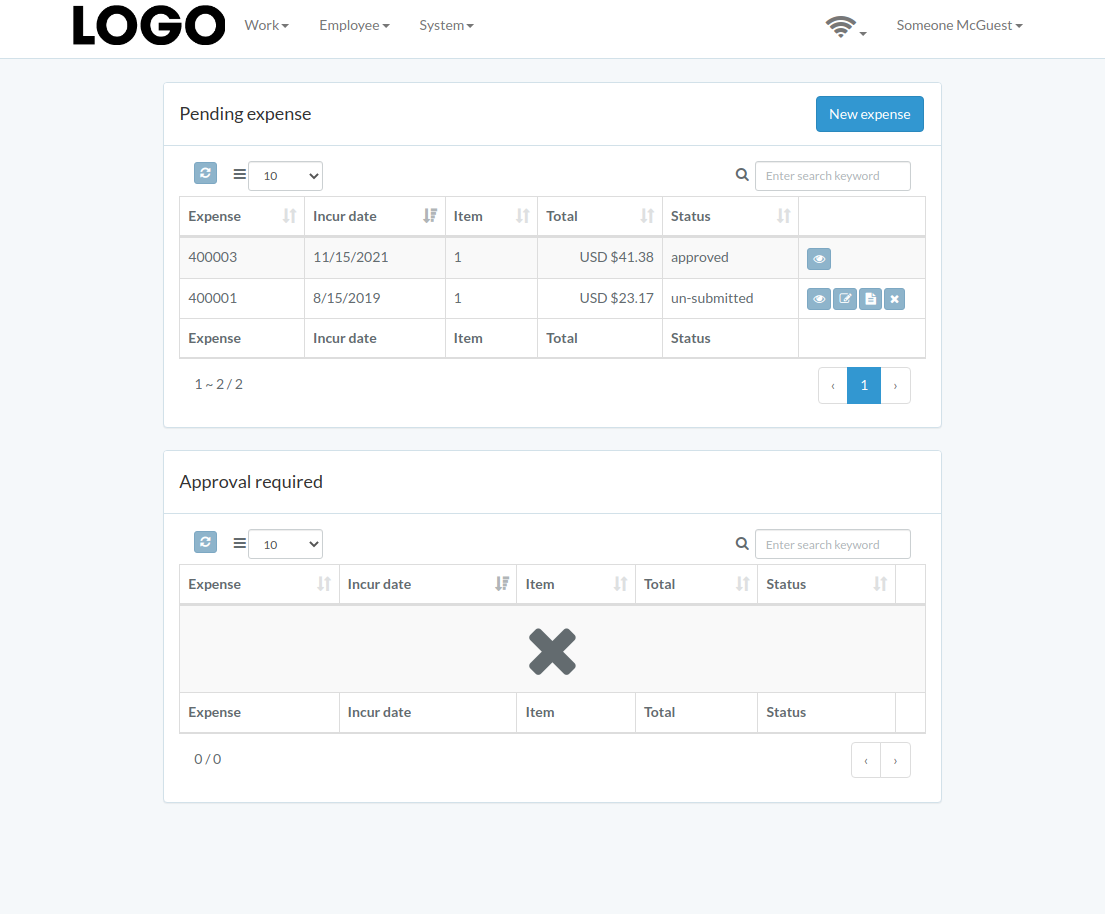
Following is a sample of expense dashboard
The chapter describes features available within the dashboard.
Create Expense
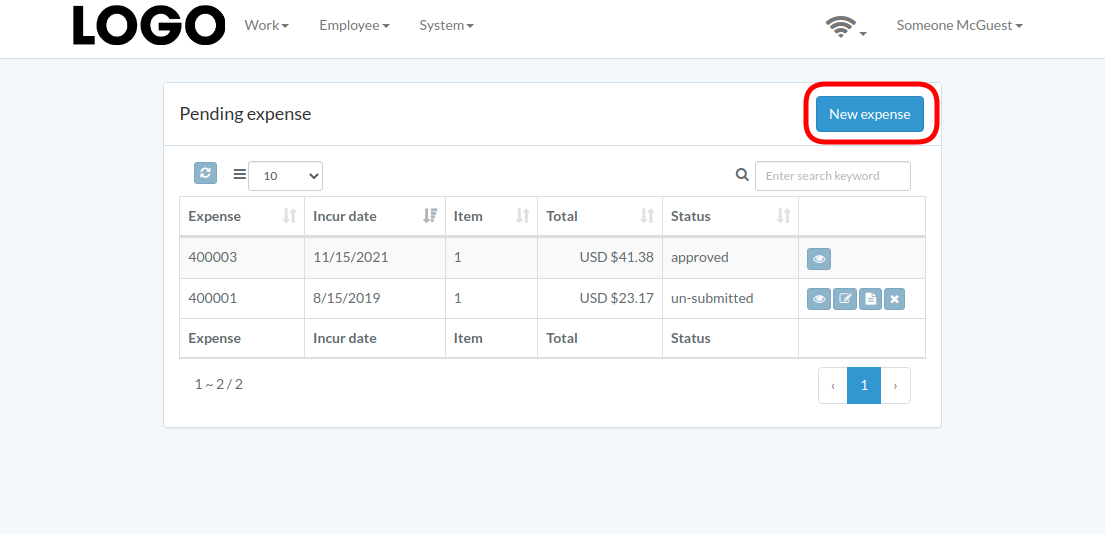
Click "New expense" on upper right corner of expense table
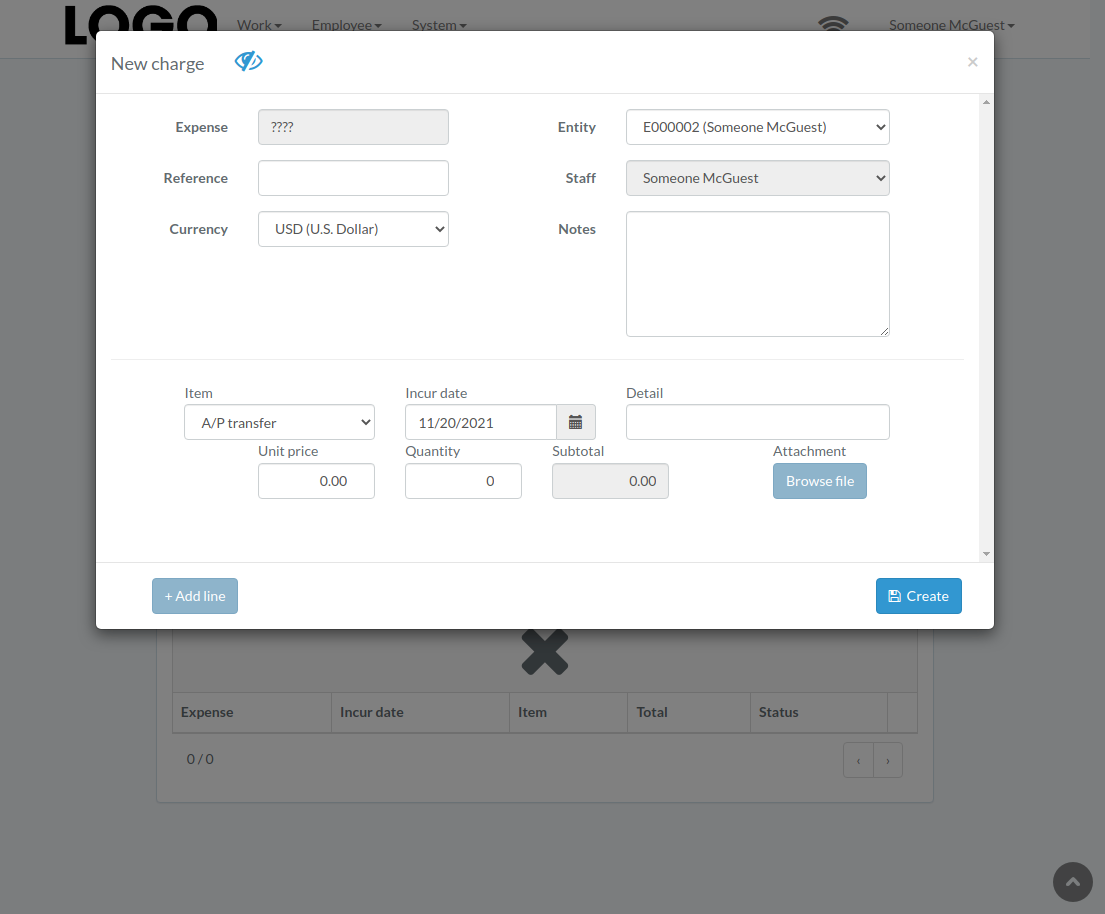
When expense modal appears, enter all information and click "Create" button.
Click "+ Add line" if needed
Update Expense
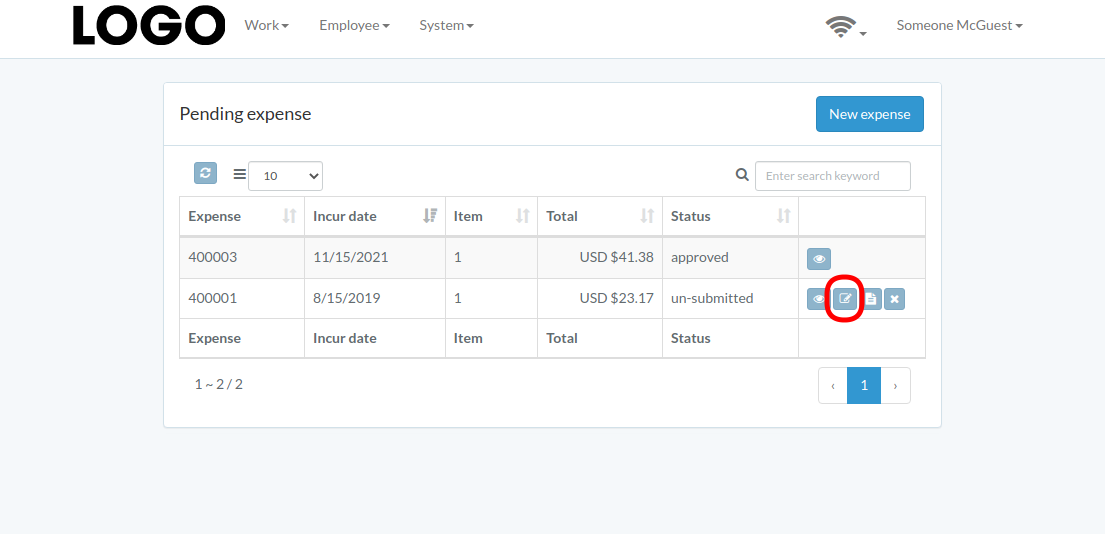
Click "Update" button on the right of expense
If no "Update" button, the expense can not be updated.
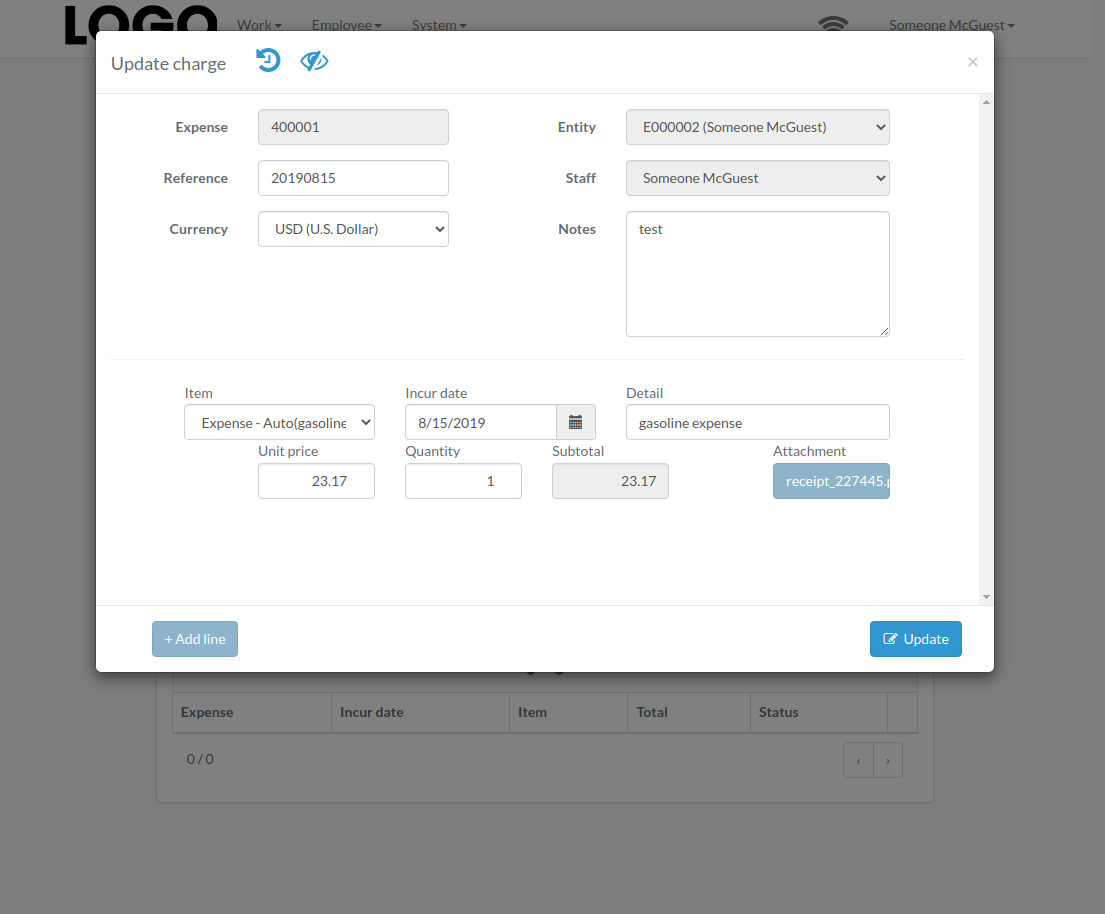
when expense modal appears, update expense data and click "Update" button
Click "+ Add line" if needed
View Expense
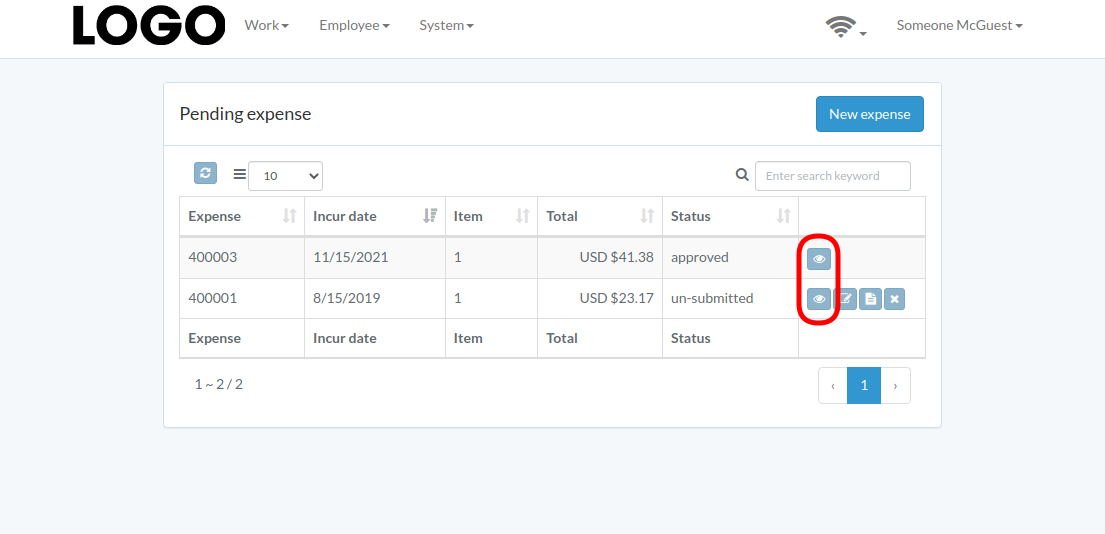
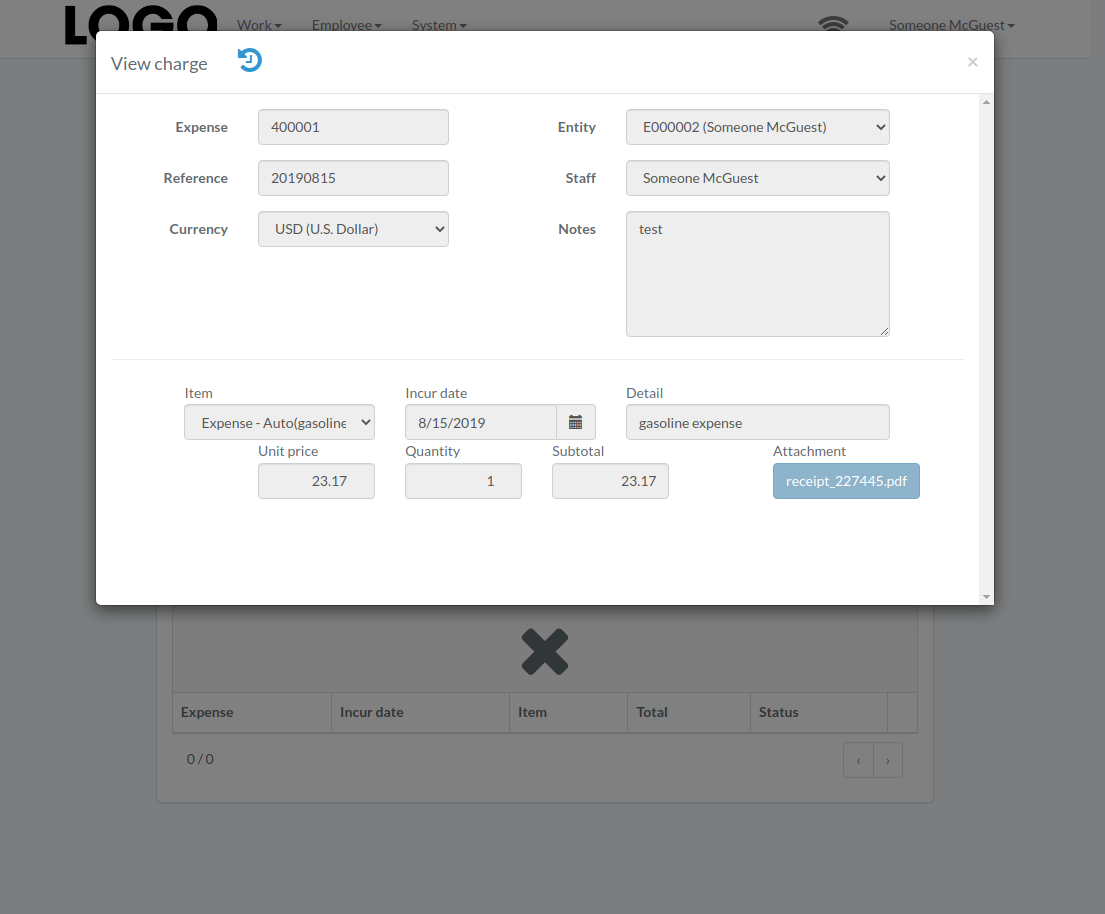
Expense modal appears
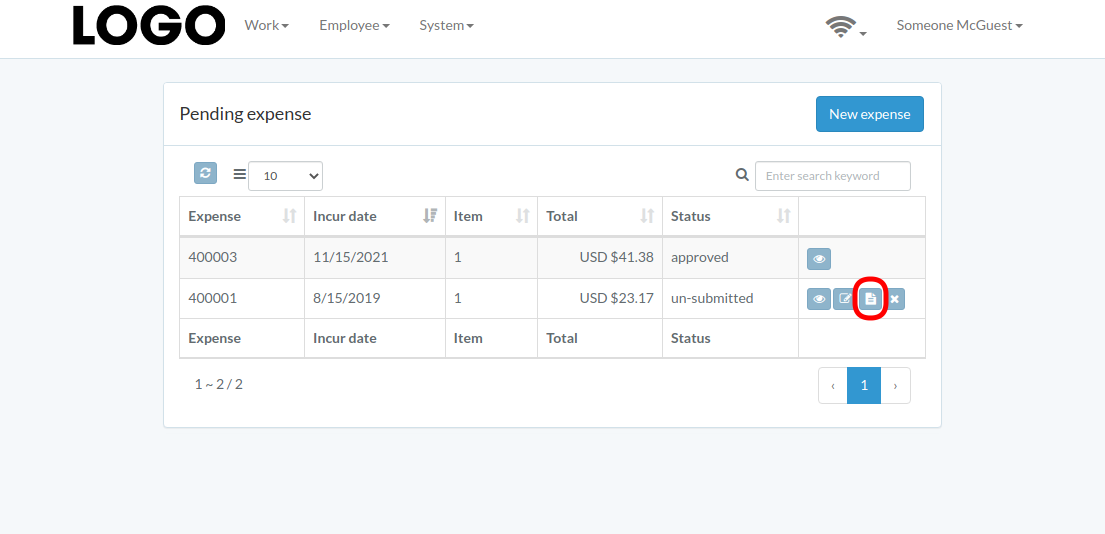
Submit Expense
Click "Submit" button on the right of expense
If no "Submit" button, the expense can not be submitted.
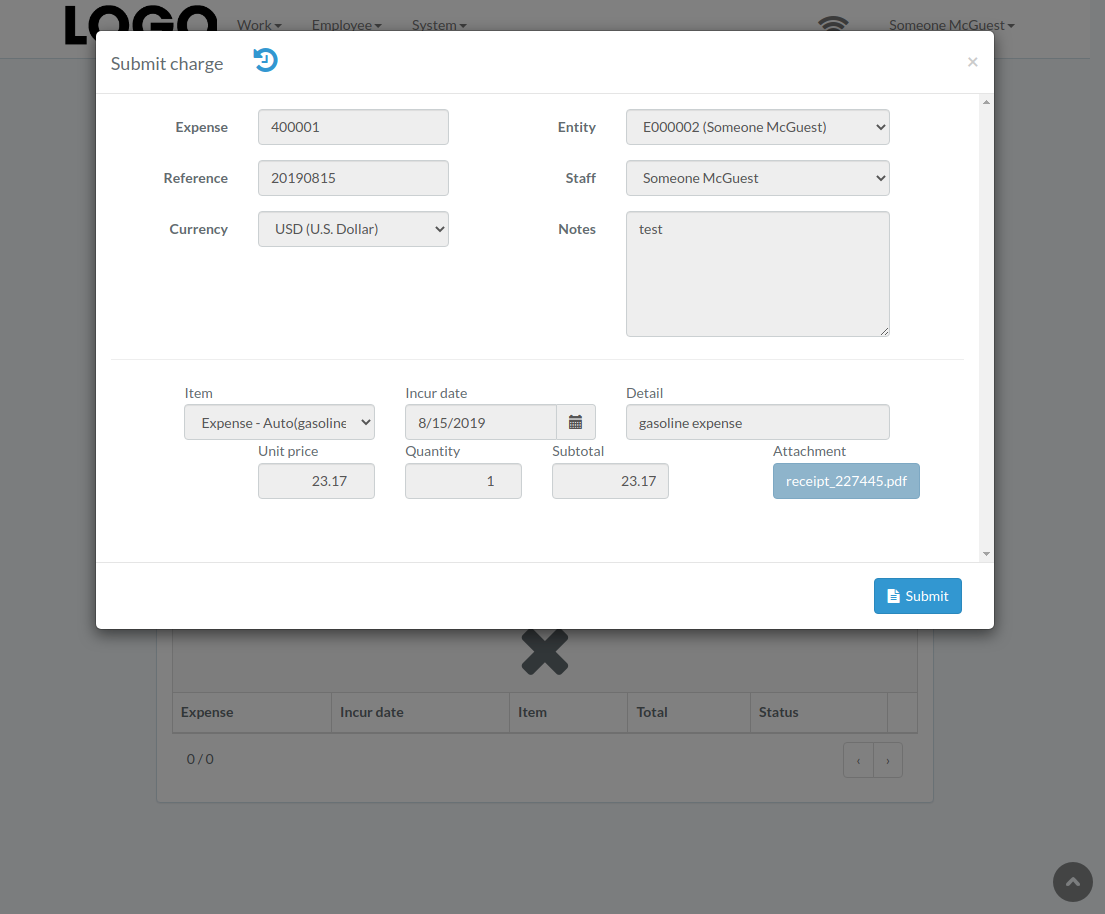
When expense modal appears, click "Submit" button to confirm submission
Retract Expense
Click "Retract" button on the right of expense
If no "Retract" button, the expense can not be retracted.
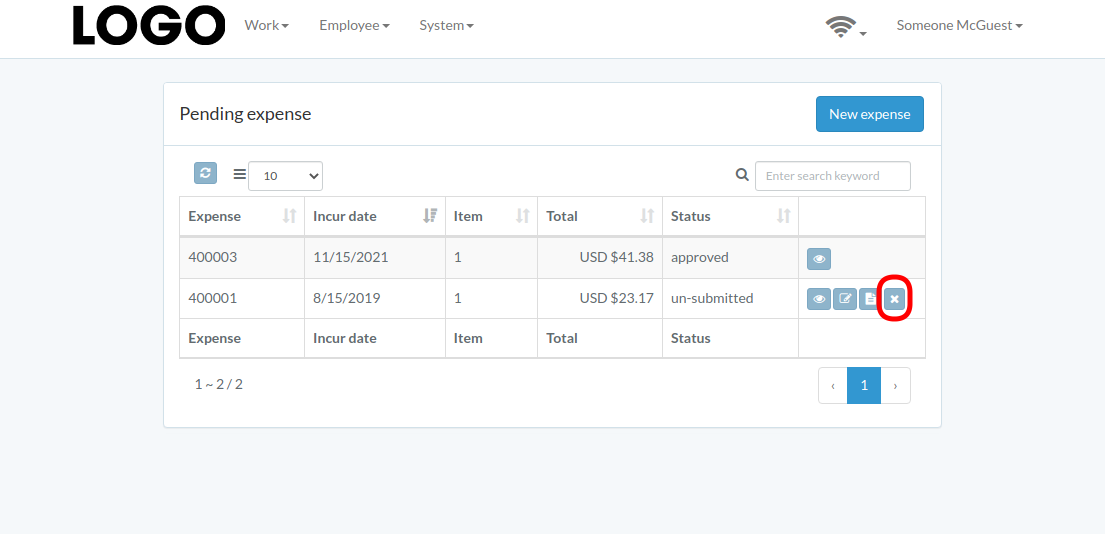
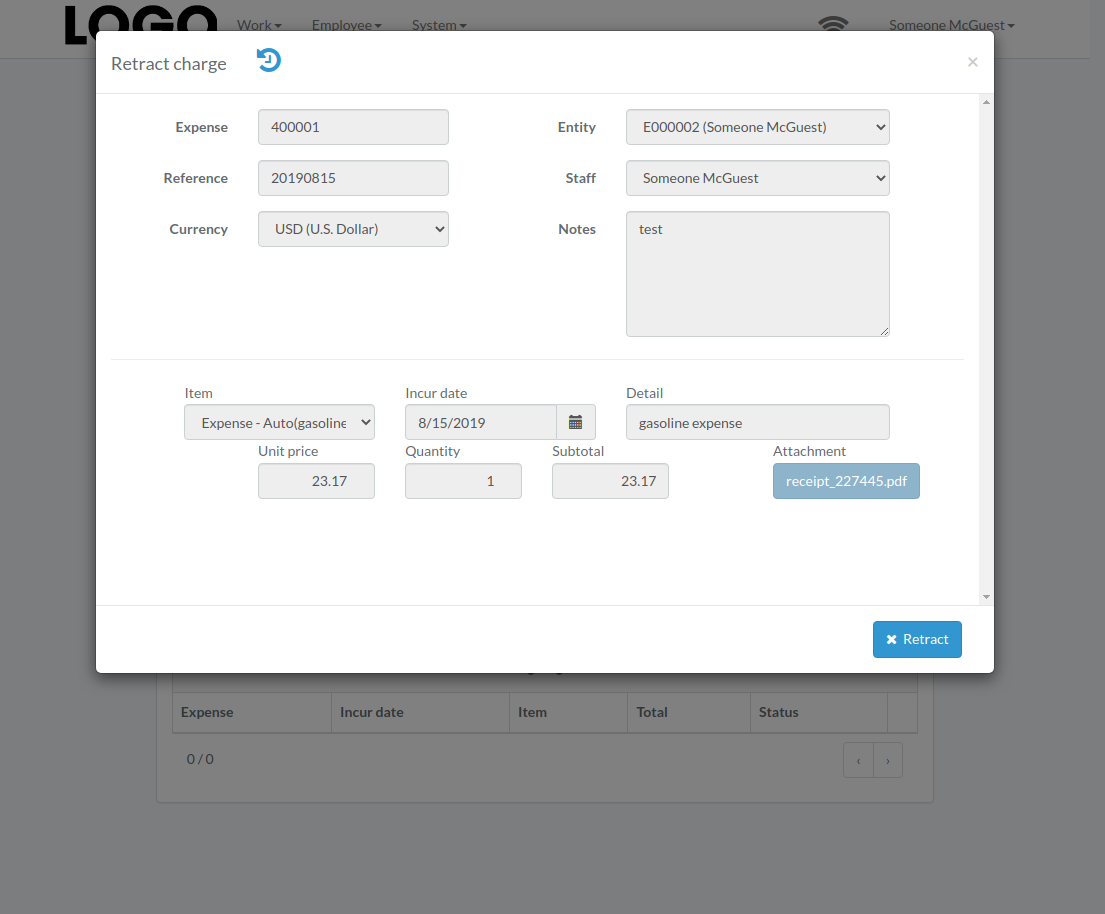
When expense modal appears, click "Retract" button to confirm retraction
Approve Expense
Click "Approve" button on the right of expense
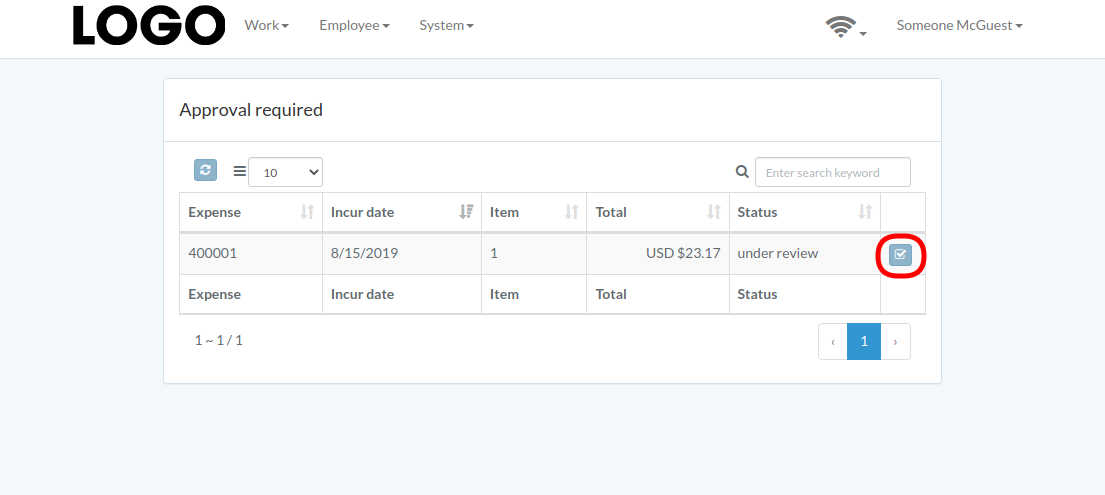
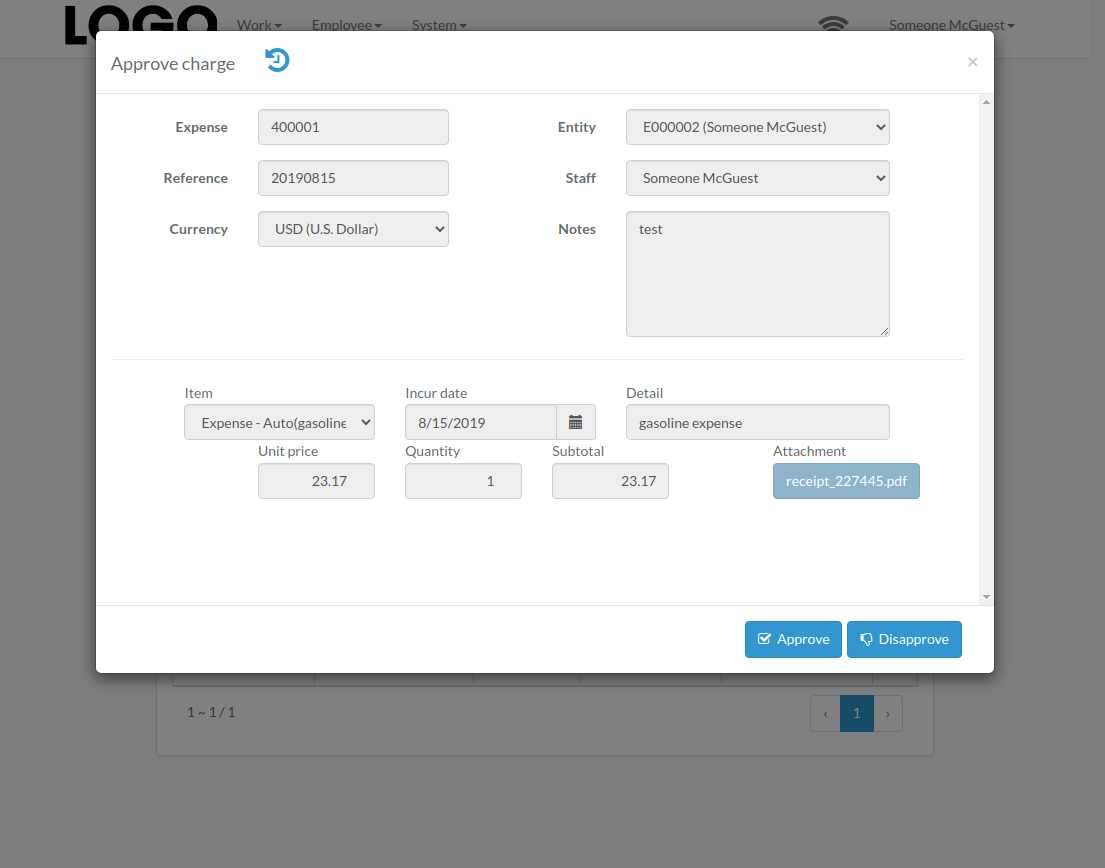
When expense modal appears, click "Approve" or "Disapprove" button to confirm
Interaction
File upload
Introduction
Following chapter describes file-transfer-related feature
Click "File Upload" under Employee menu to access
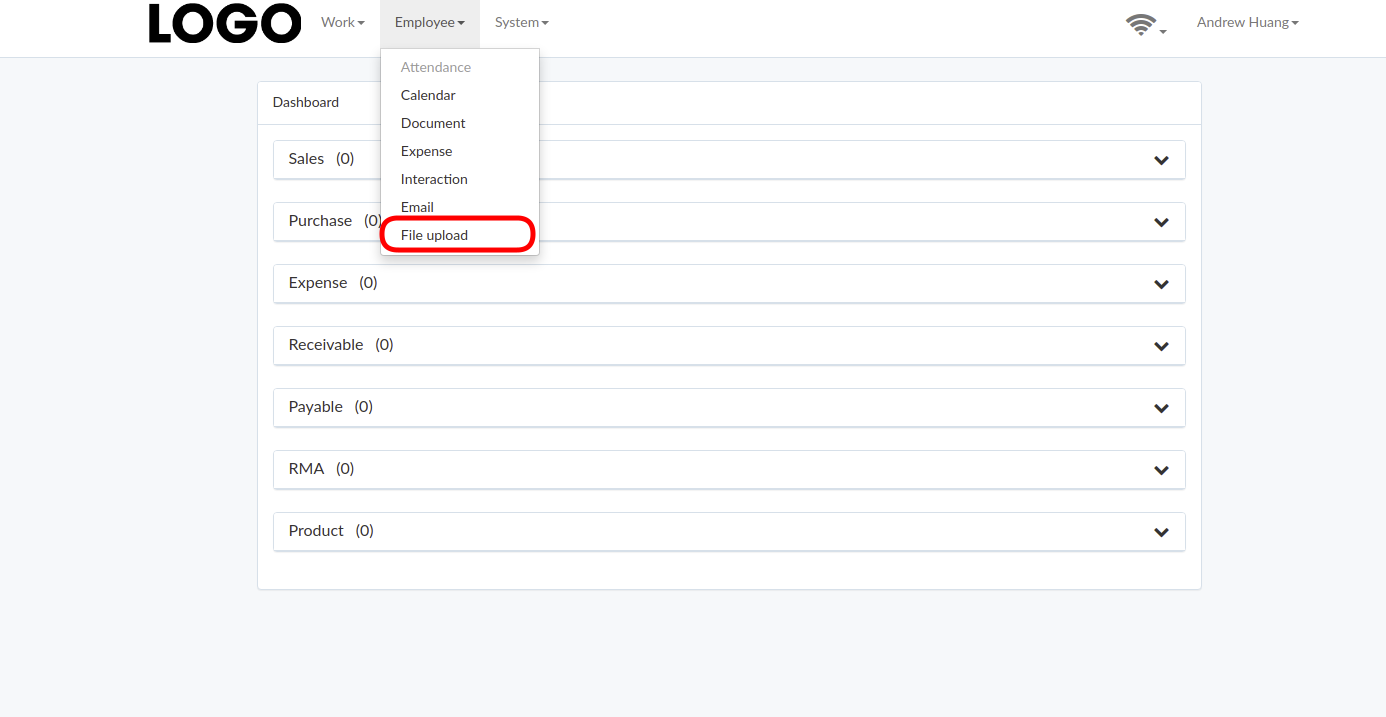
File Upload
Click "Browse file" to select file; then click "Upload" to upload
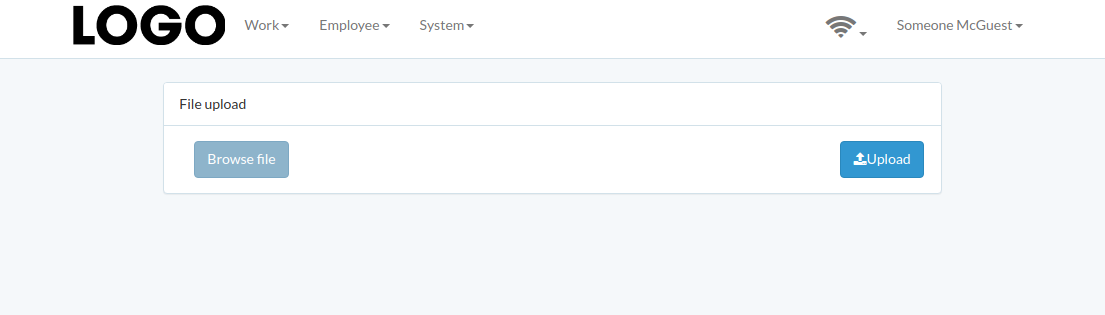
File Download
After successful upload, a download link appears. Please pass the link to file recipient