Gasto
Introducción
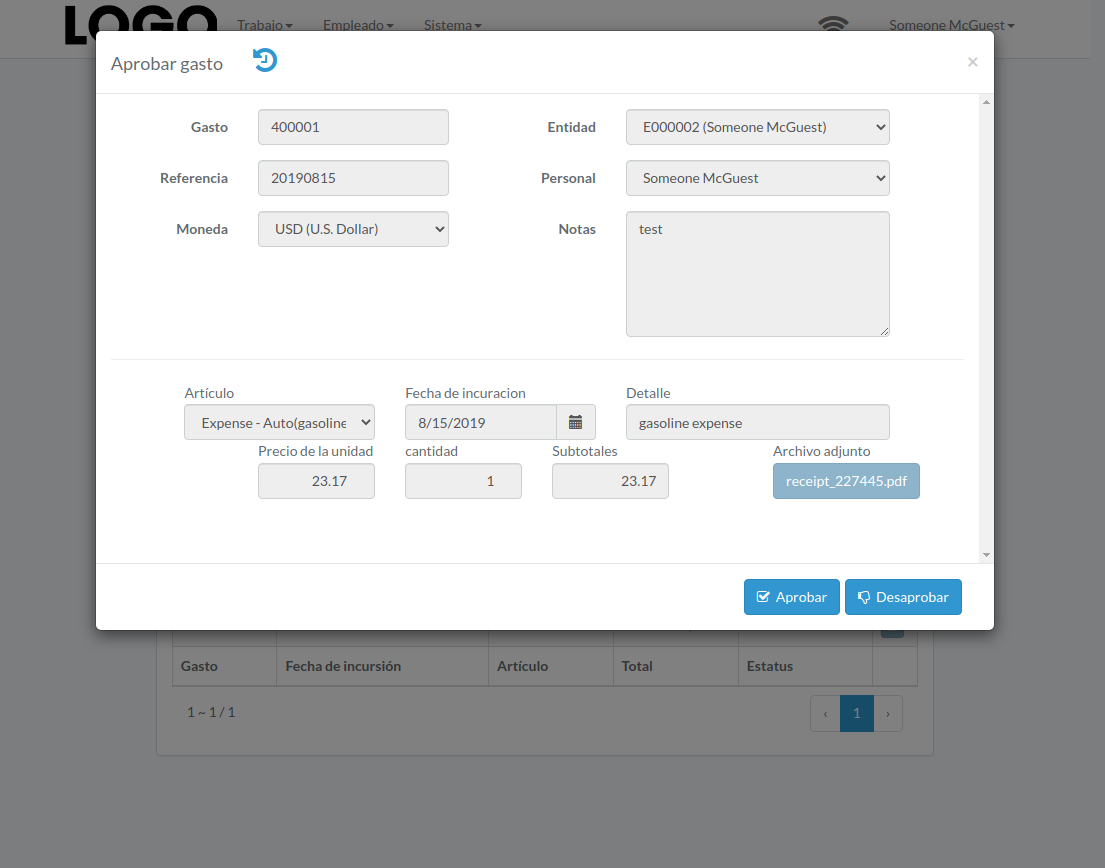
Following shows a sample window.
The chapter describes features available within the window.
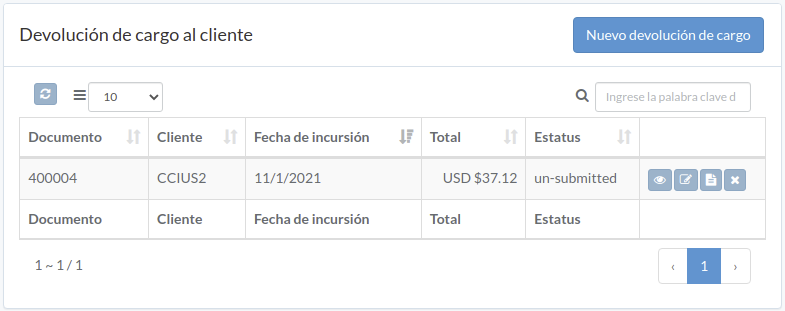
Crear Gasto
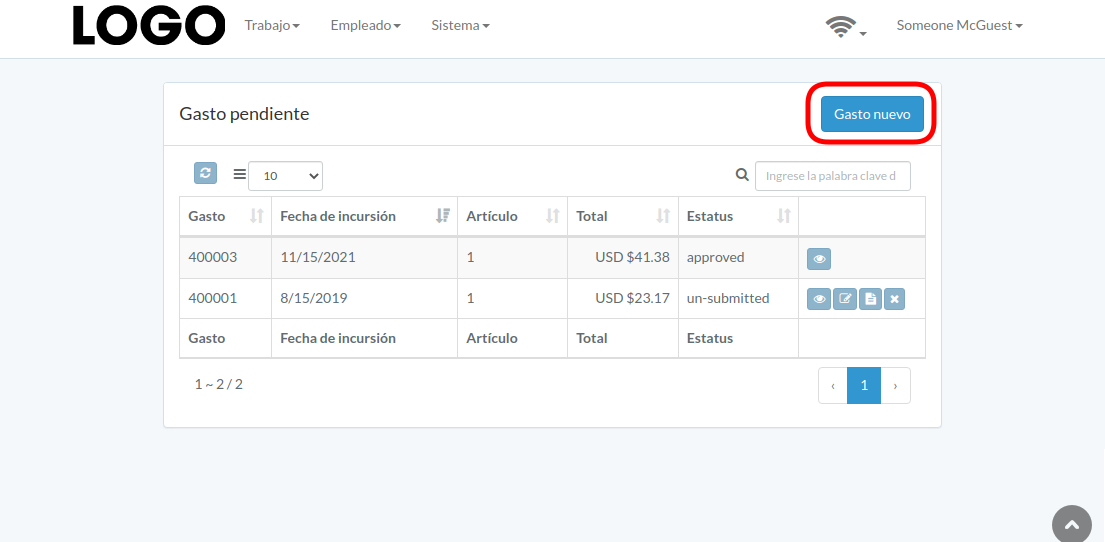
Click "New expense" on upper right corner of expense table
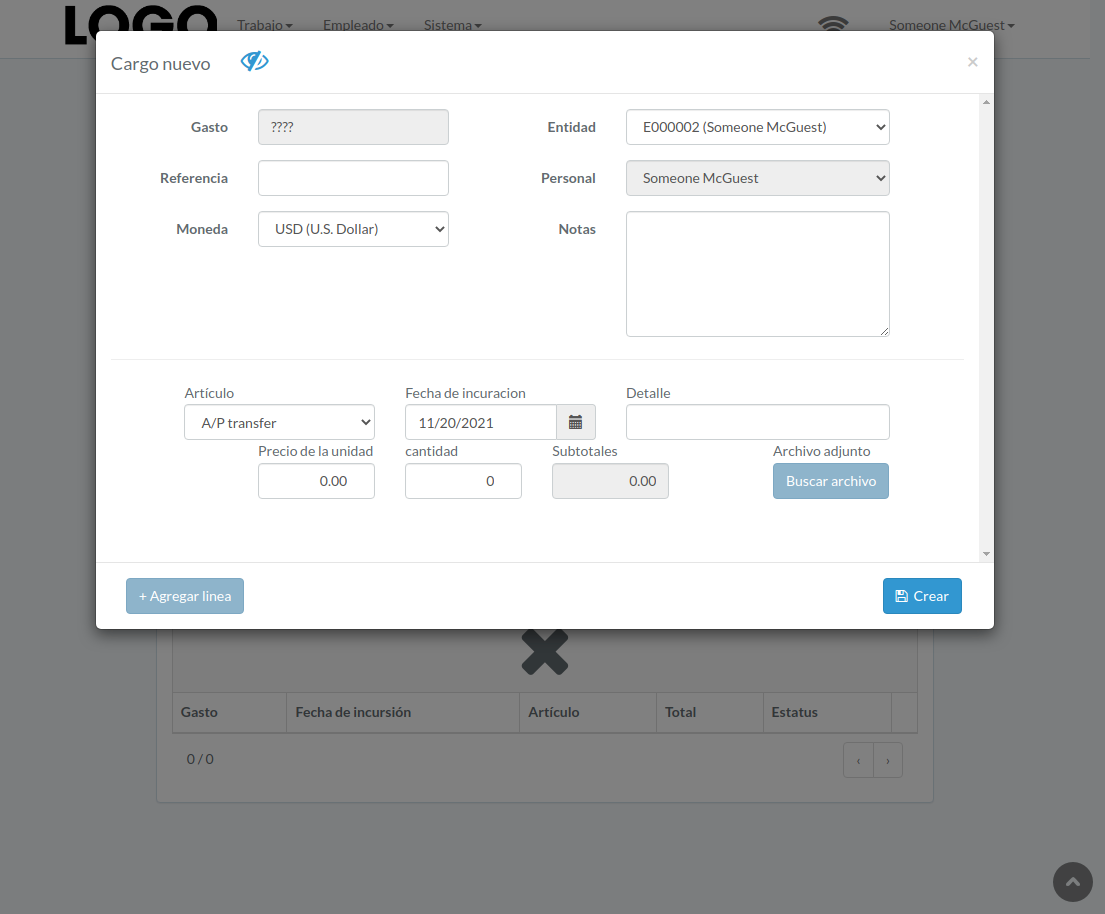
When expense modal appears, enter all information and click "Create" button.
Click "+ Add line" if needed
Actualizar Gasto
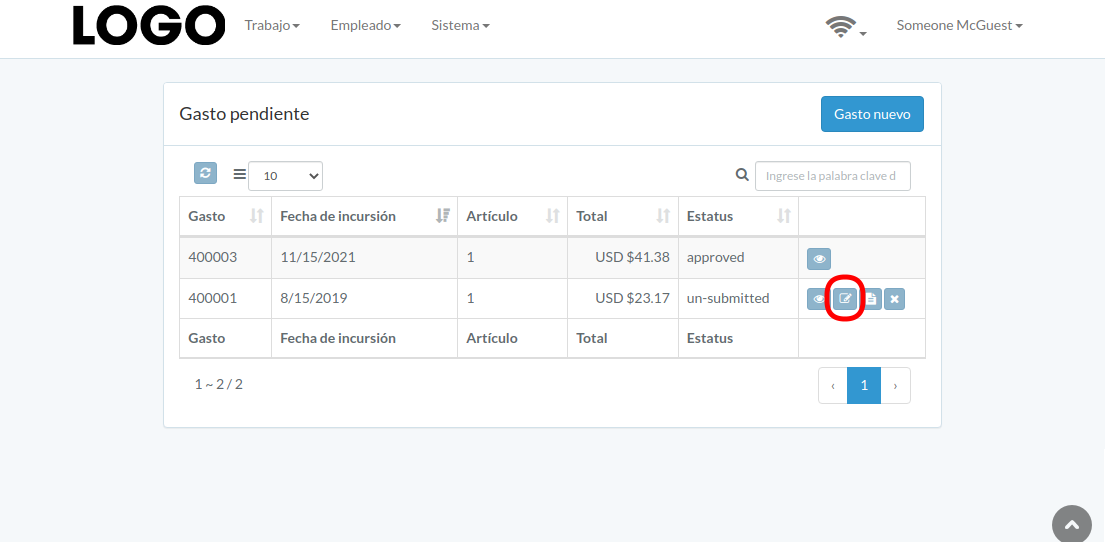
Click "Update" button on the right of expense
If no "Update" button, the expense can not be updated.
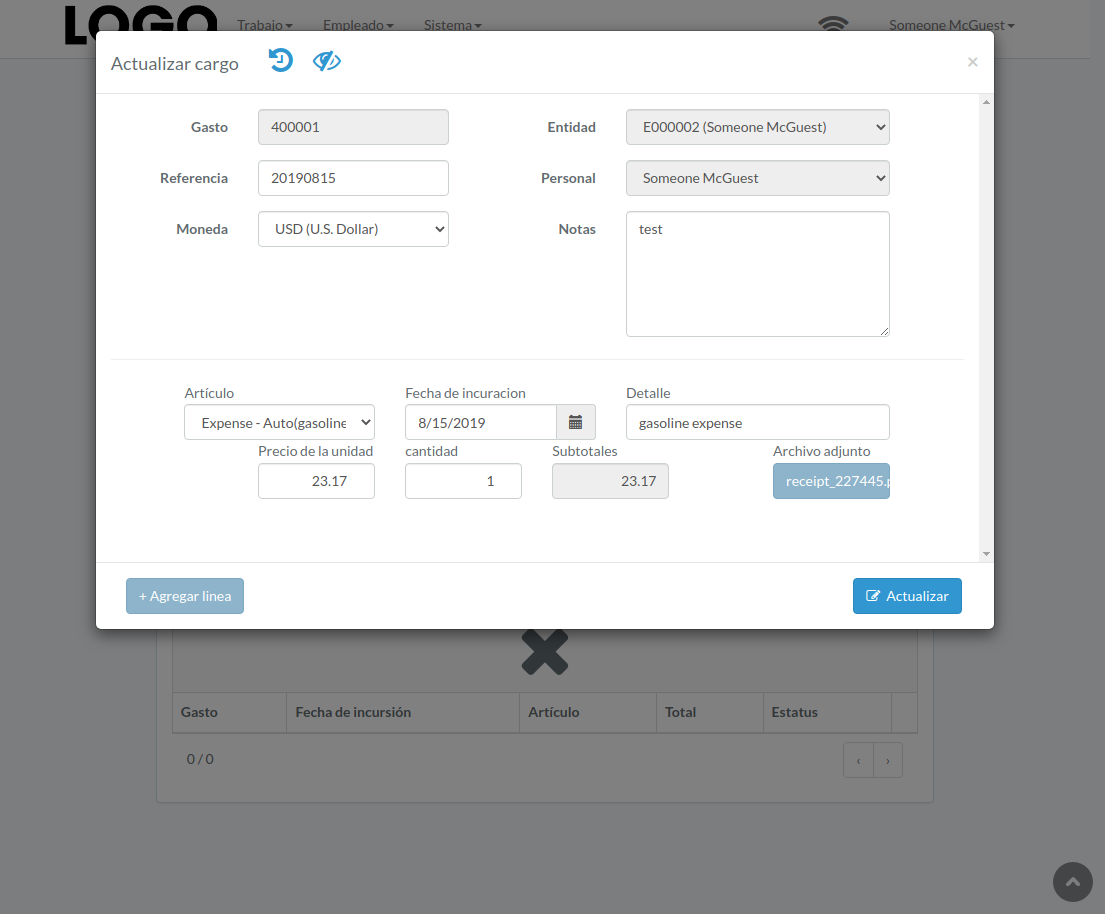
when expense modal appears, update expense data and click "Update" button
Click "+ Add line" if needed
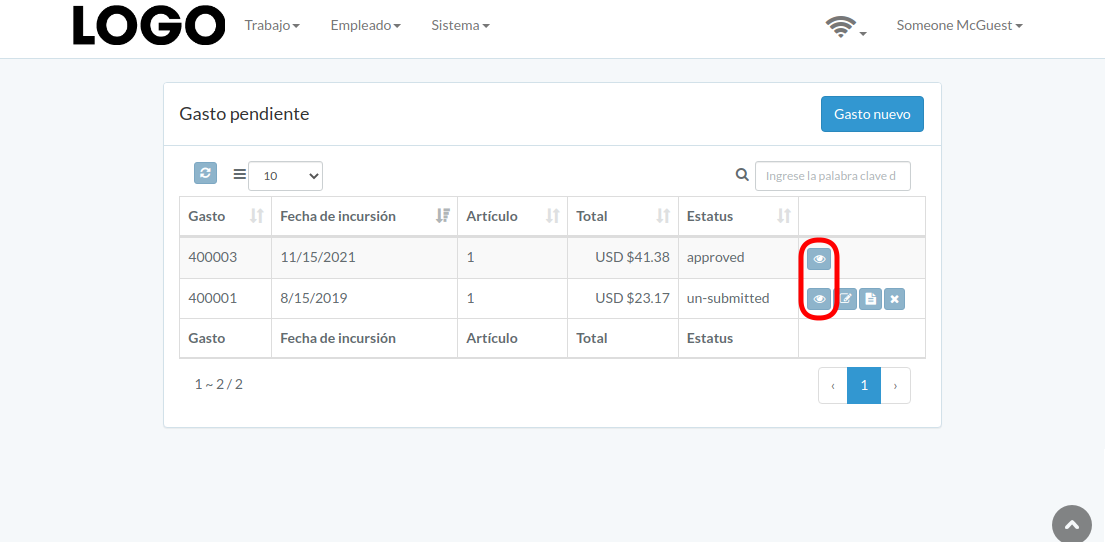
Ver Gasto
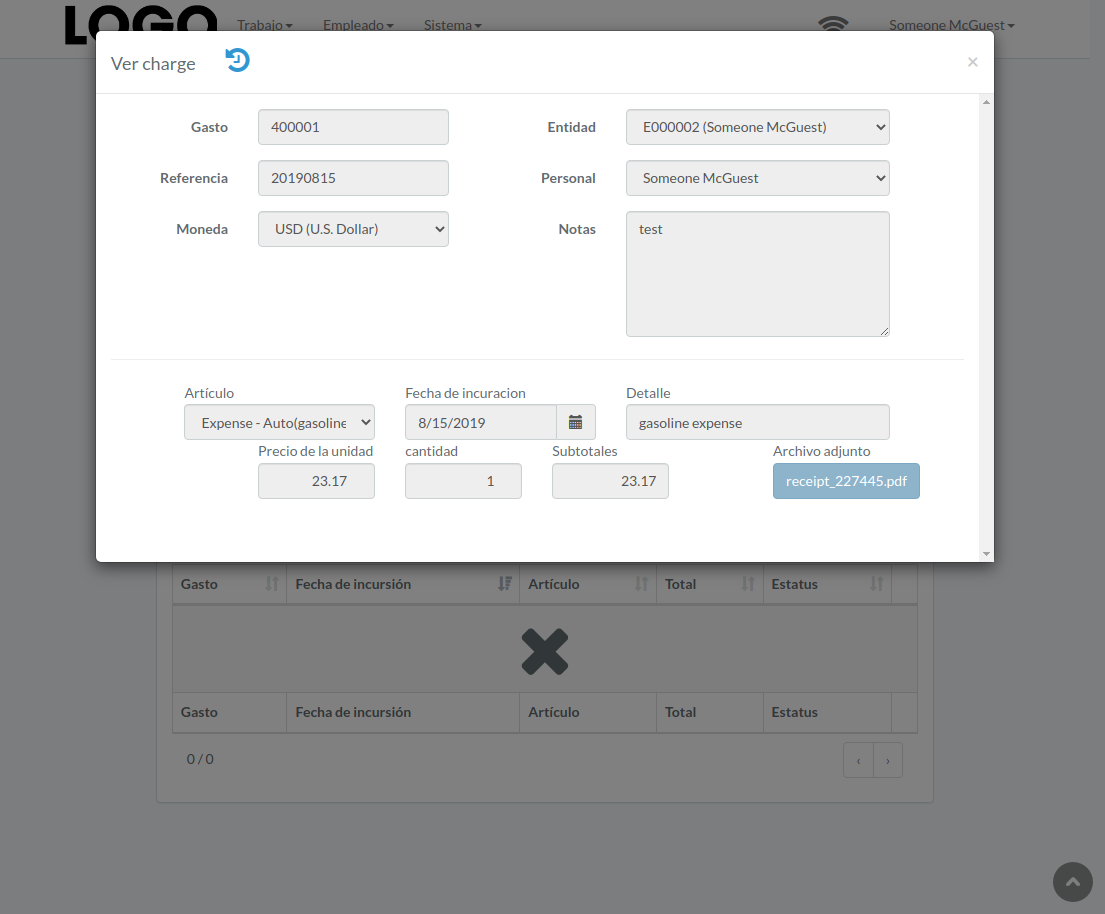
Expense modal appears
Enviar Gasto
Click "Submit" button on the right of expense
If no "Submit" button, the expense can not be submitted.
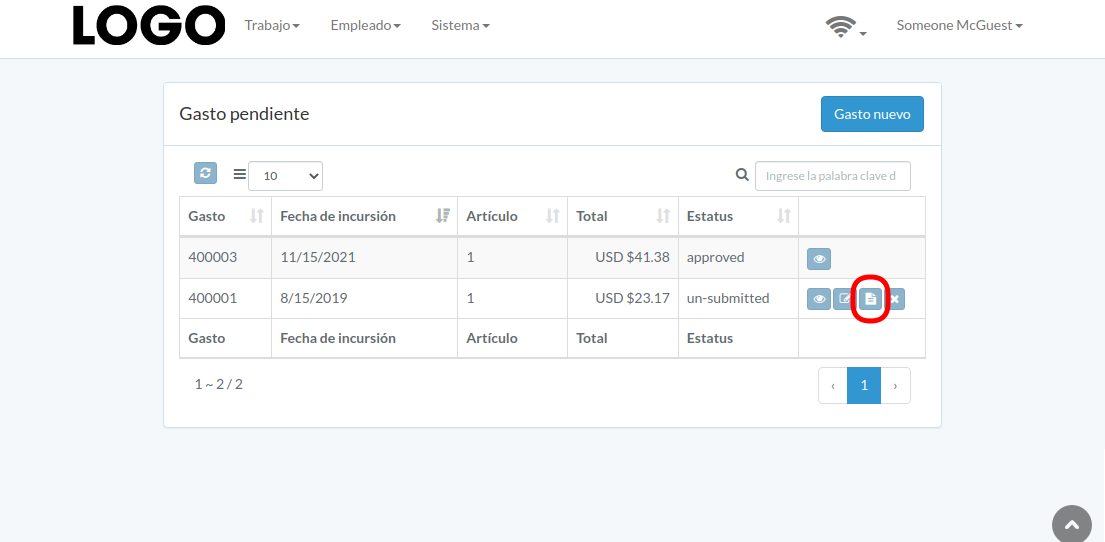
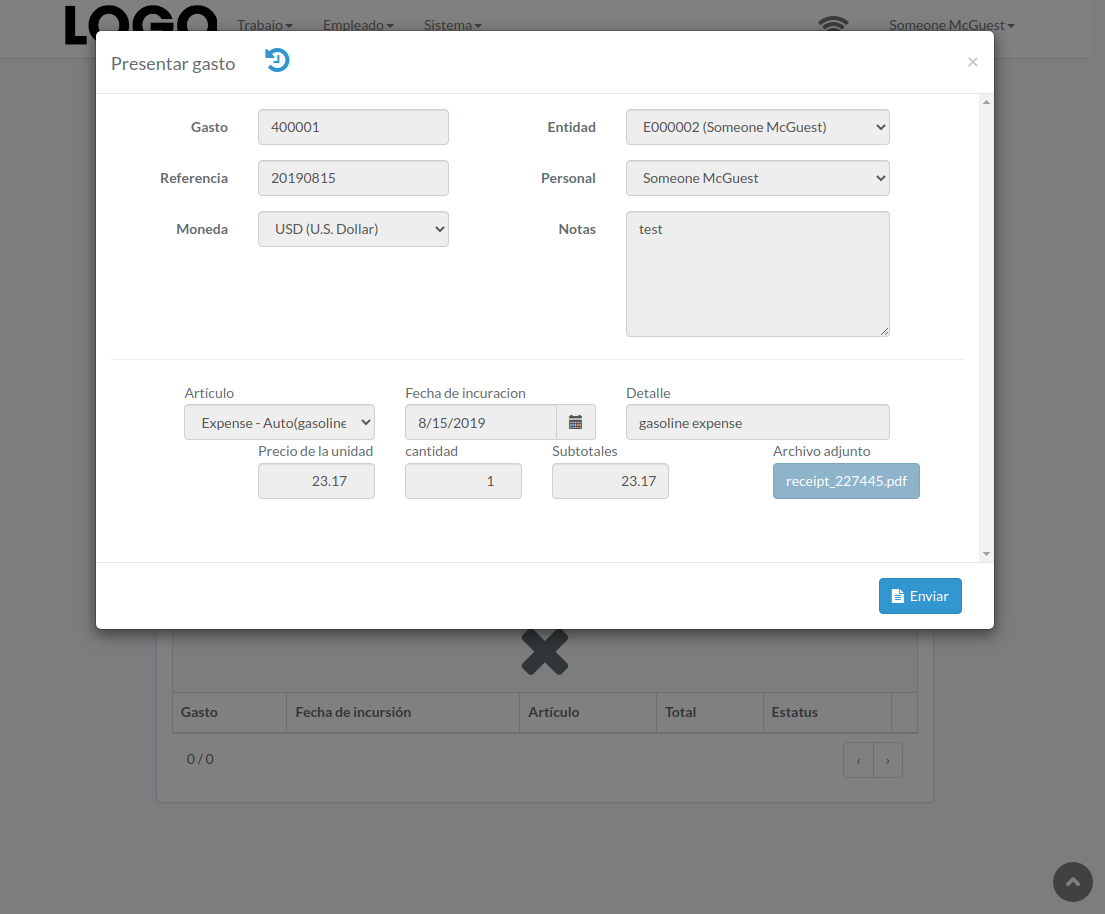
When expense modal appears, click "Submit" button to confirm submission
Retraer Gasto
Click "Retract" button on the right of expense
If no "Retract" button, the expense can not be retracted.
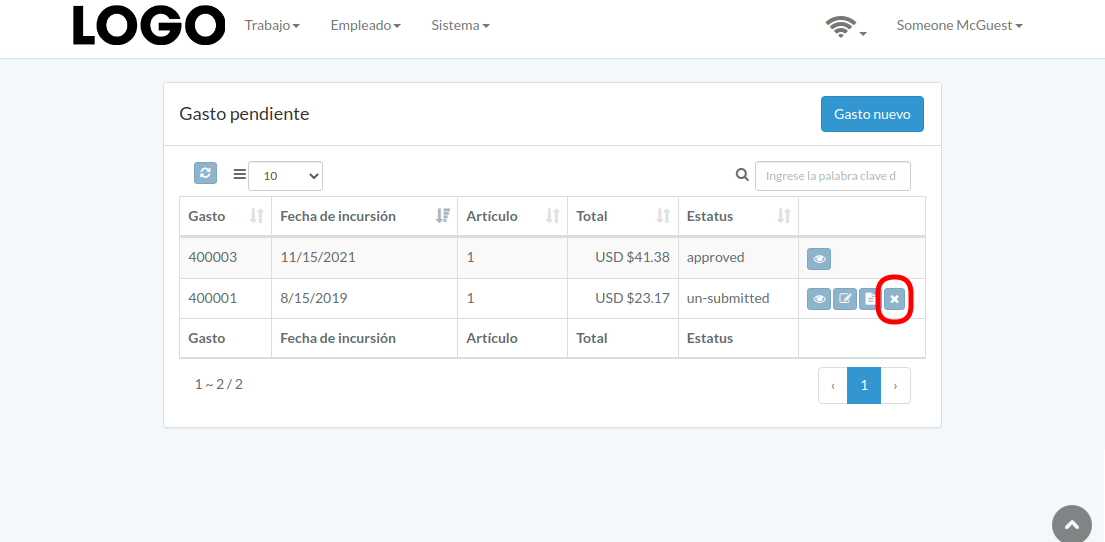
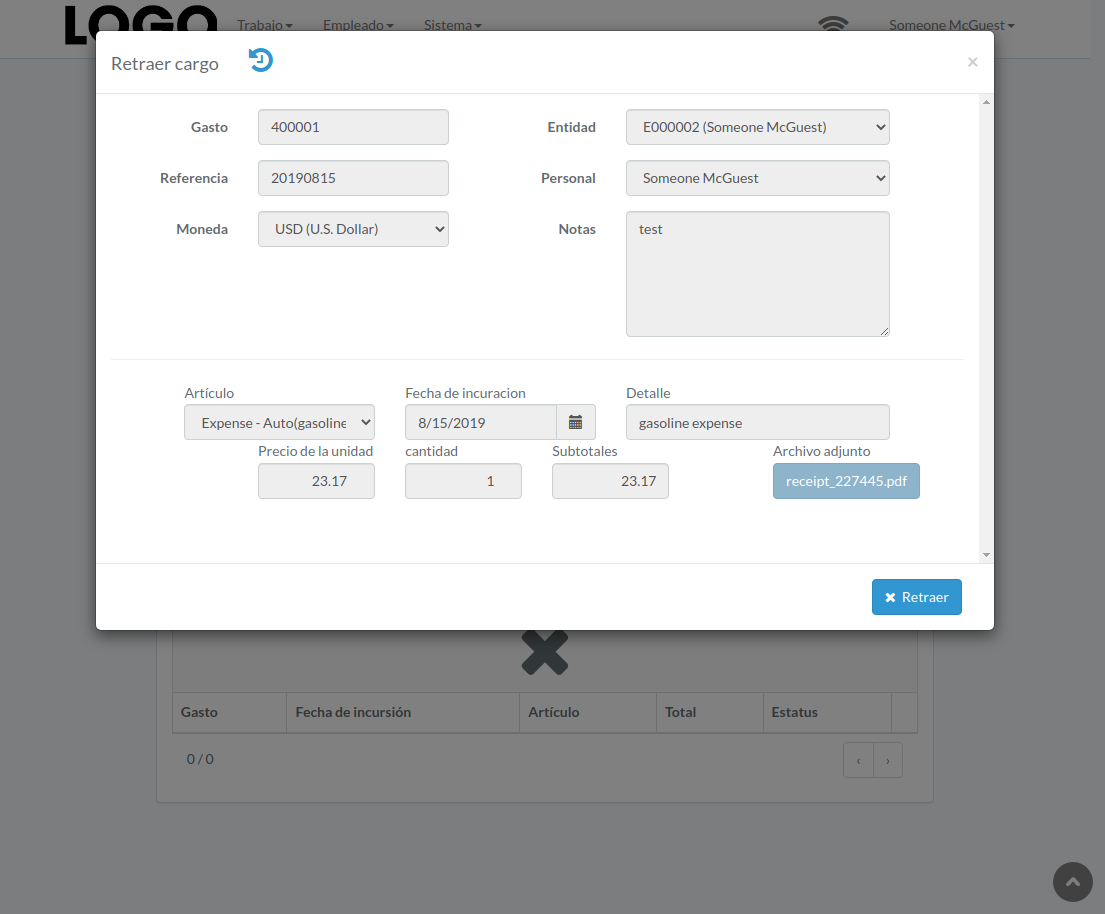
When expense modal appears, click "Retract" button to confirm retraction
Aprobar Gasto
Click "Approve" button on the right of expense
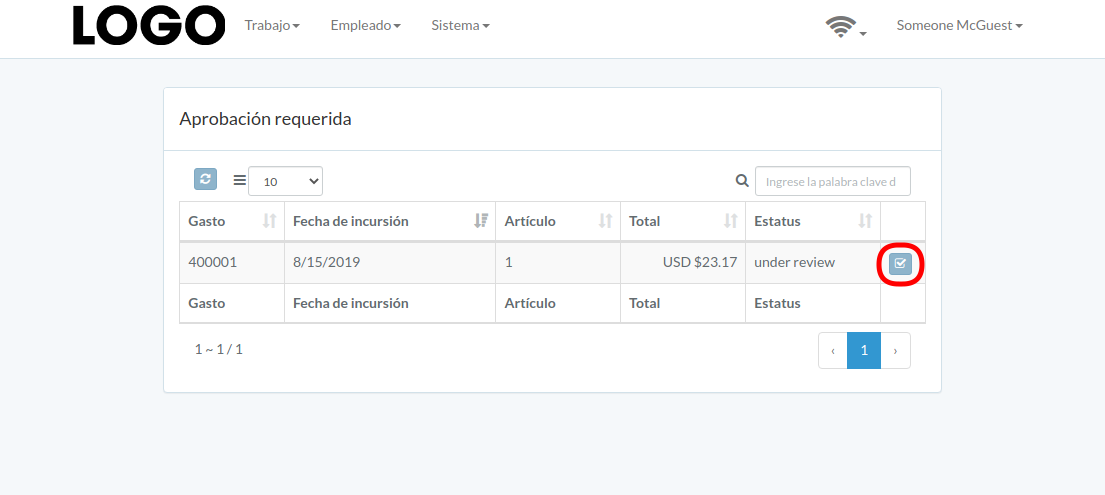
When expense modal appears, click "Approve" or "Disapprove" button to confirm