Contabilidad
Manual de operación de contabilidad en español
- Introducción
- Panel de control
- Cobrar
- Cliente
- Pagadero
- Proveedor
- Cargo
- Inventorio
- Catálogo de cuentas
- Reemplazable
- Informe
- Utensil
Introducción
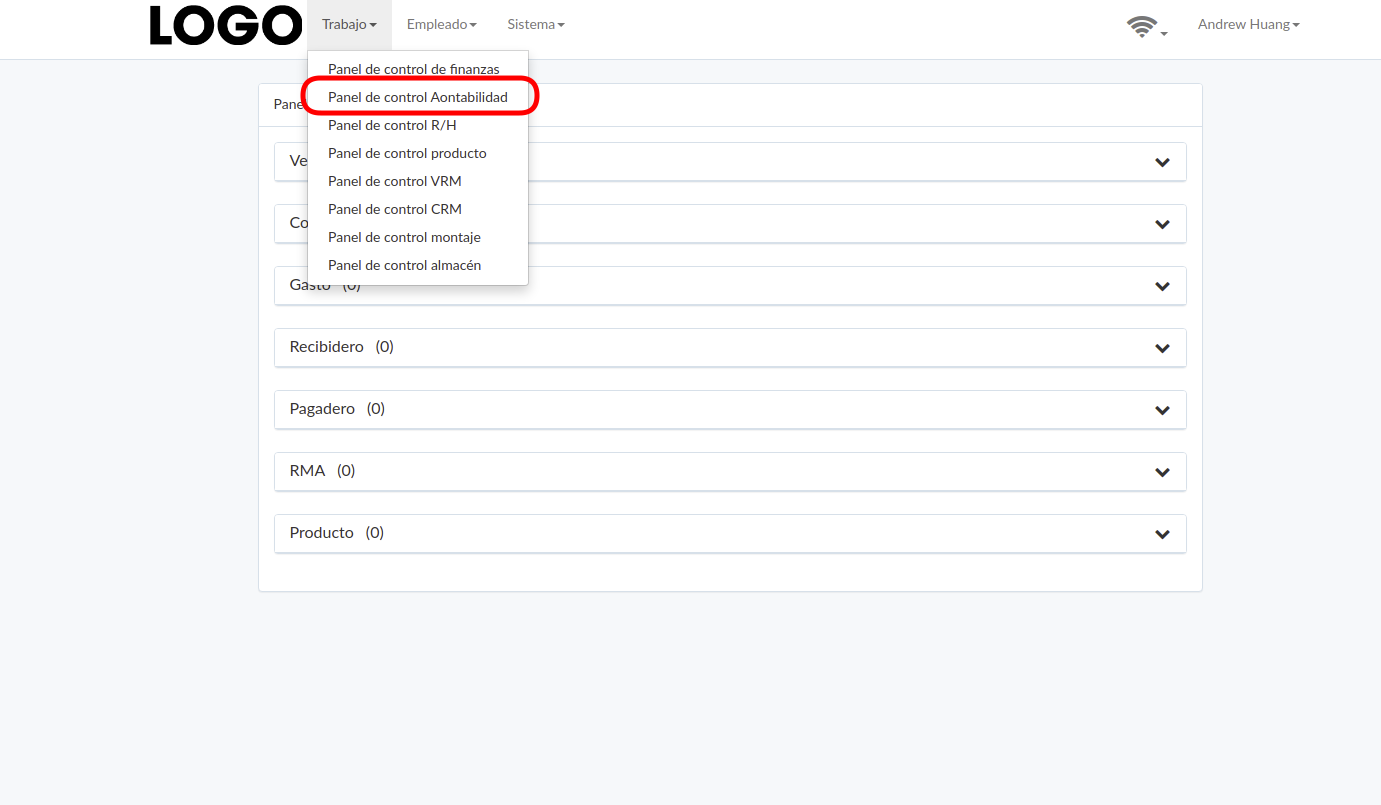
Accounting dashboard can be found under "Work" menu
Panel de control
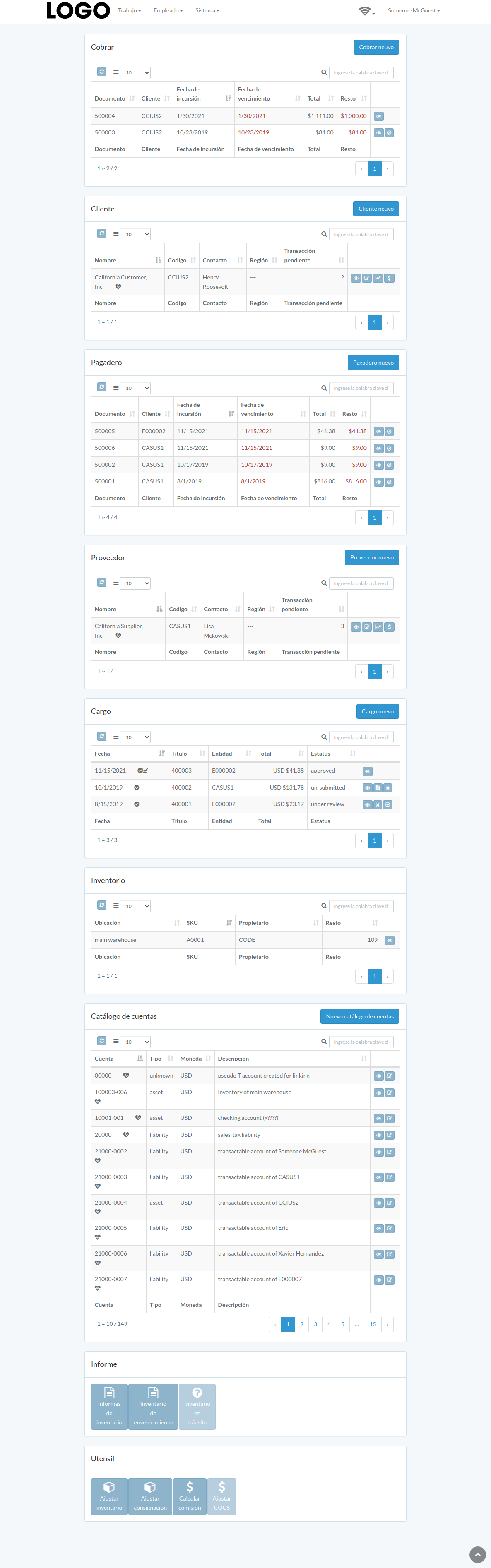
Following is an example dashboard
There are several major sections; Receivable, Customer, Payable, Supplier, Charge, Inventory, chart-account, Report, Tool.
Some sections may not be available from customization
Cobrar
Introducción
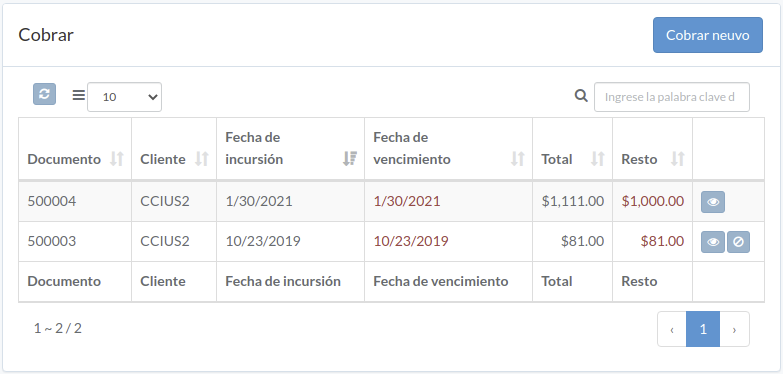
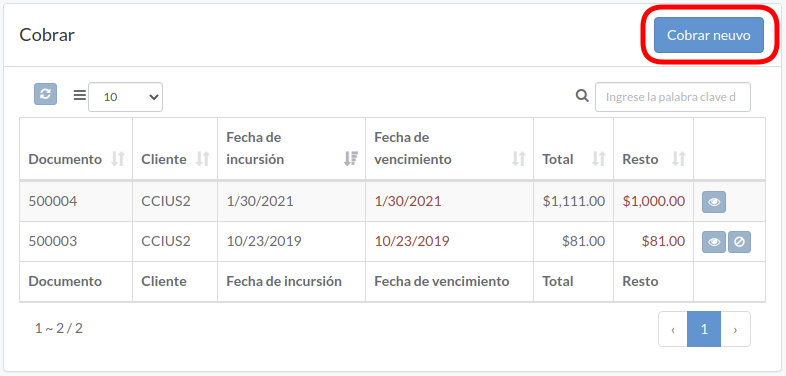
Following shows a sample window.
The chapter describes features available within the window.
Crear cobrar
Click "New receivable" on upper right corner of receivable table
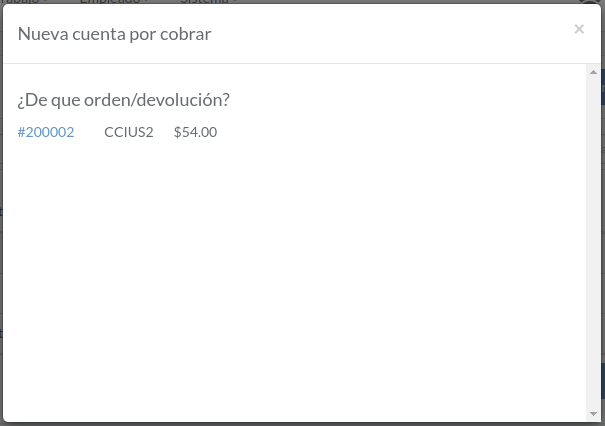
Click on title of which receivable should be generated from
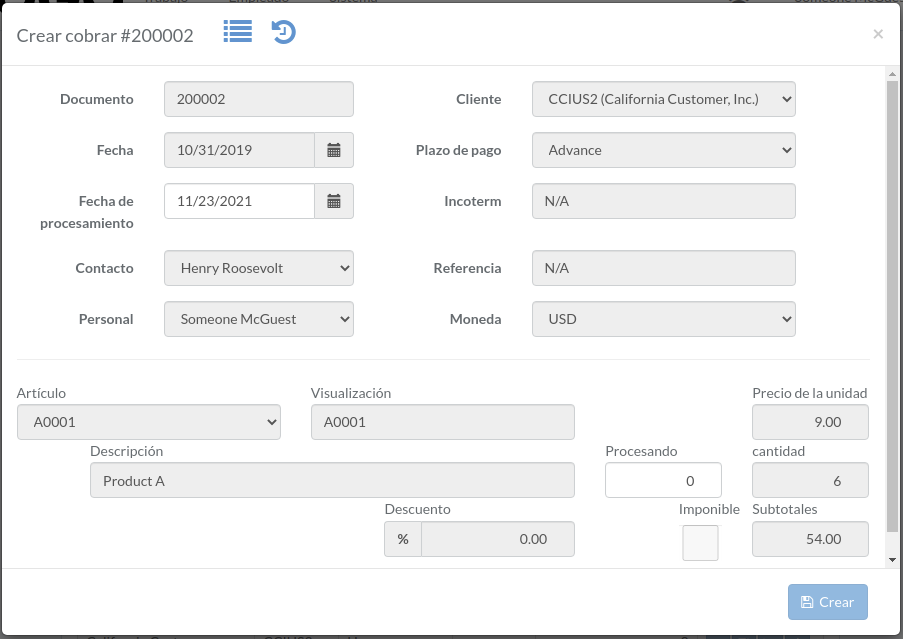
Enter incur-date and processing quantity, then click "Create".
Ver cobrar
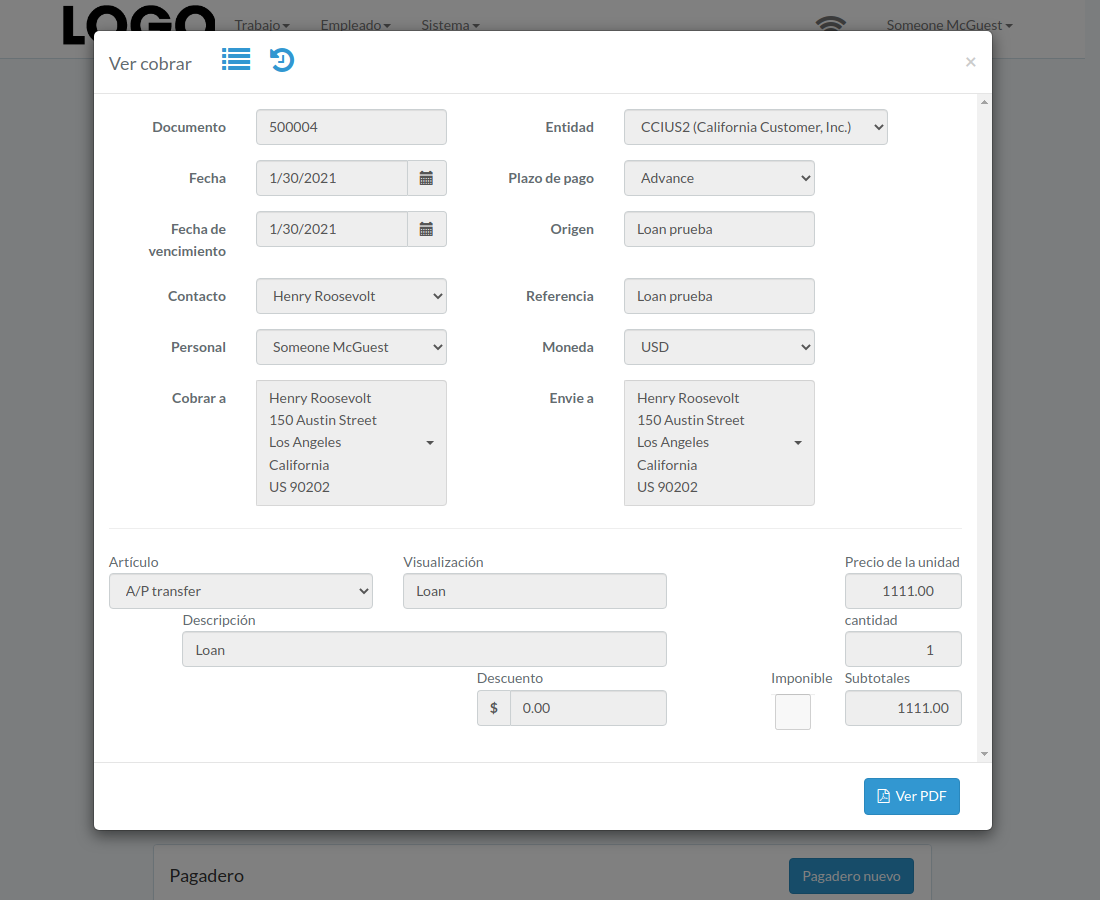
Click "View" button on the right of receivable

Receivable modal appears
Anular cobrar
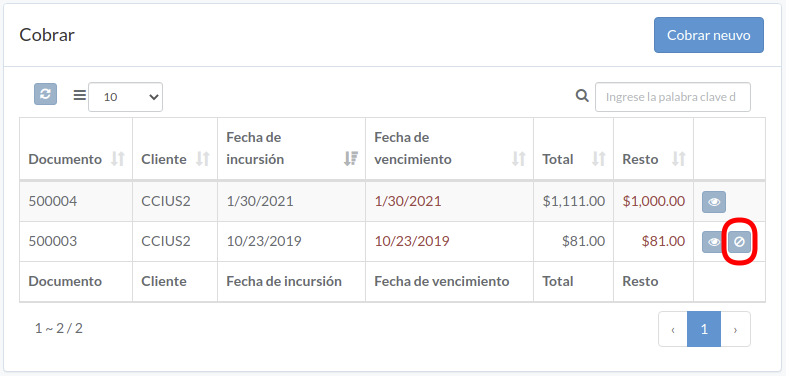
Click "Void" button on the right of receivable
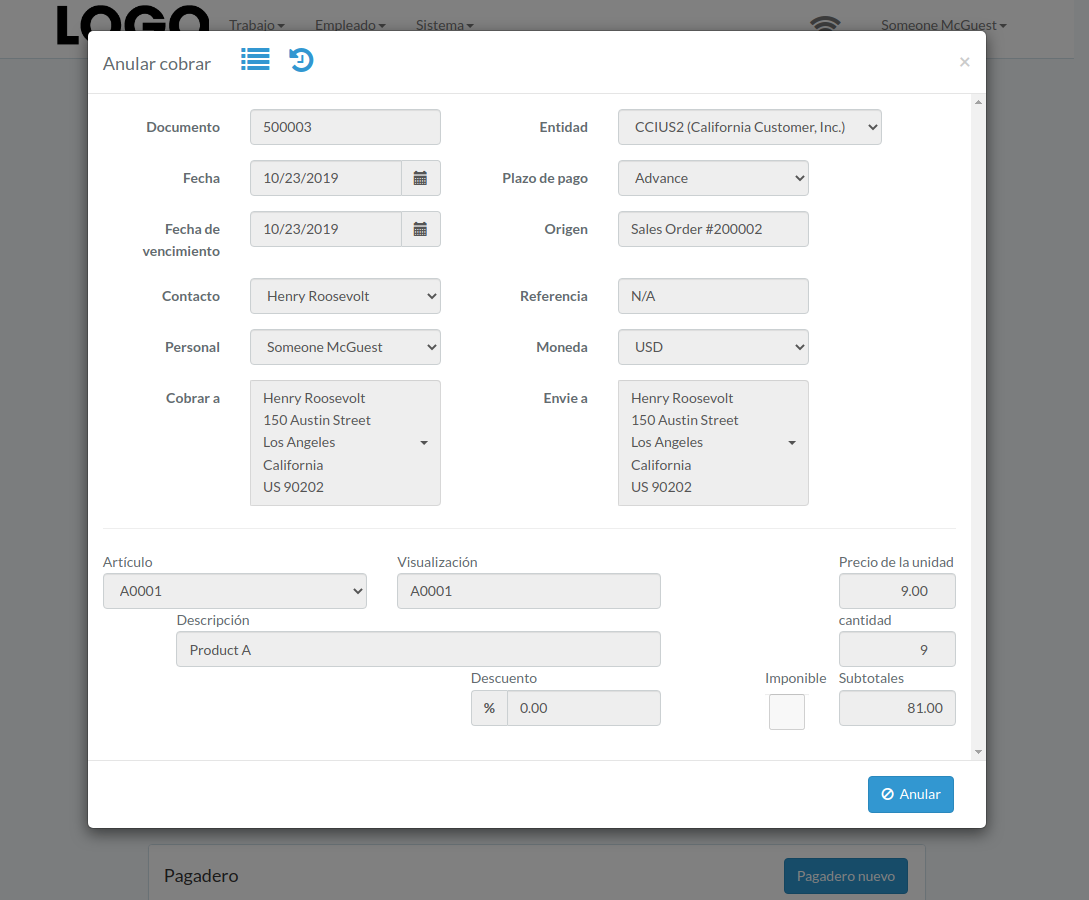
When receivable modal appears, click "Void" button to confirm
Cliente
Introducción
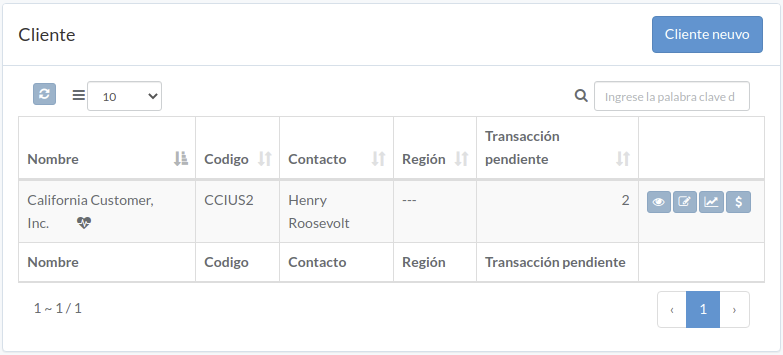
Following shows a sample window.
The chapter describes features available within the window.
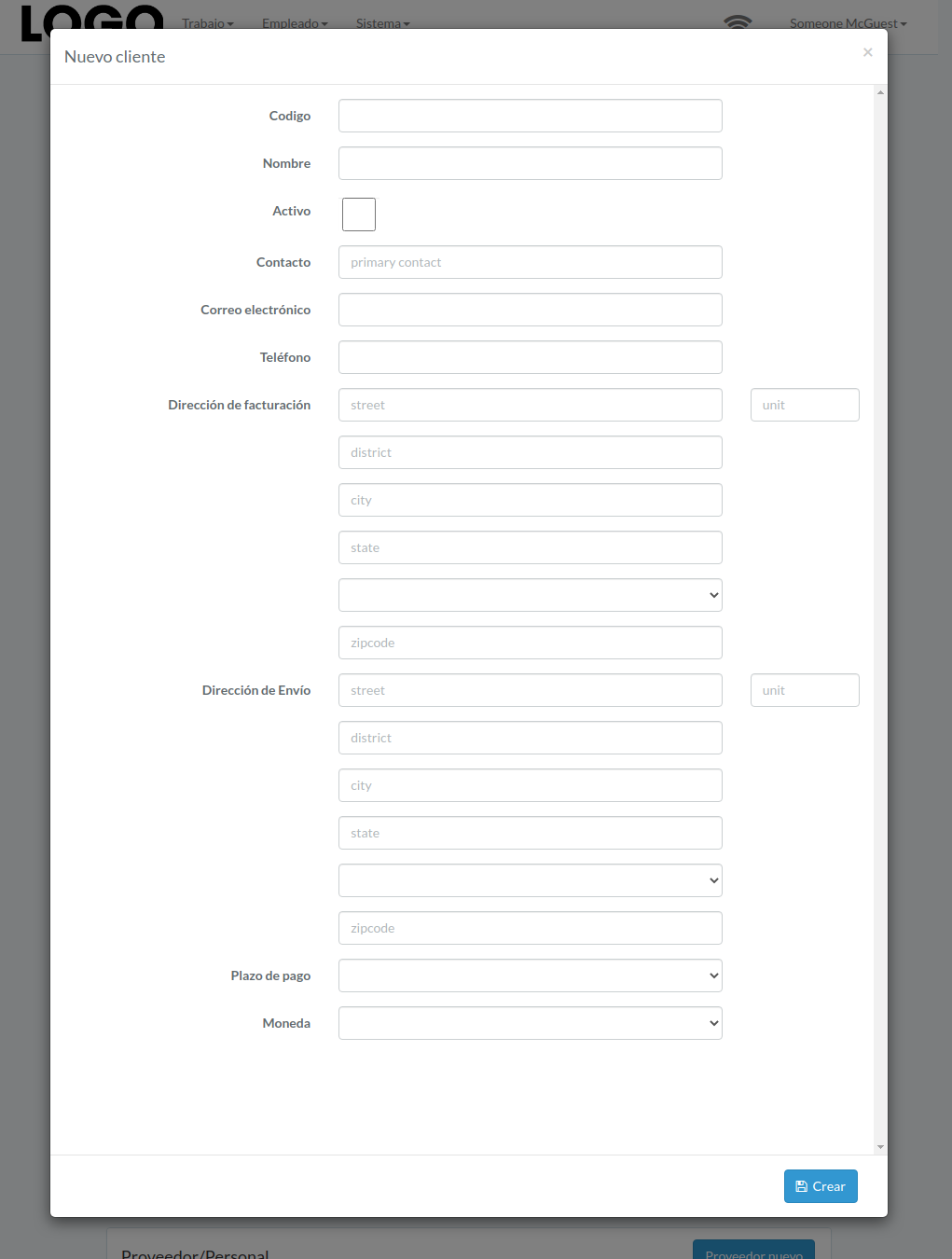
Crear Cliente
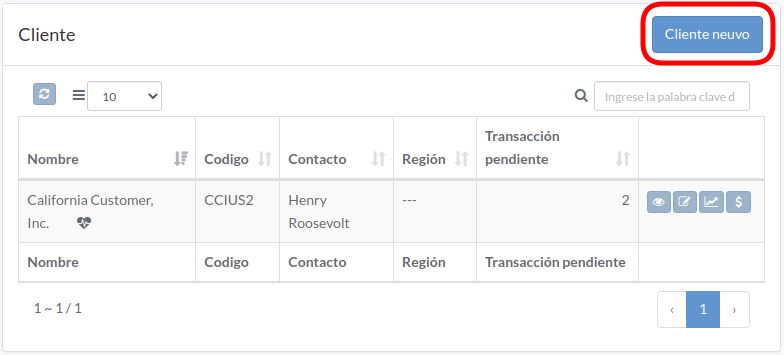
Click "New customer" on upper right corner of customer table
Enter customer data, then click "Create".
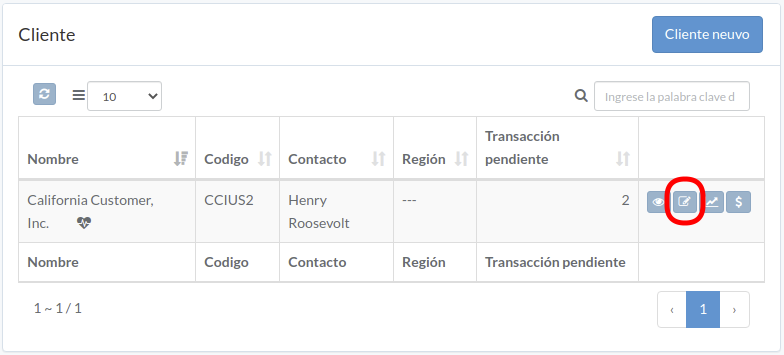
Actualizar Cliente
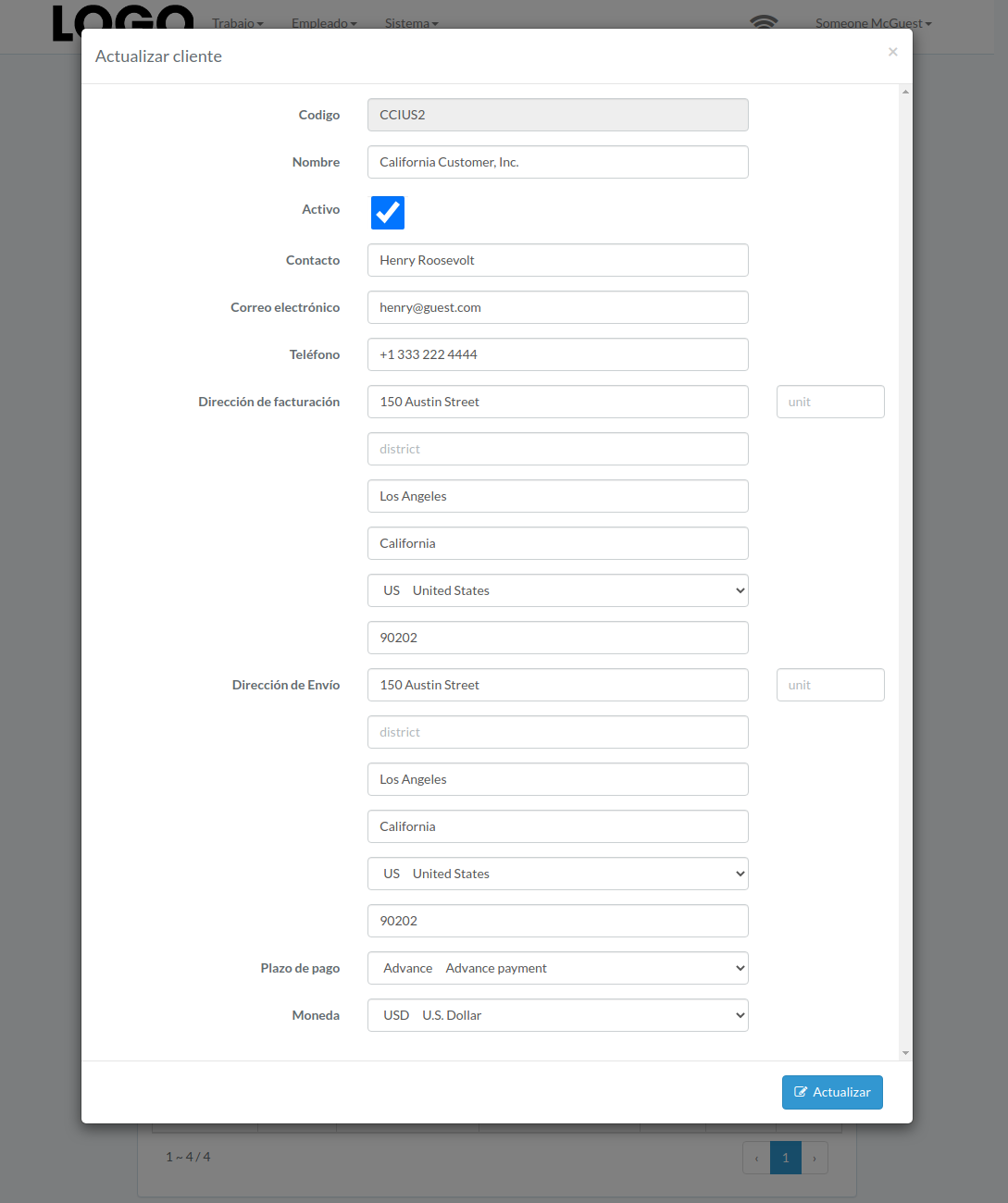
Click "Update" button on the right of customer
Update information, then click "Update".
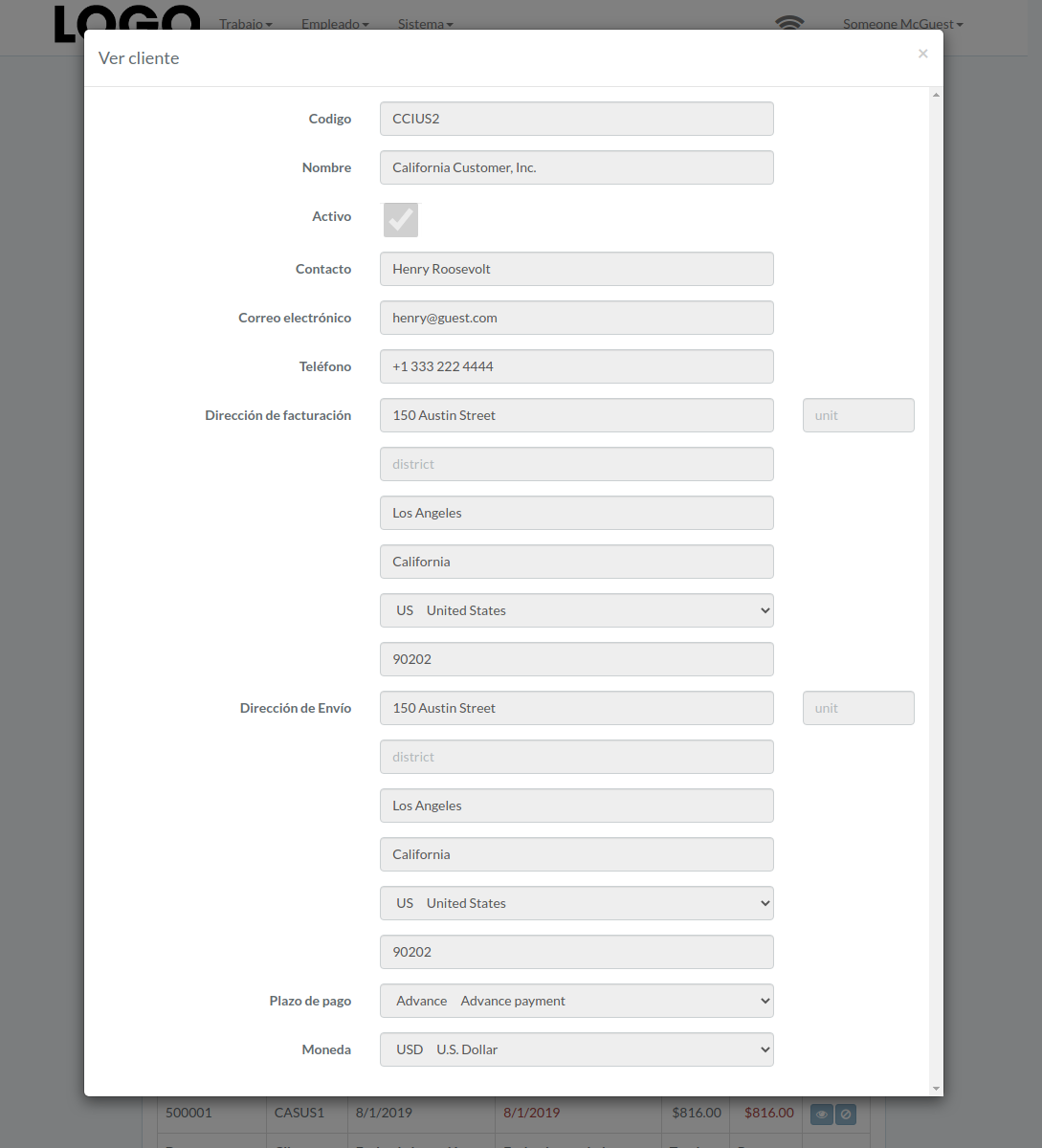
Ver Cliente
Click "View" button on the right of customer
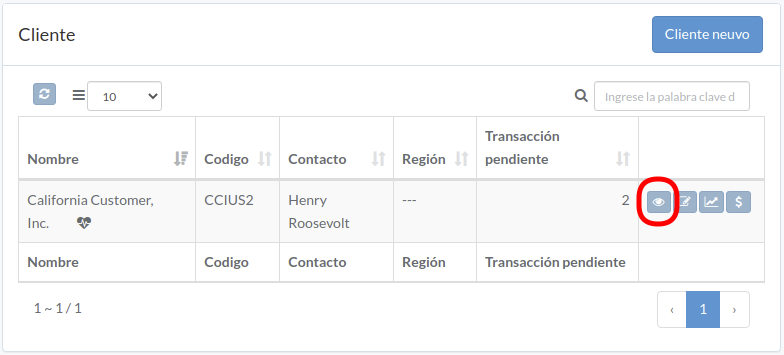
Customer modal appears
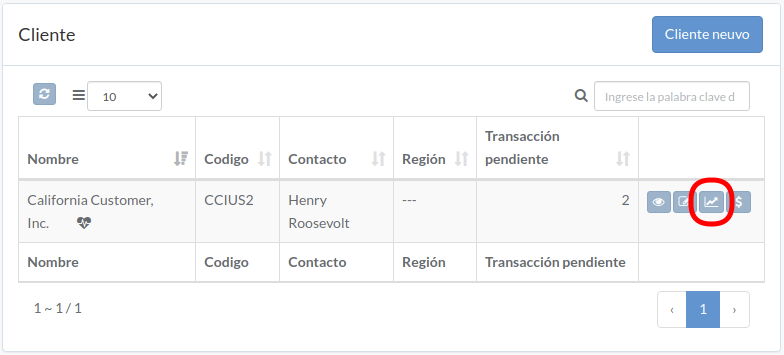
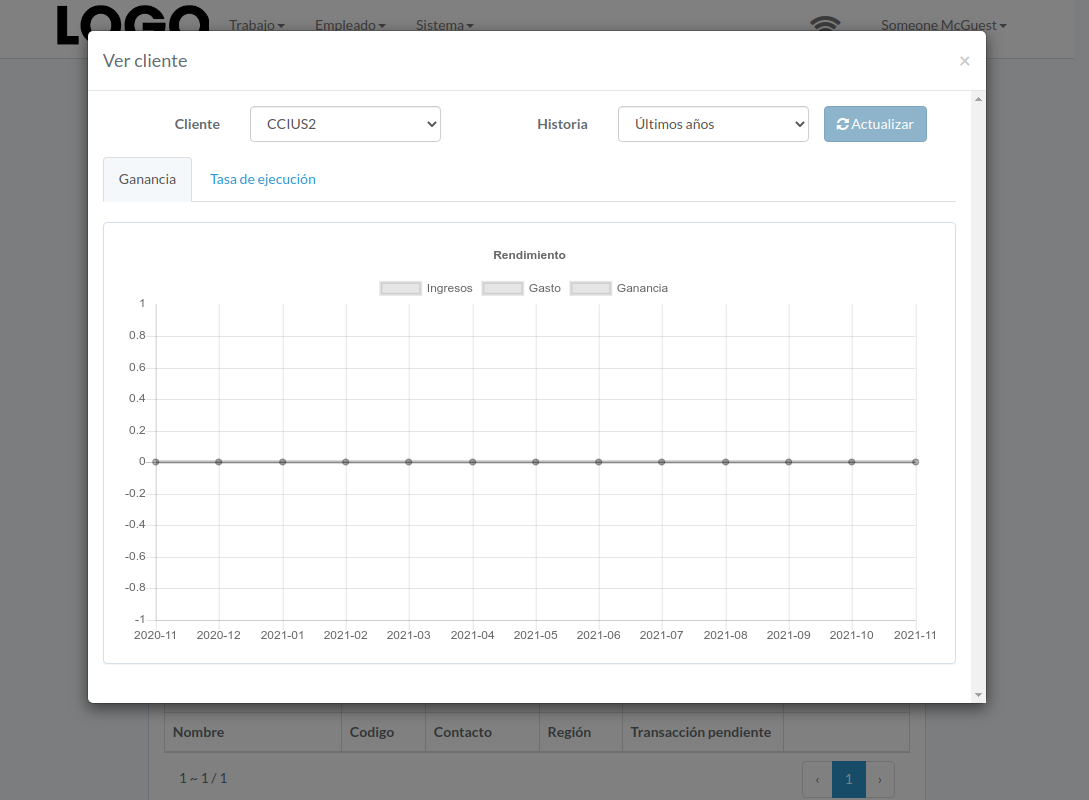
Rendimiento del cliente
Click "View" button on the right of receivable
Performance modal appears
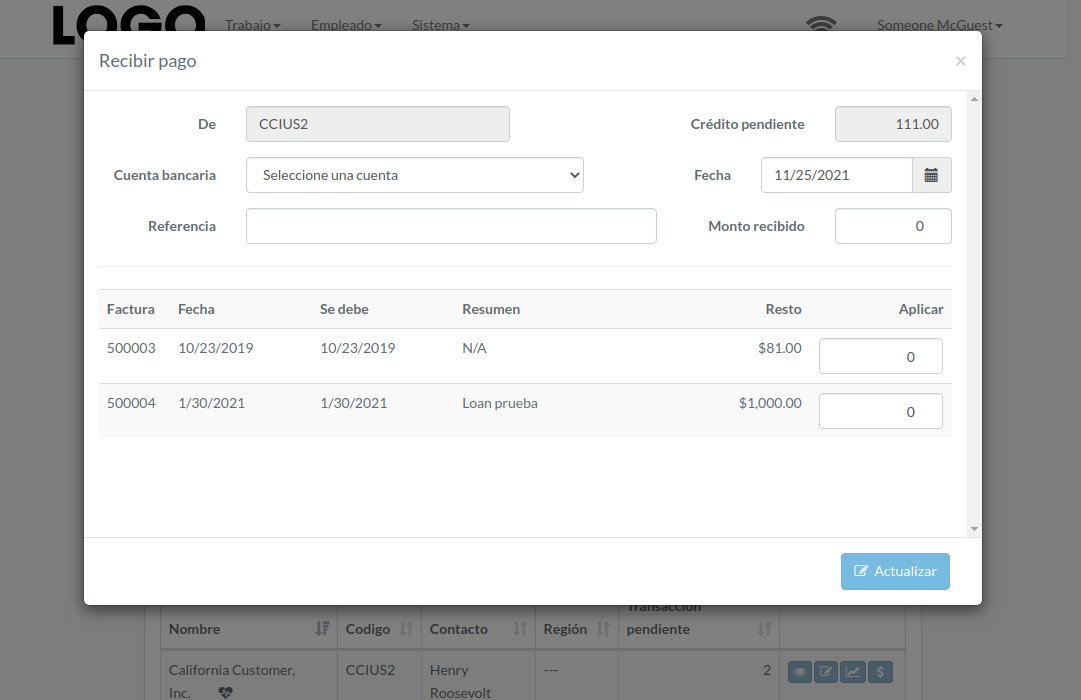
Recibir pago
Click "Receive" button on the right of customer

Enter date, bank-account, received-amount, applied-amount, etc., then click "Update"
Pagadero
Introducción
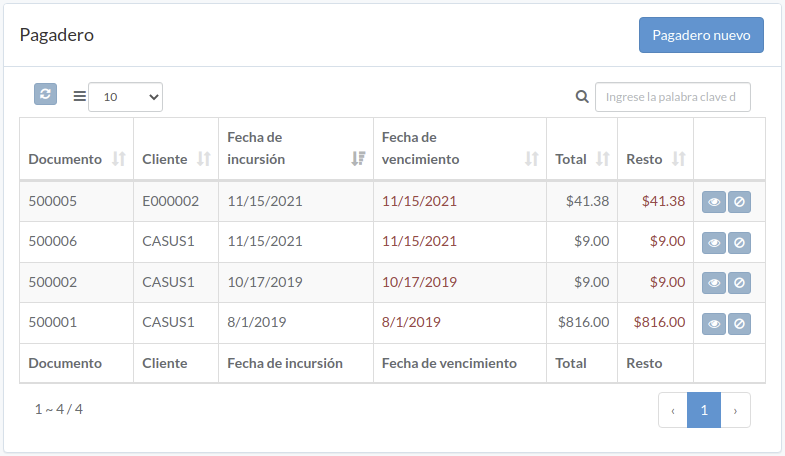
Following shows a sample window.
The chapter describes features available within the window.
Crear pagadero
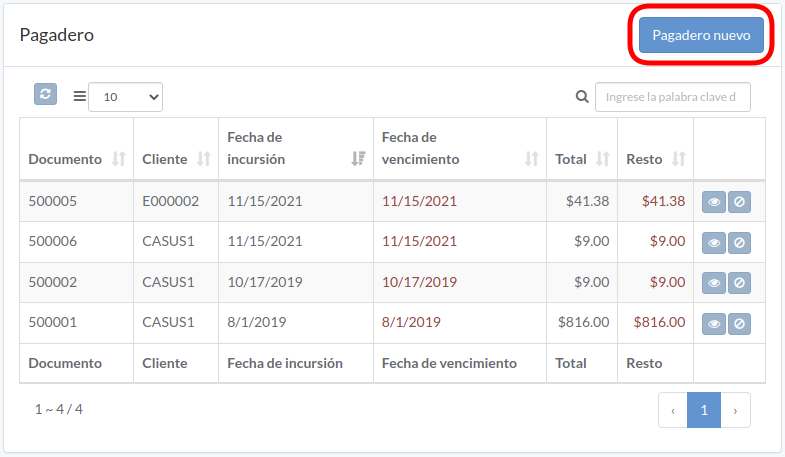
Click "New payable" on upper right corner of payable table
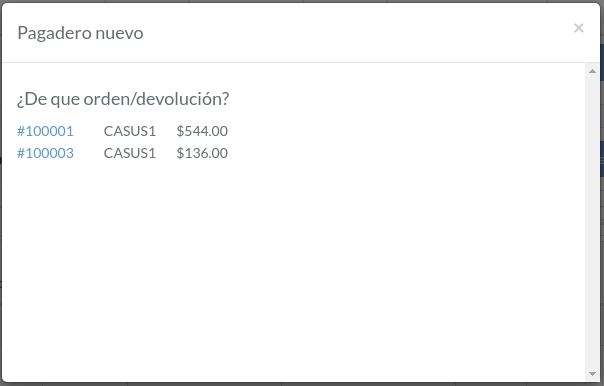
Click on title of which payable should be generated from
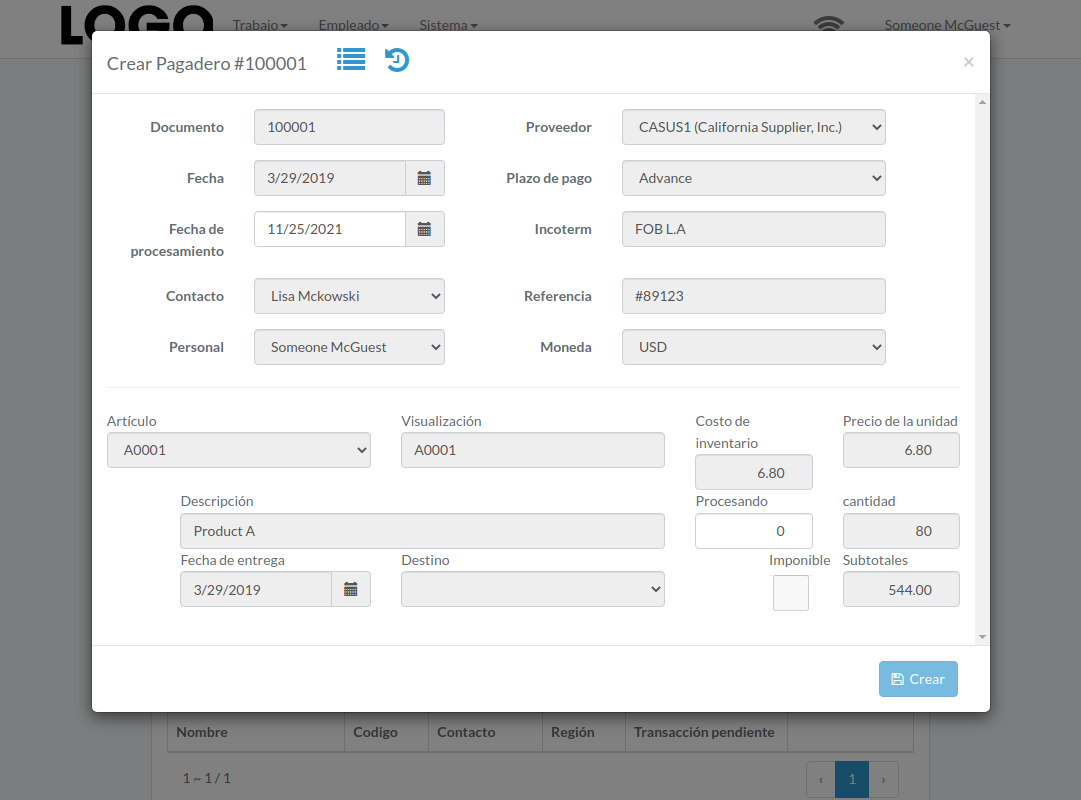
Enter process-date and processing-quantity, then click "Create".
Ver pagadero
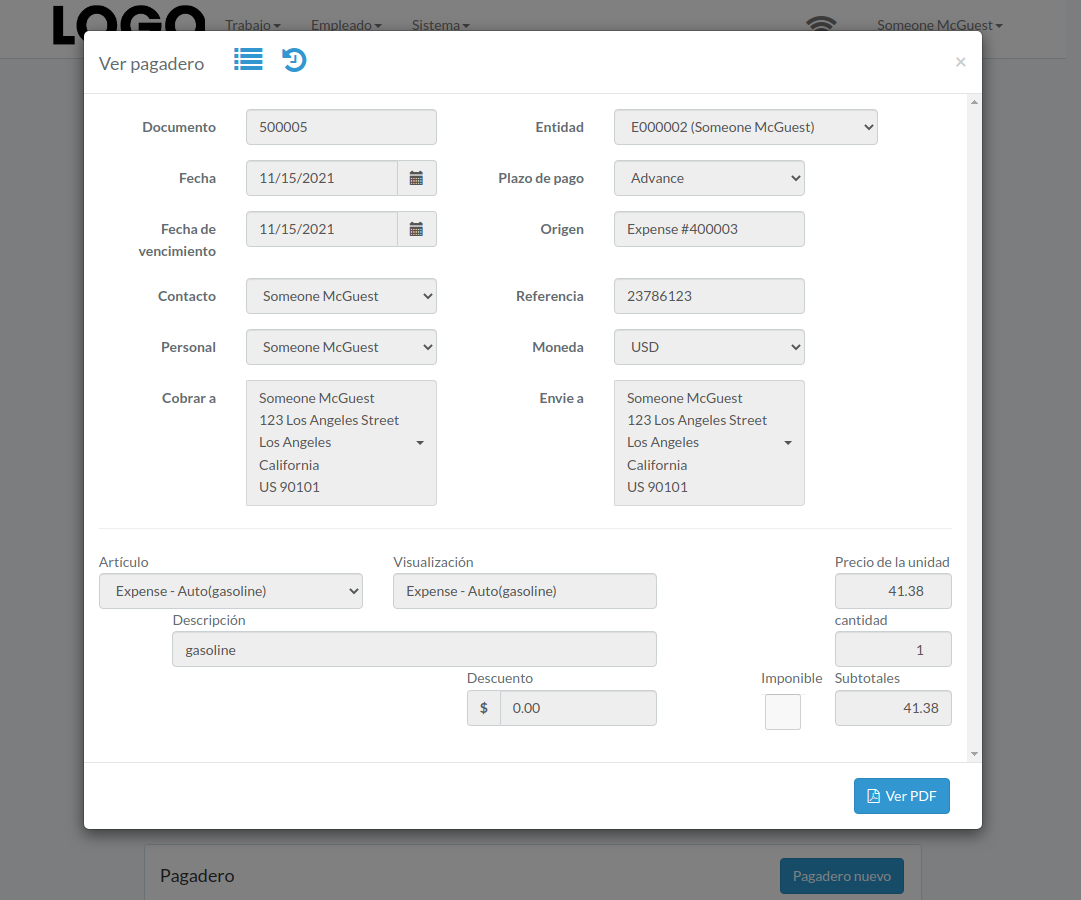
Click "View" button on the right of payable
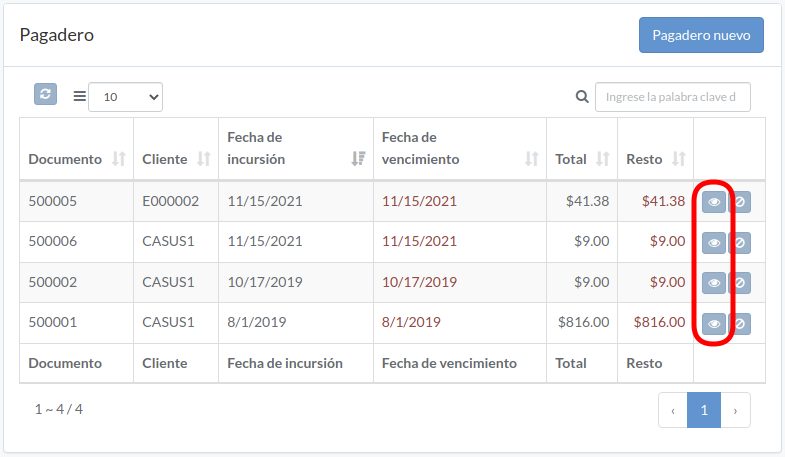
Payable modal appears
Anular pagadero
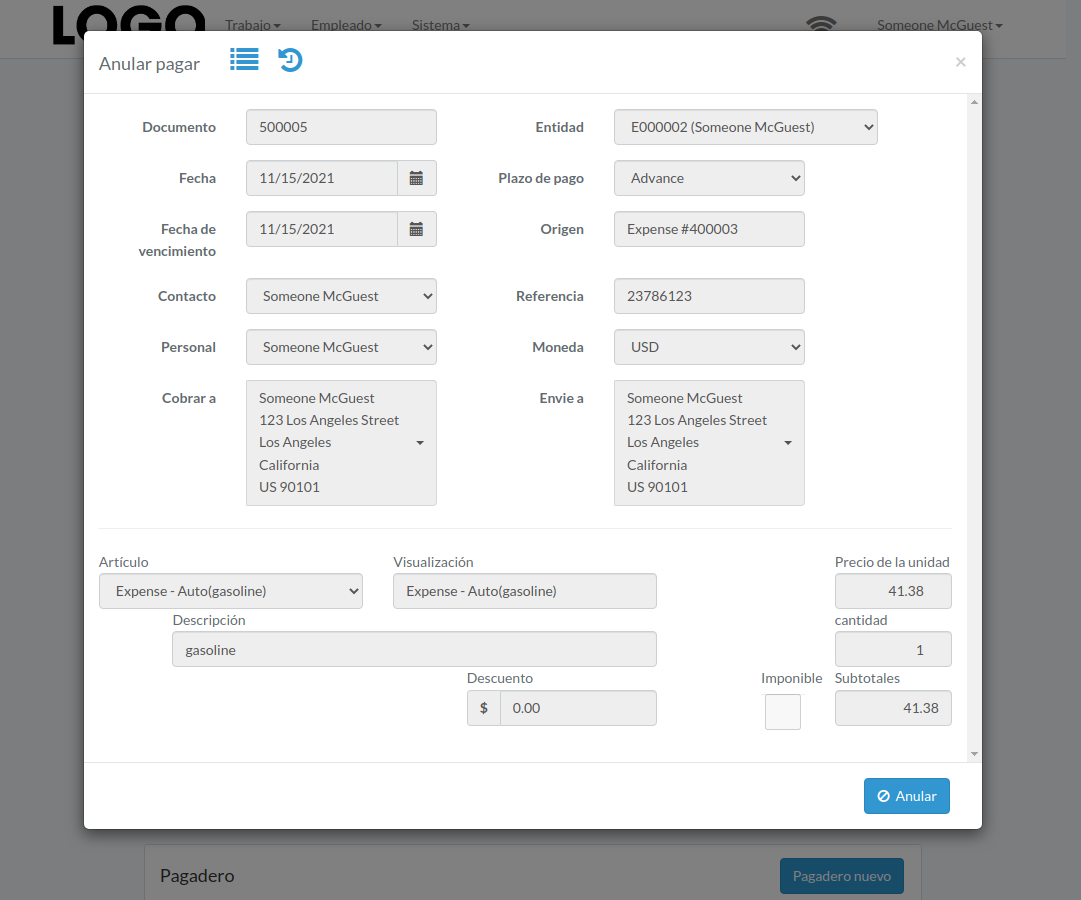
Click "Void" button on the right of payable
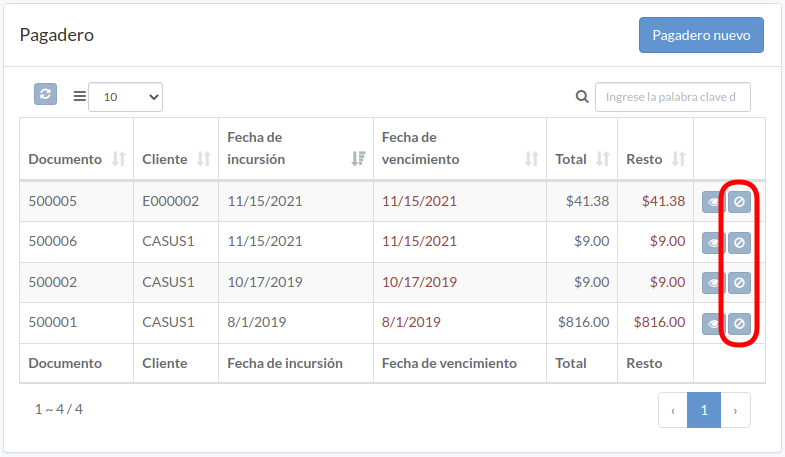
When payable modal appears, click "Void" button to confirm
Proveedor
Introducción
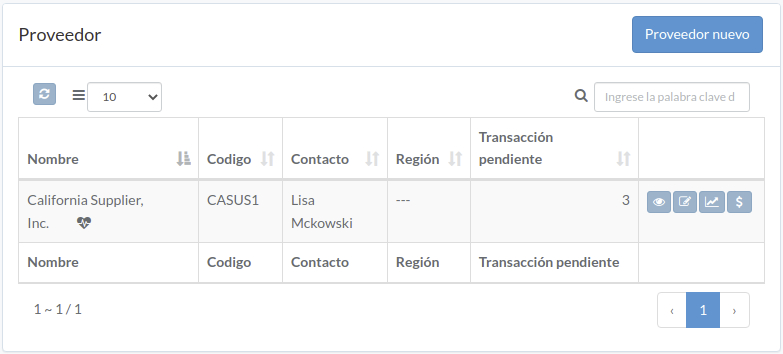
Following shows a sample window.
The chapter describes features available within the window.
Crear Proveedor
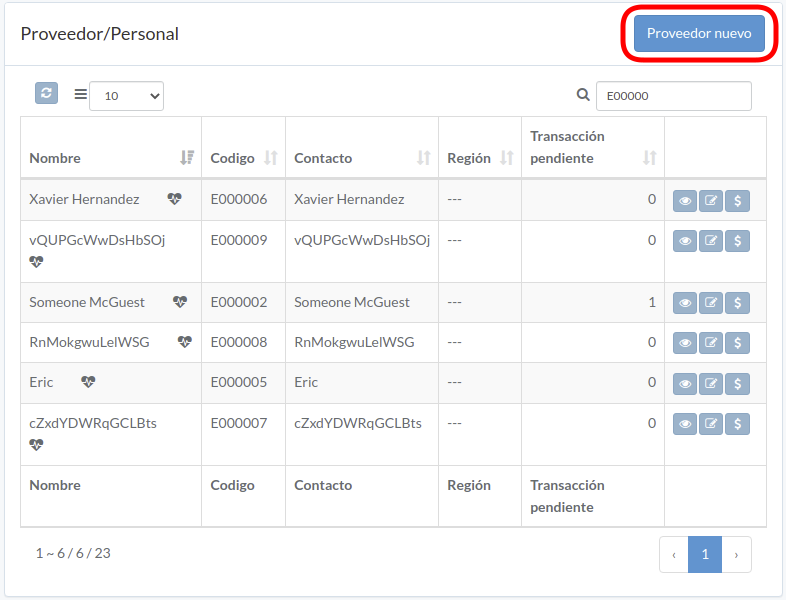
Click "New supplier" on upper right corner of Supplier/Staff table
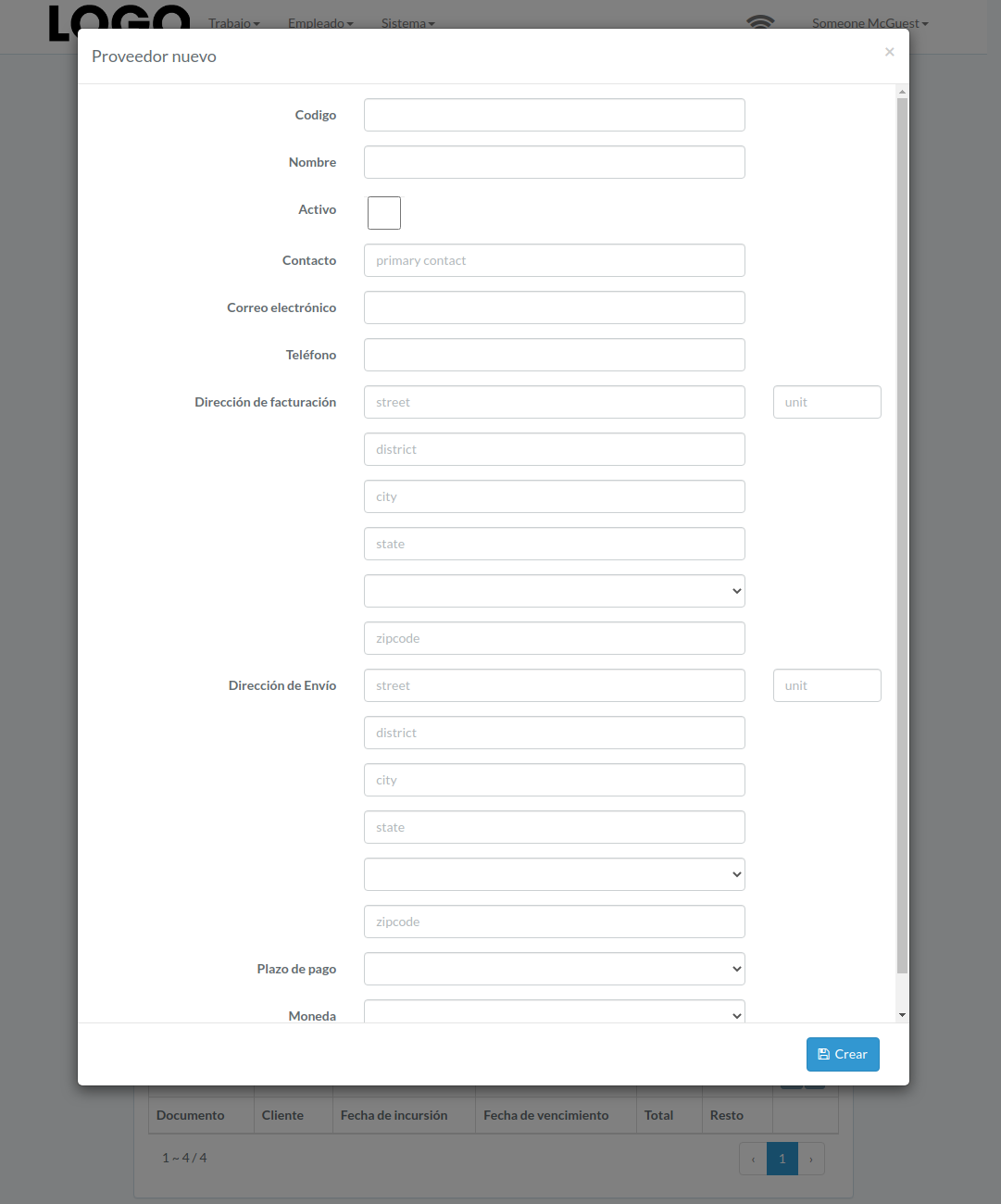
Enter supplier data, then click "Create".
Actualizar Proveedor
Click "Update" button on the right of supplier
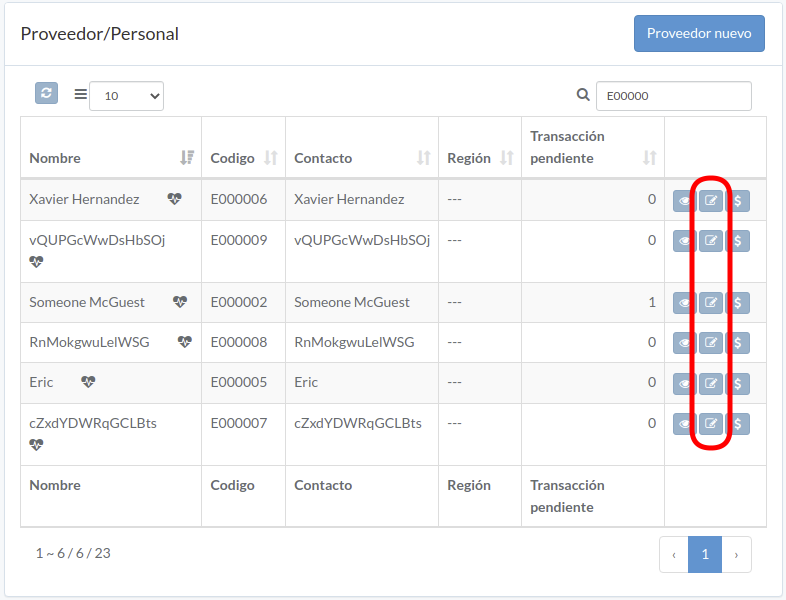
Update information, then click "Update".

Ver Proveedor
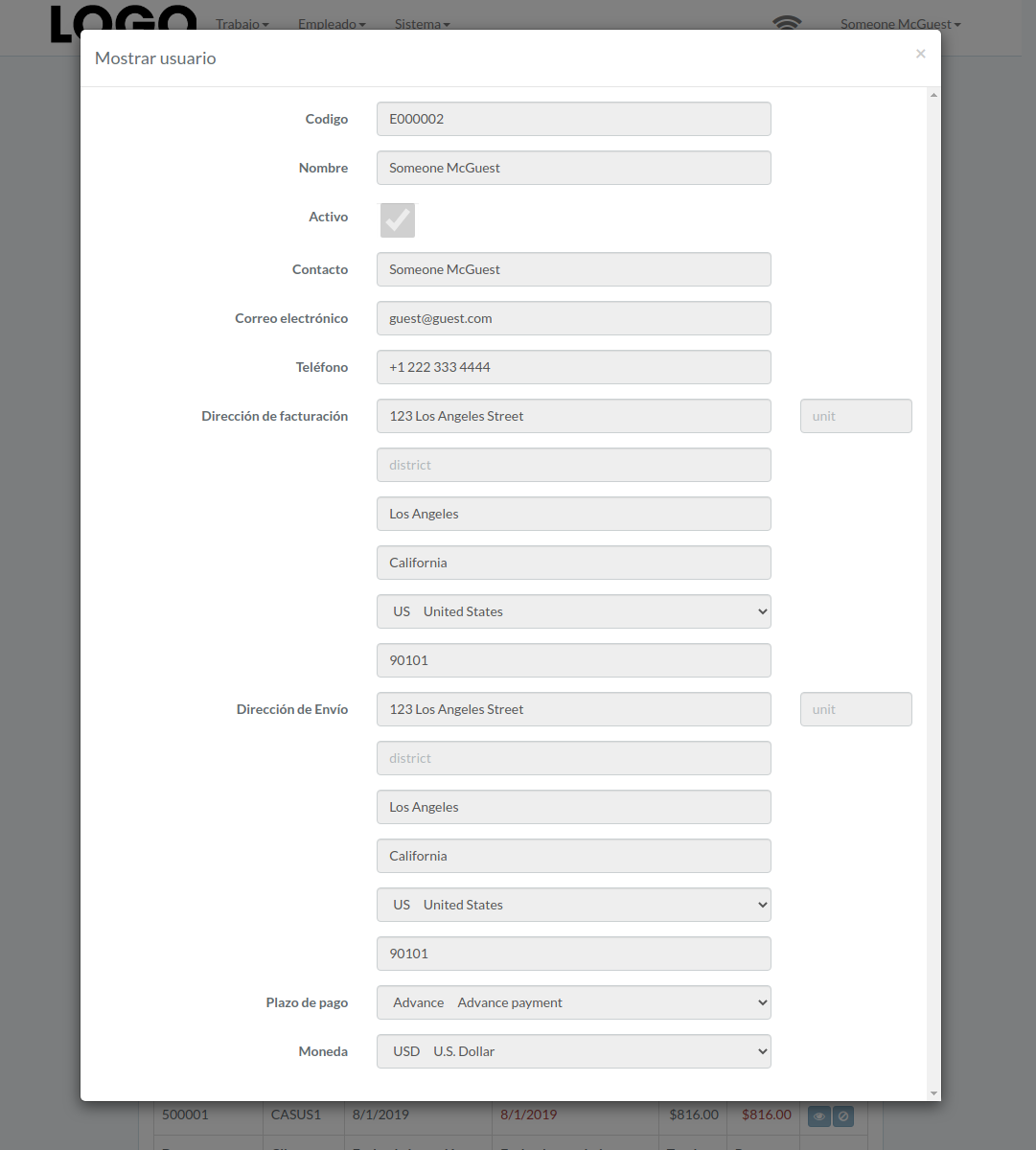
Click "View" button on the right of supplier
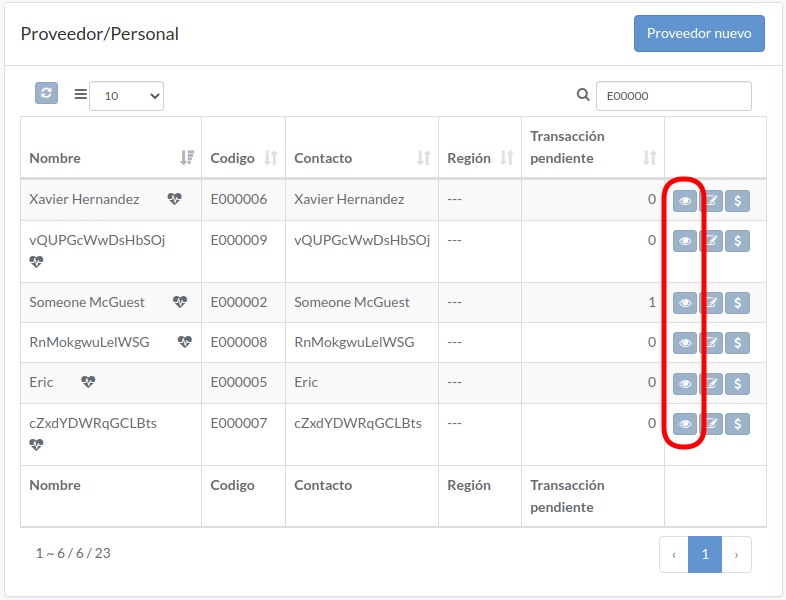
Supplier modal appears
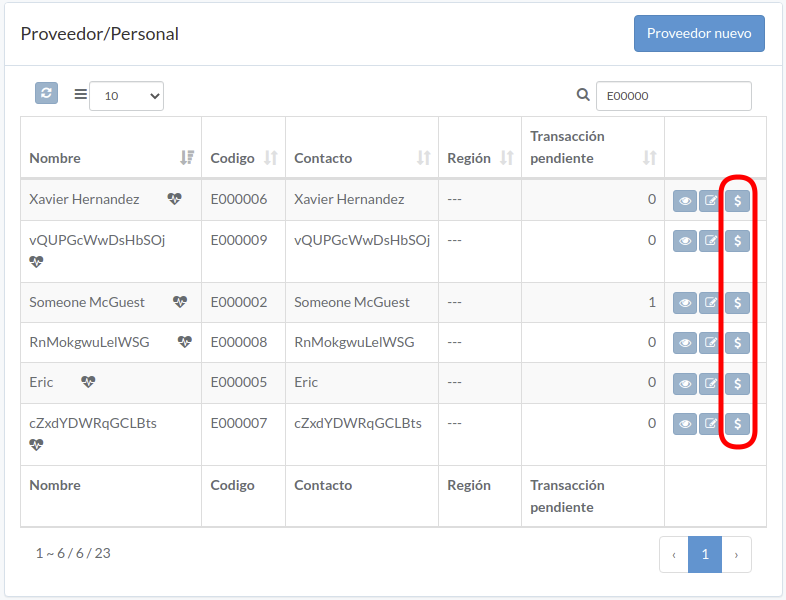
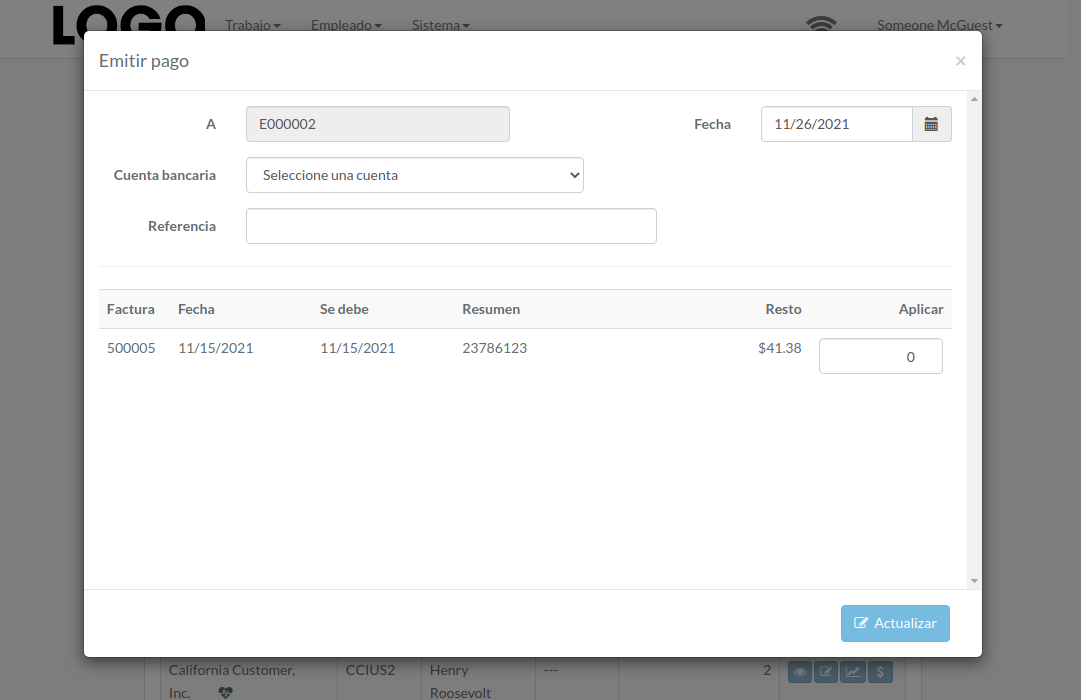
Emitir pago
Click "Pay" button on the right of Supplier / Employee
Enter date, bank-account, pay-amount, etc., then click "Update"
Cargo
Introducción
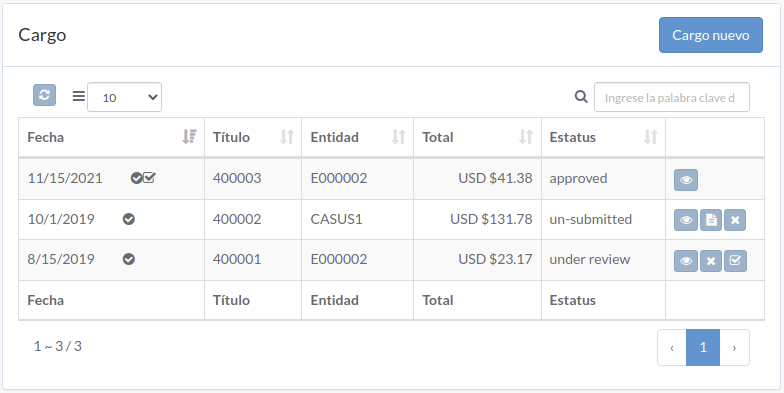
Following shows a sample window.
The chapter describes features available within the window.
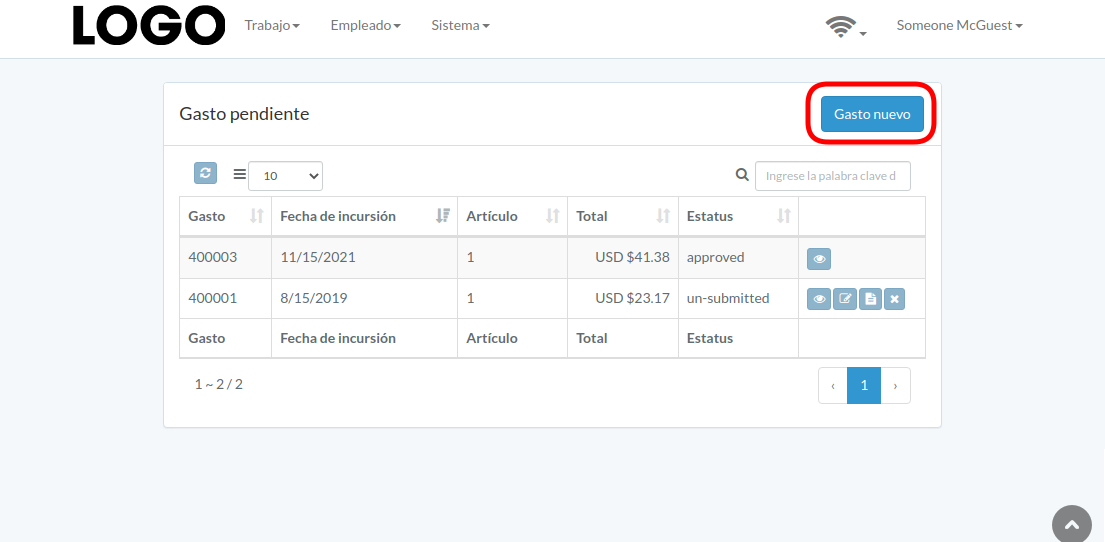
Crear Gasto
Click "New expense" on upper right corner of expense table
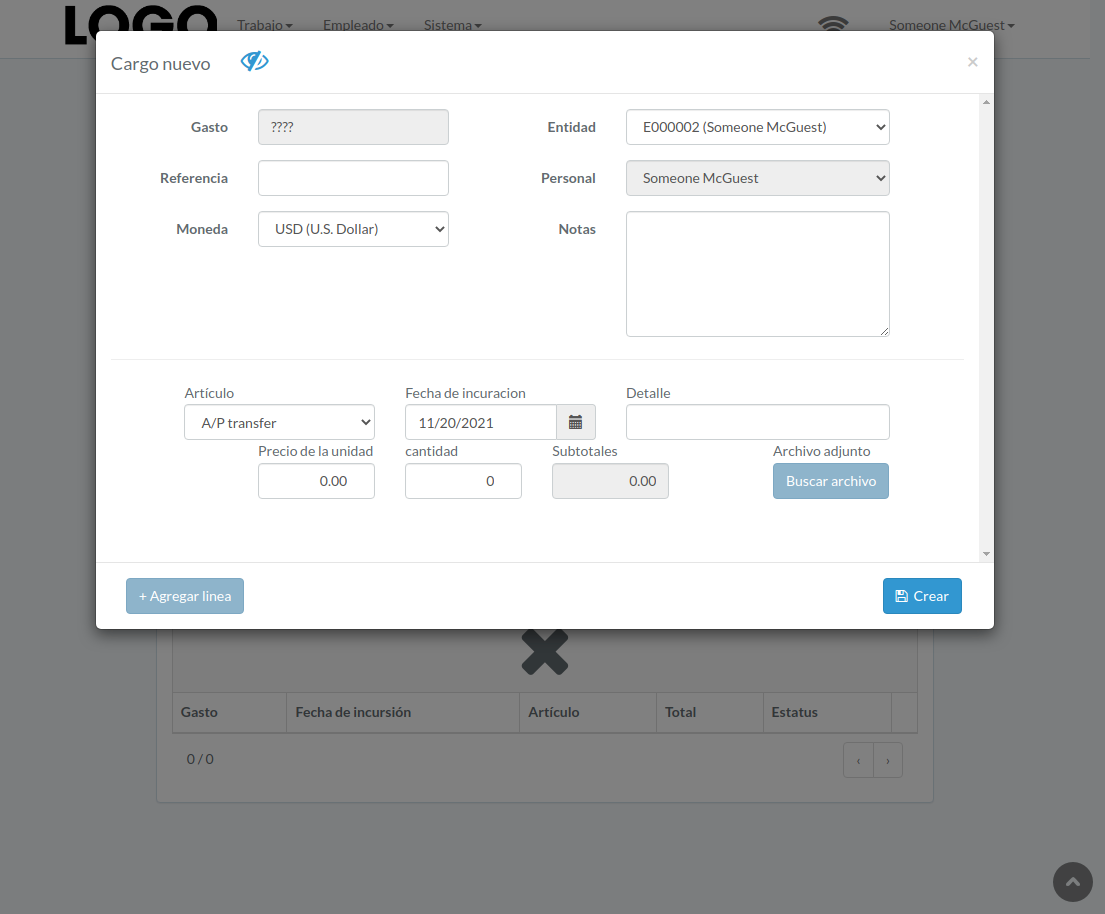
When expense modal appears, enter all information and click "Create" button.
Click "+ Add line" if needed
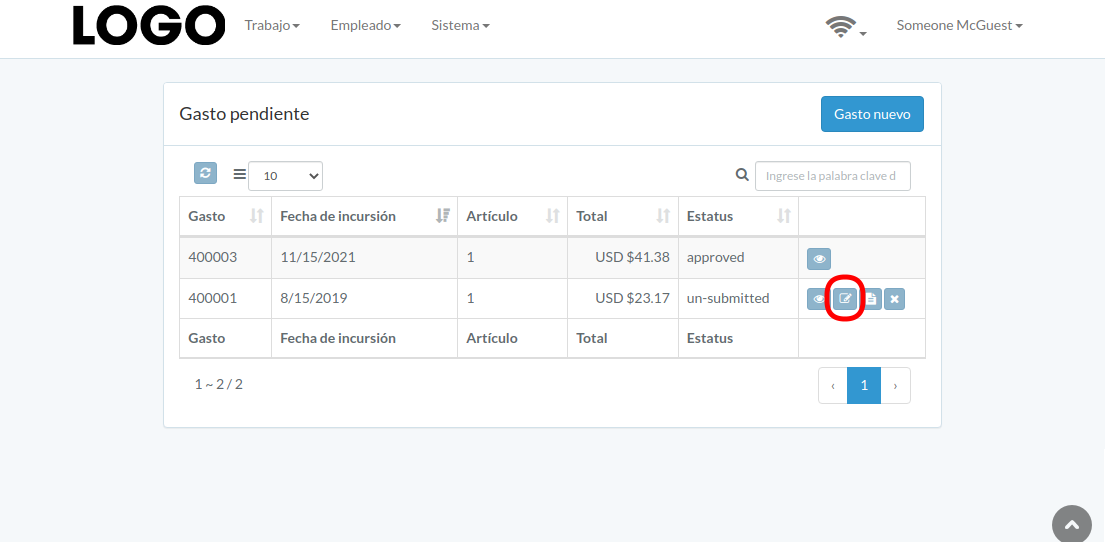
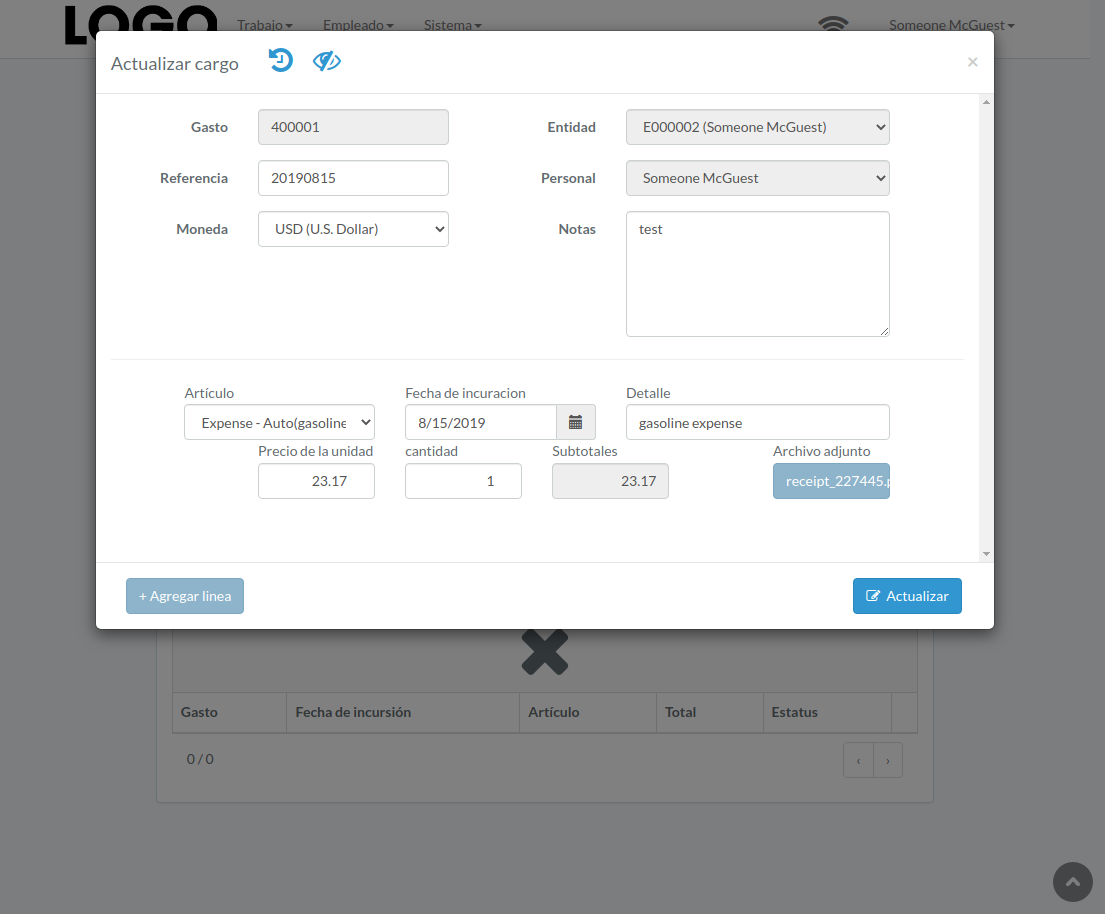
Actualizar Gasto
Click "Update" button on the right of expense
If no "Update" button, the expense can not be updated.
when expense modal appears, update expense data and click "Update" button
Click "+ Add line" if needed
Ver Gasto
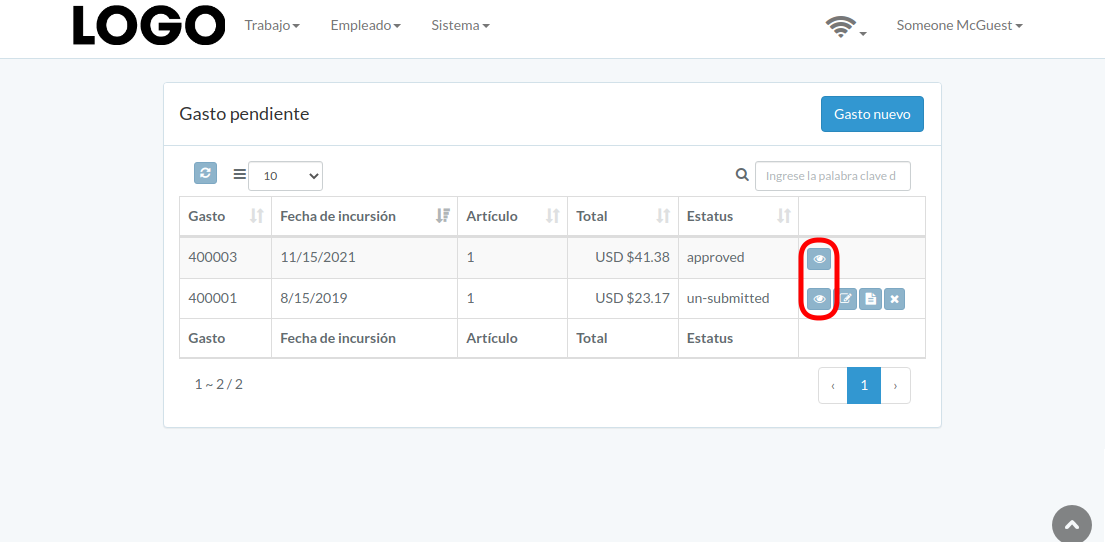
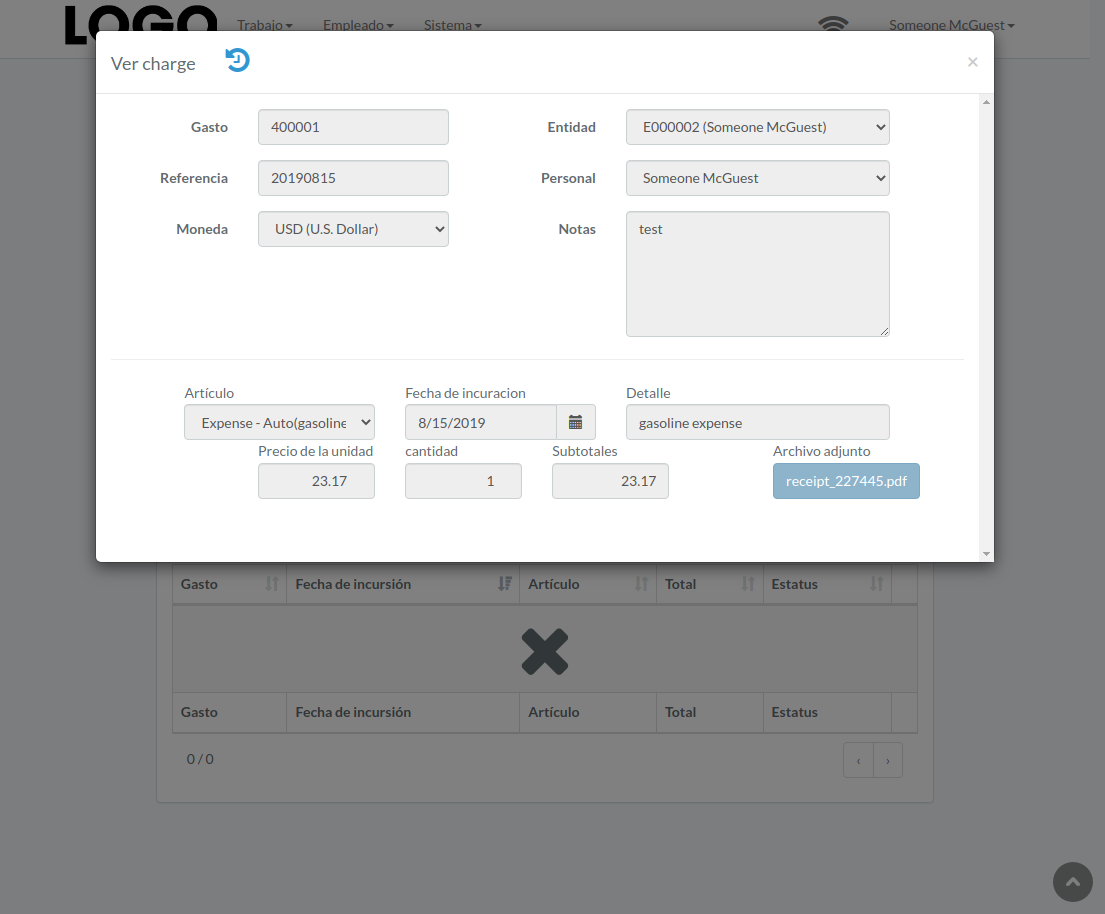
Expense modal appears
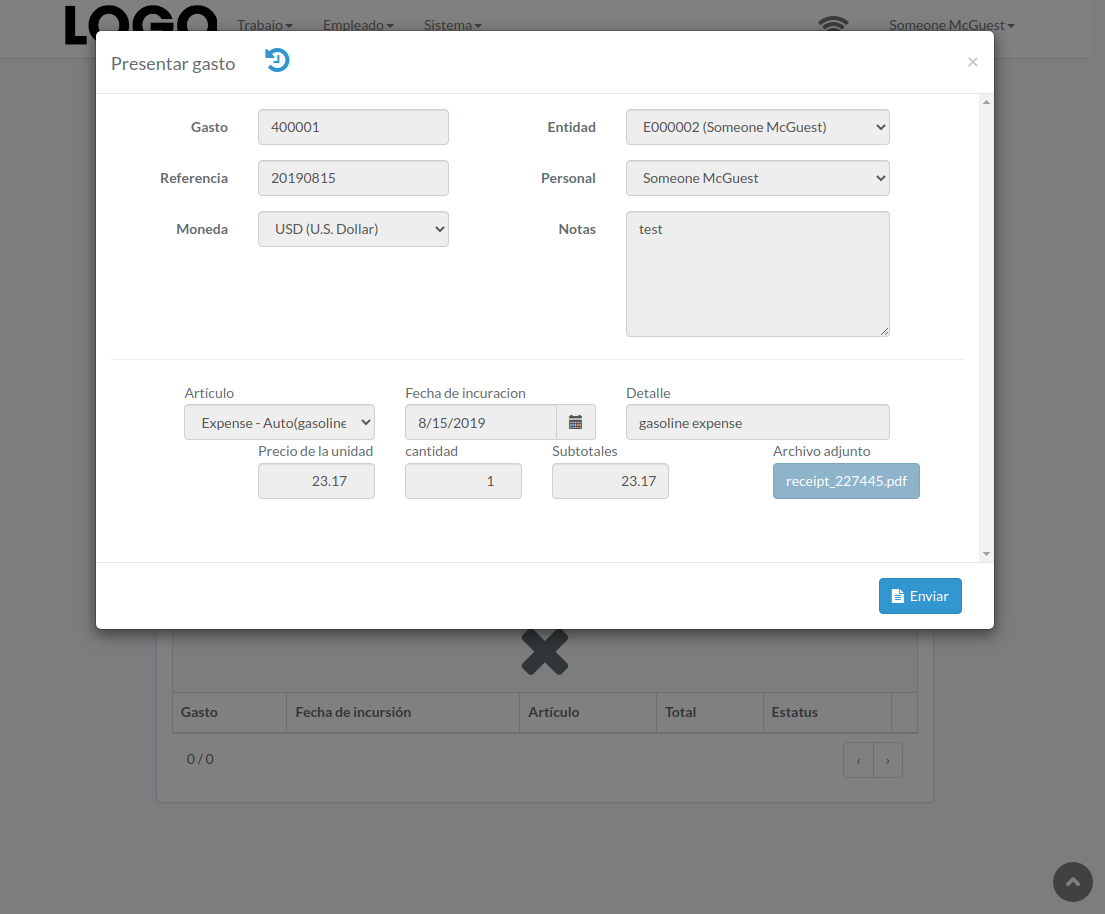
Enviar Gasto
Click "Submit" button on the right of expense
If no "Submit" button, the expense can not be submitted.
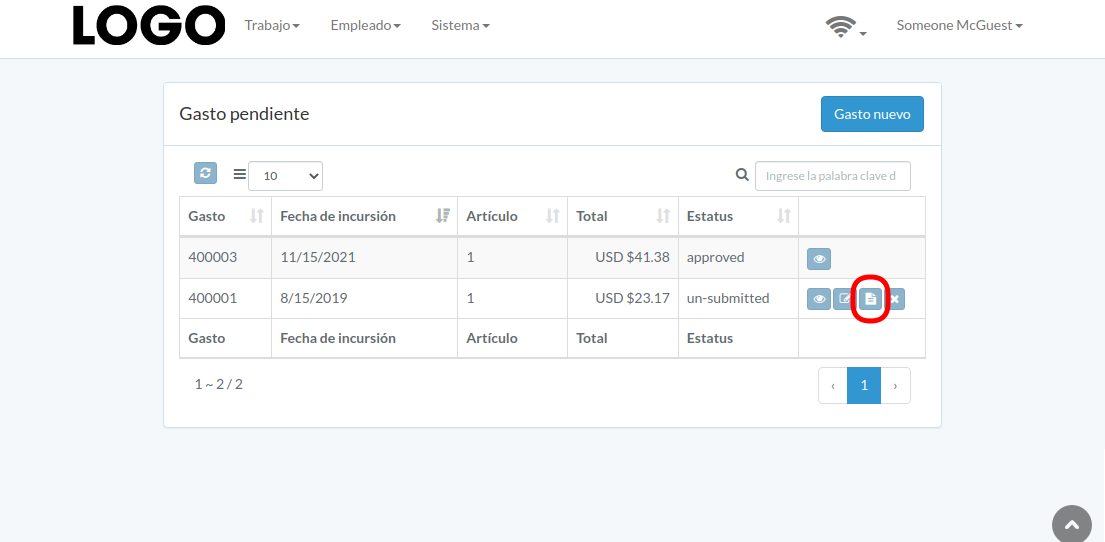
When expense modal appears, click "Submit" button to confirm submission
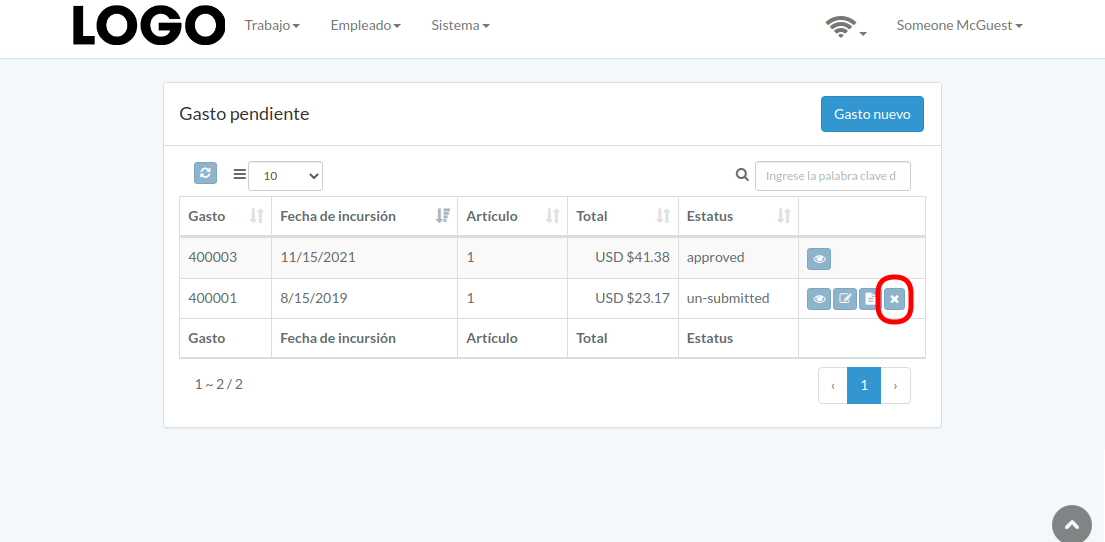
Retraer Gasto
Click "Retract" button on the right of expense
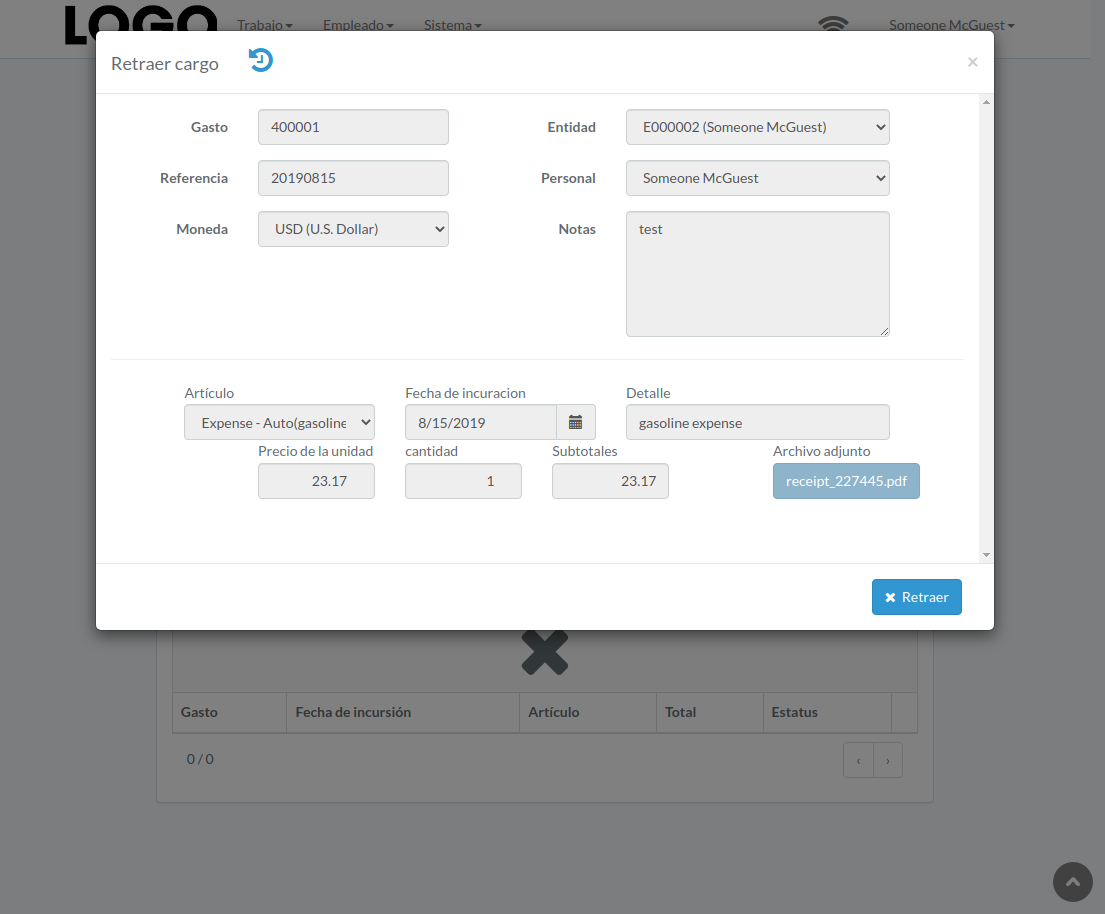
If no "Retract" button, the expense can not be retracted.
When expense modal appears, click "Retract" button to confirm retraction
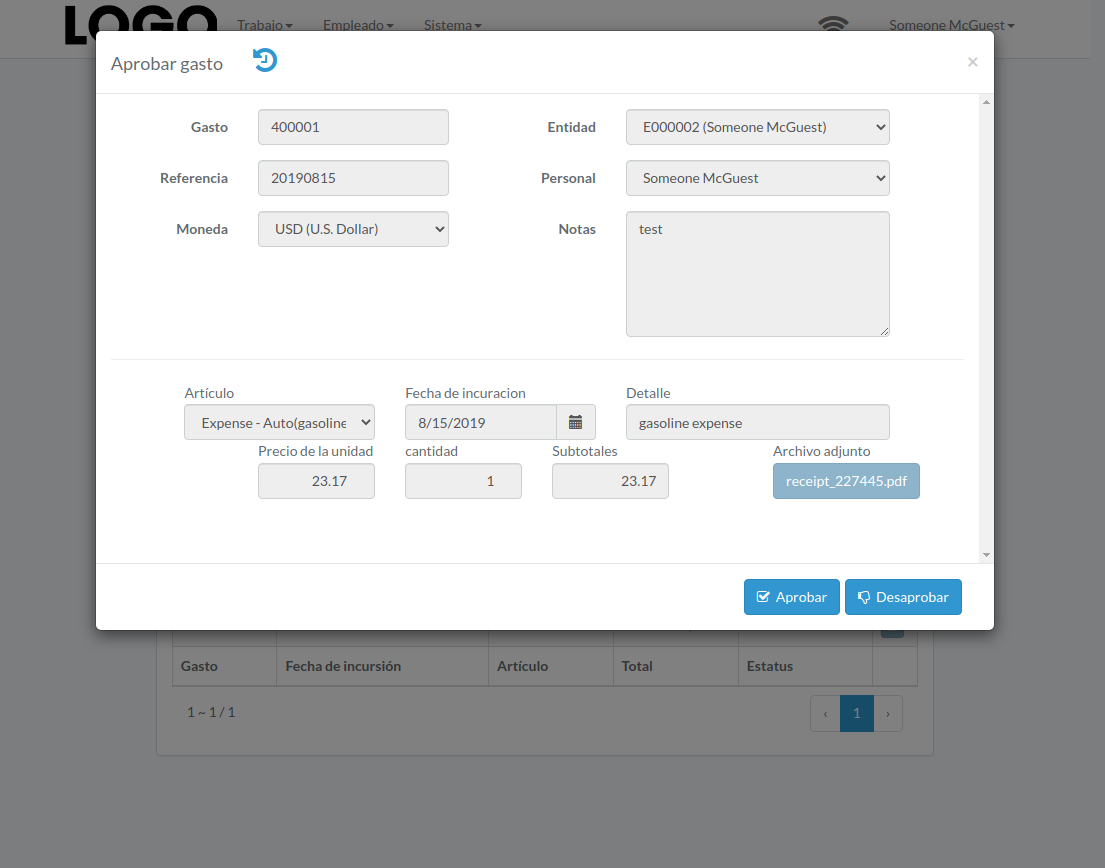
Aprobar Gasto
Click "Approve" button on the right of expense
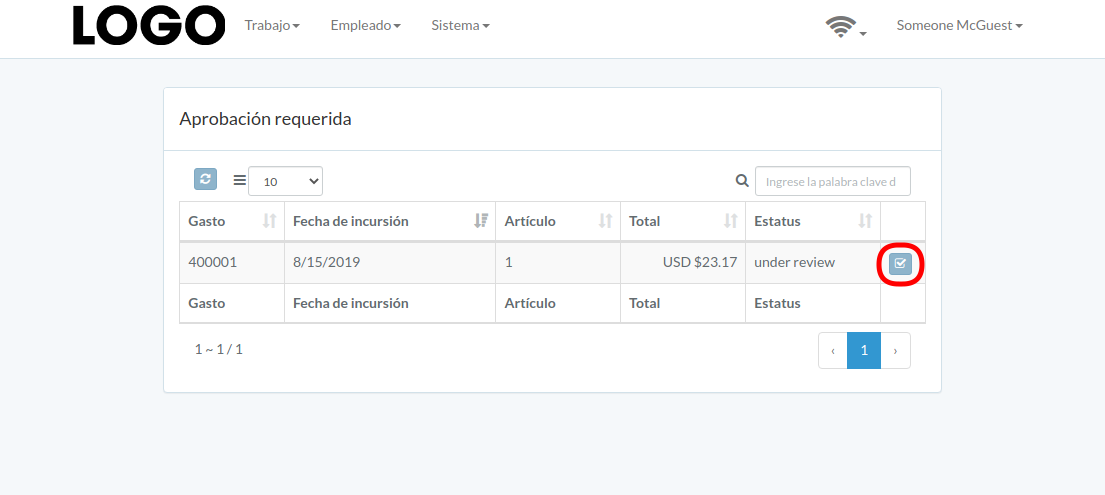
When expense modal appears, click "Approve" or "Disapprove" button to confirm
Inventorio
Introducción
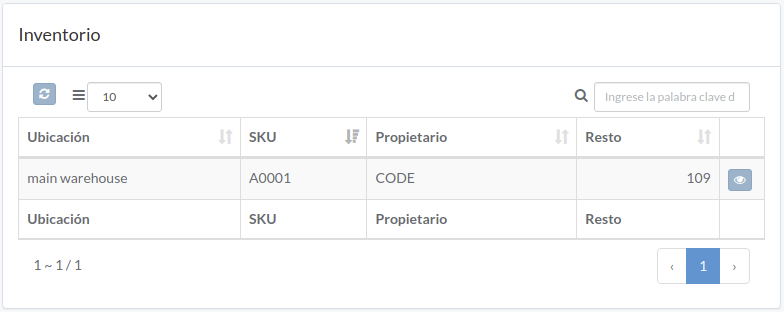
Following shows a sample window.
The chapter describes features available within the window.
Inventorio
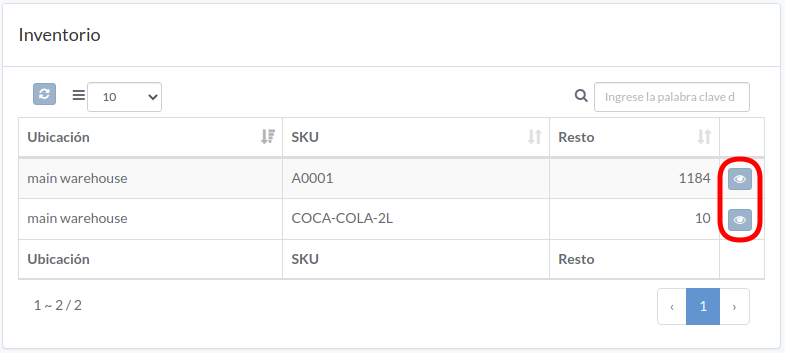
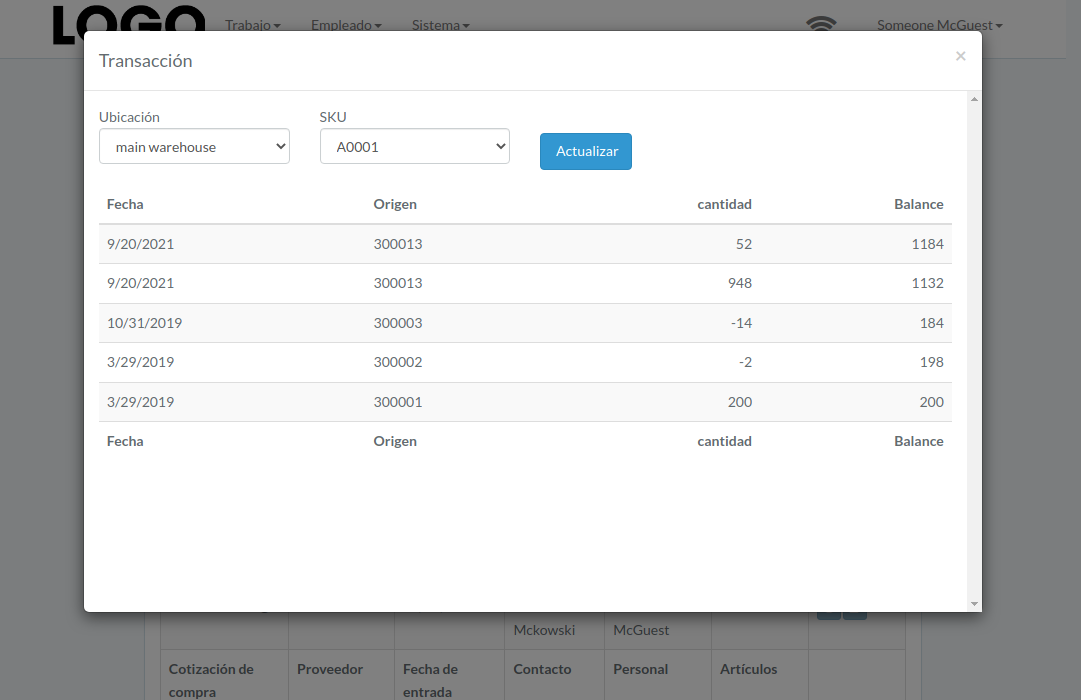
inventory transaction modal of the item appears
Catálogo de cuentas
Introducción
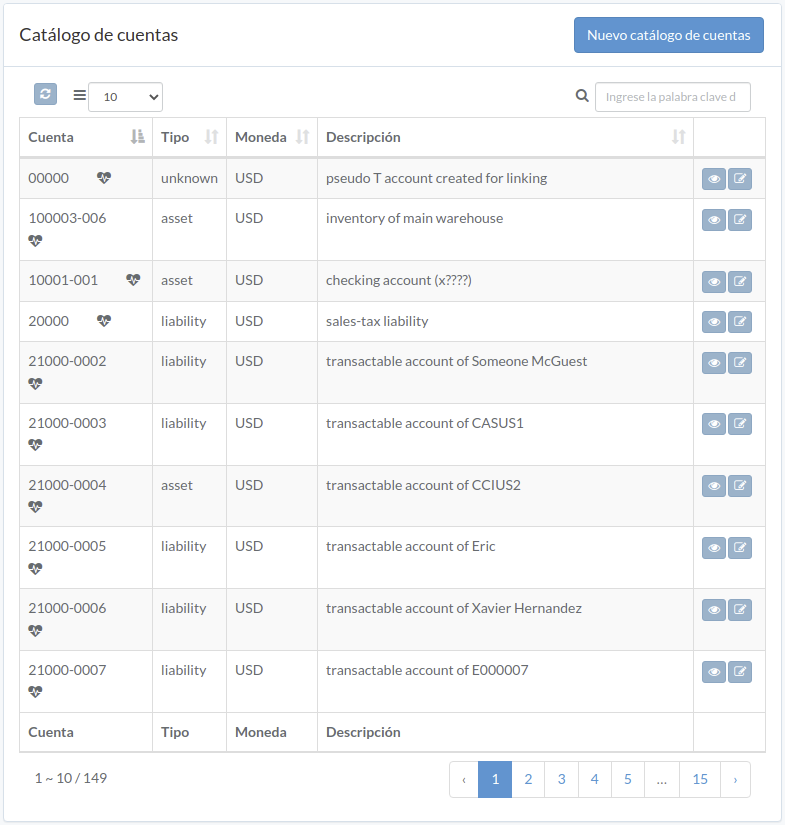
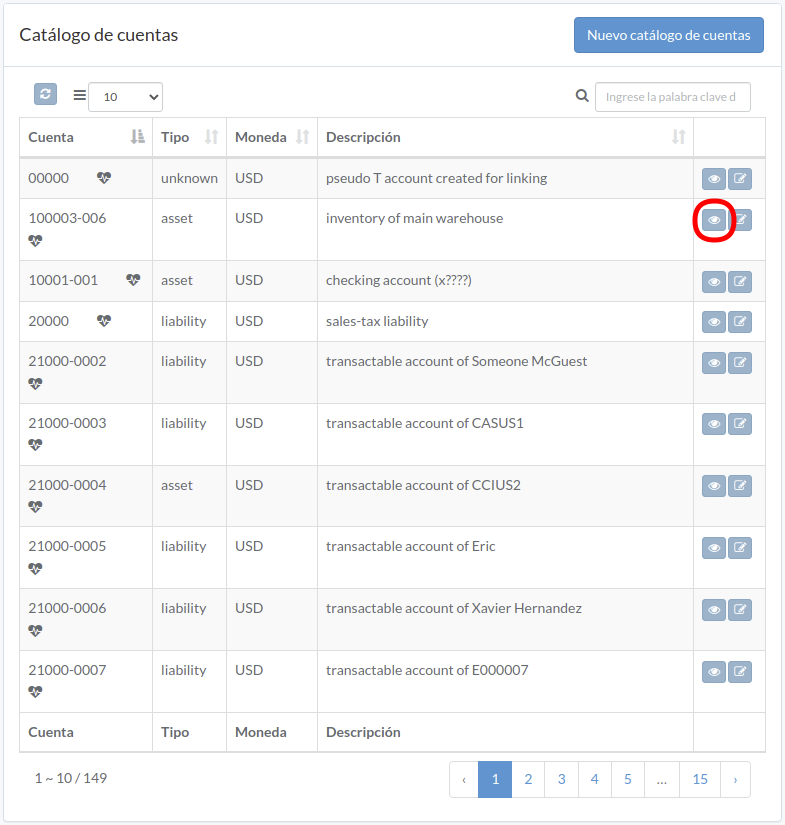
Following shows a sample window.
The chapter describes features available within the window.
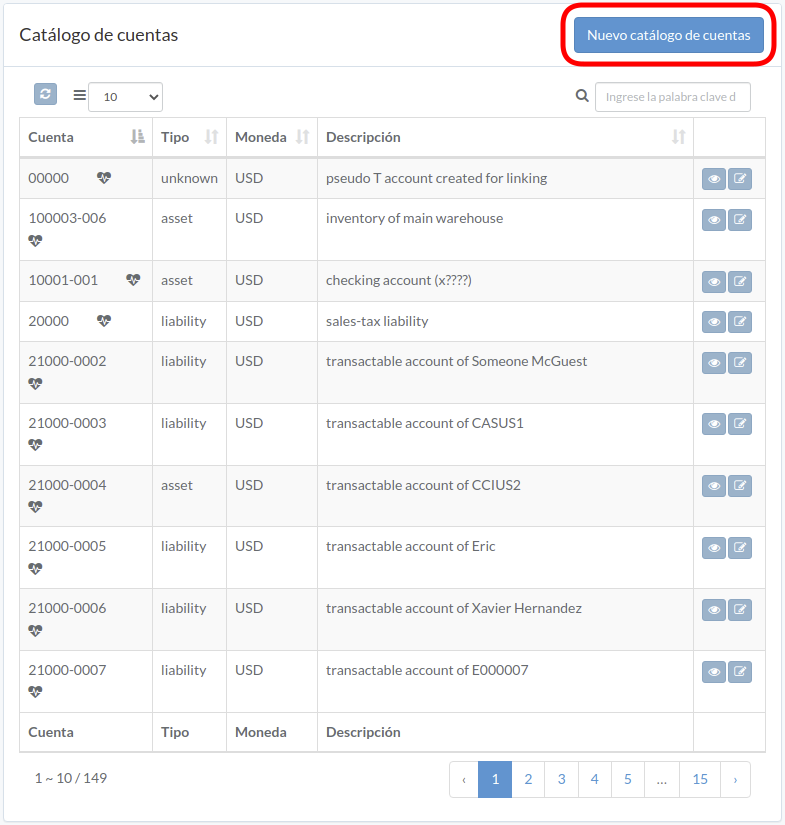
Crear cuenta
Click "New chart account" on upper right corner of chart account table
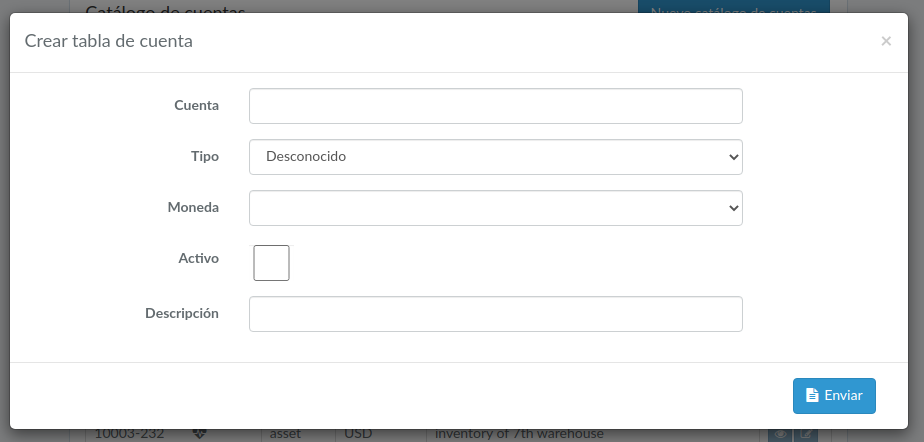
Enter chart account data, then click "Submit".
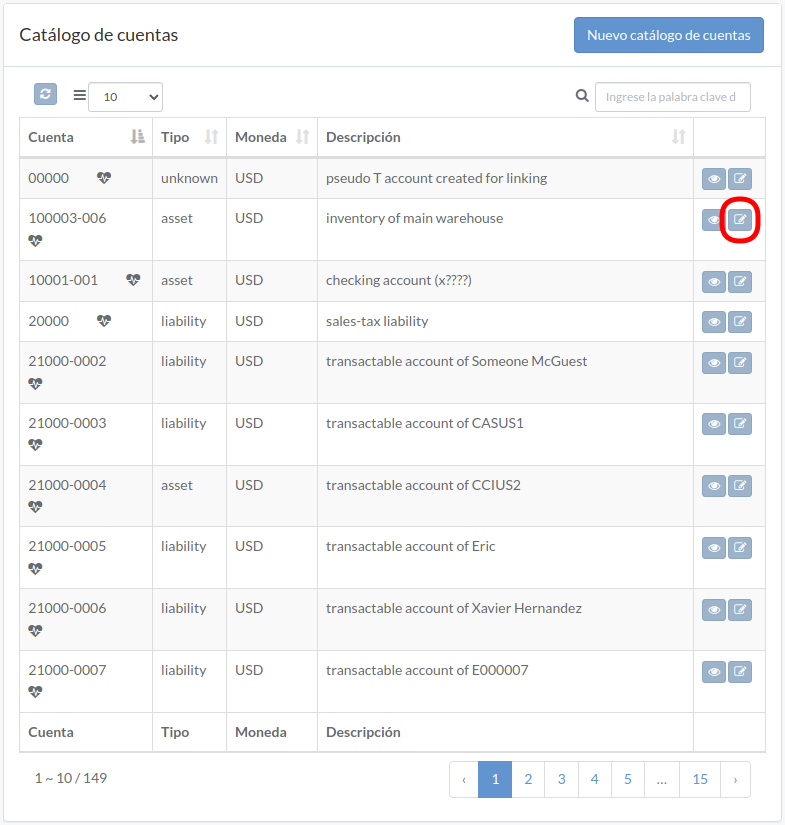
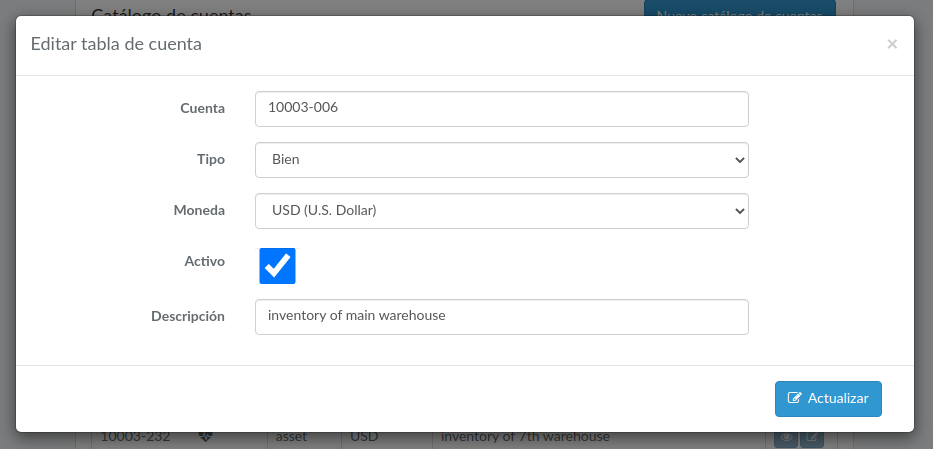
Actualizar cuenta
Click "Update" button on the right of chart account
Update information, then click "Update".
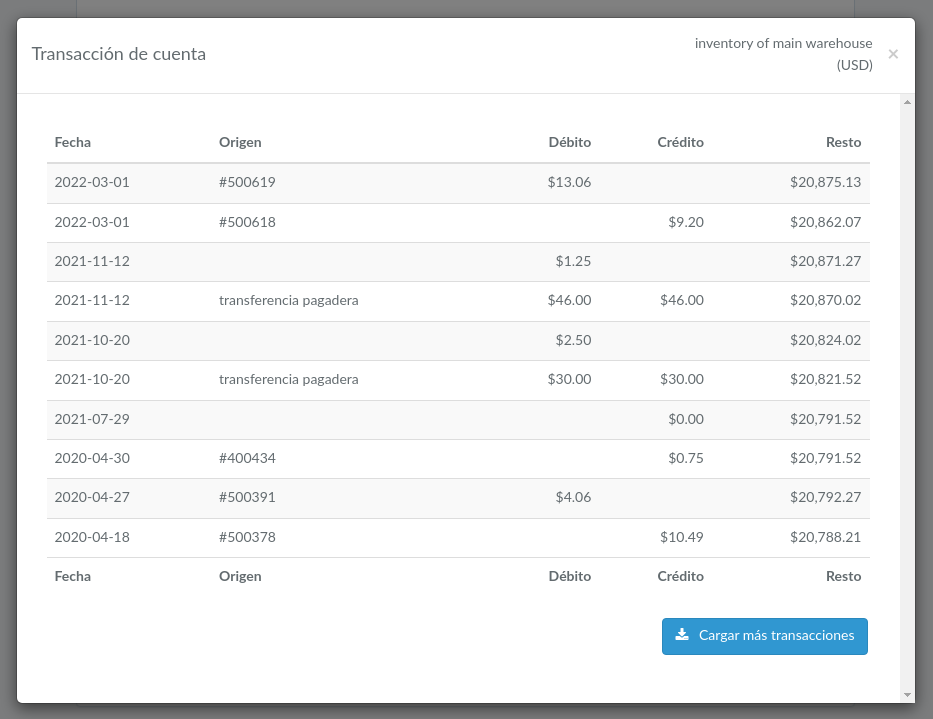
Ver transacción
Update information, then click "Update".
Reemplazable
Introducción
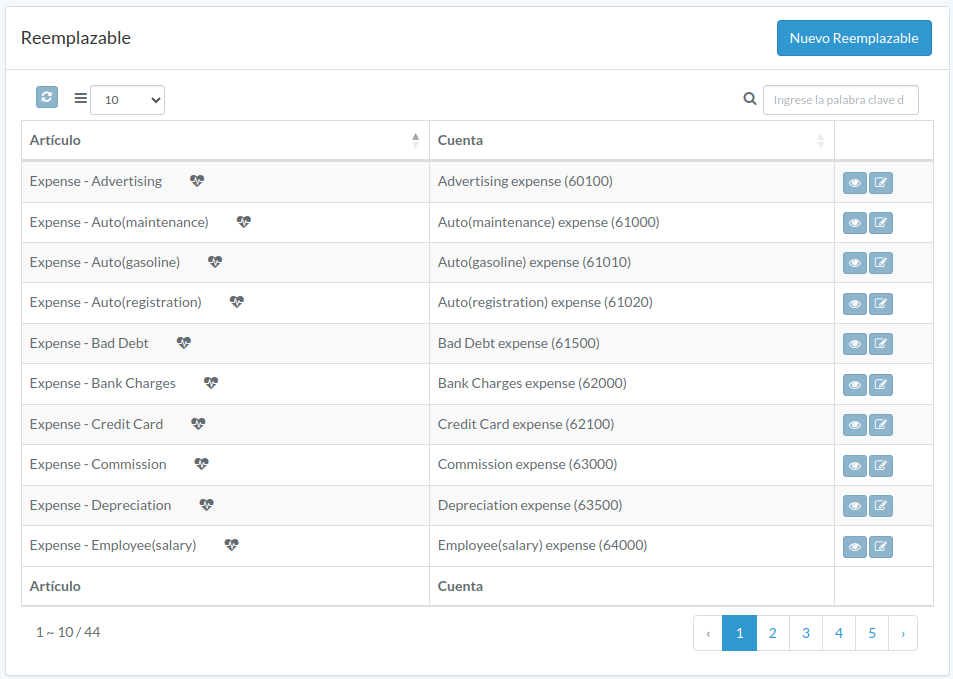
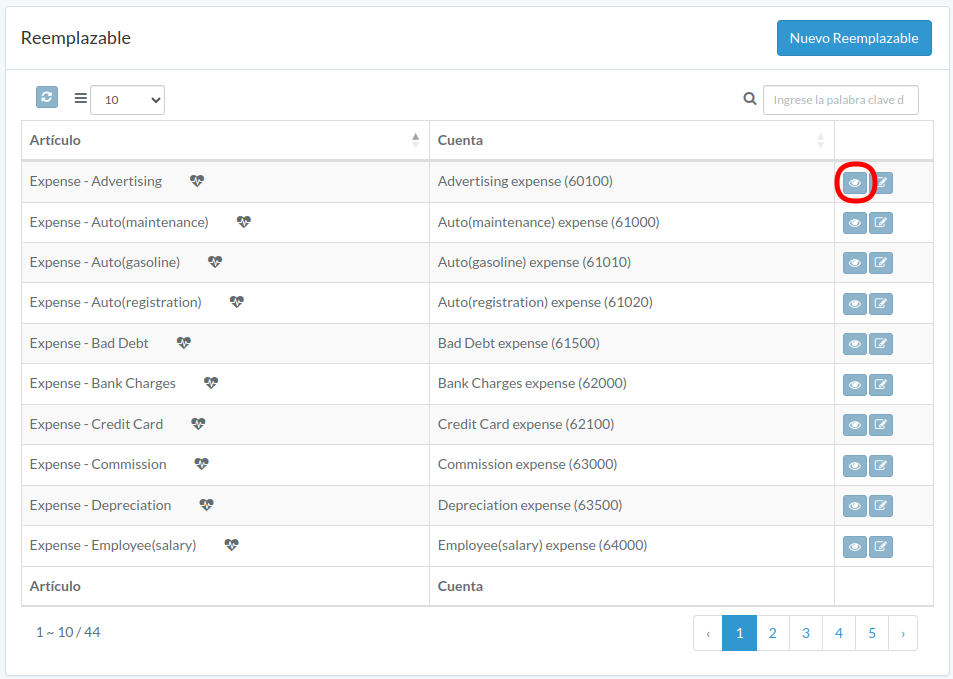
Following shows a sample window.
The chapter describes features available within the window.
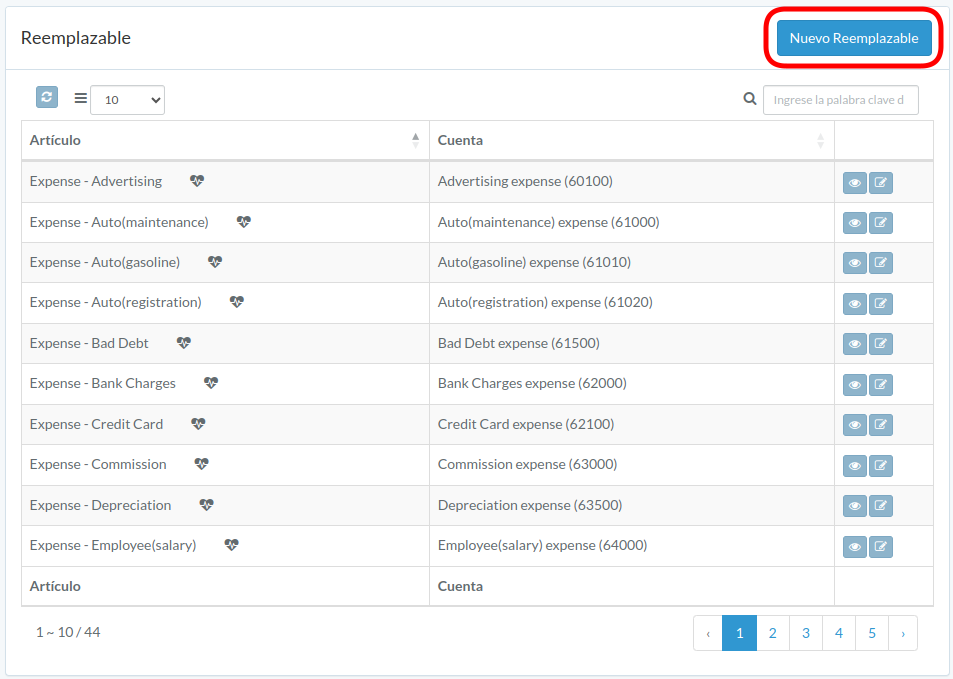
Crear reemplazable
Click "New expendable" on upper right corner of expendable table
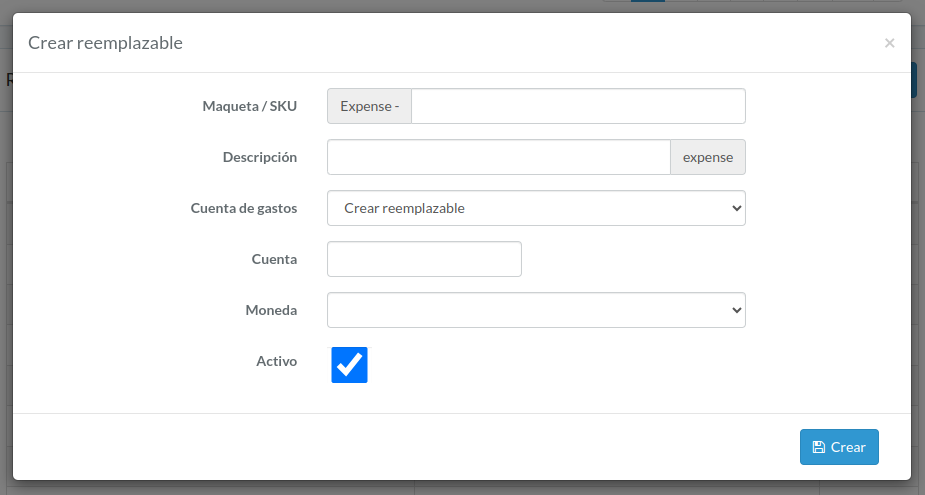
Enter chart expendable data, then click "Submit".
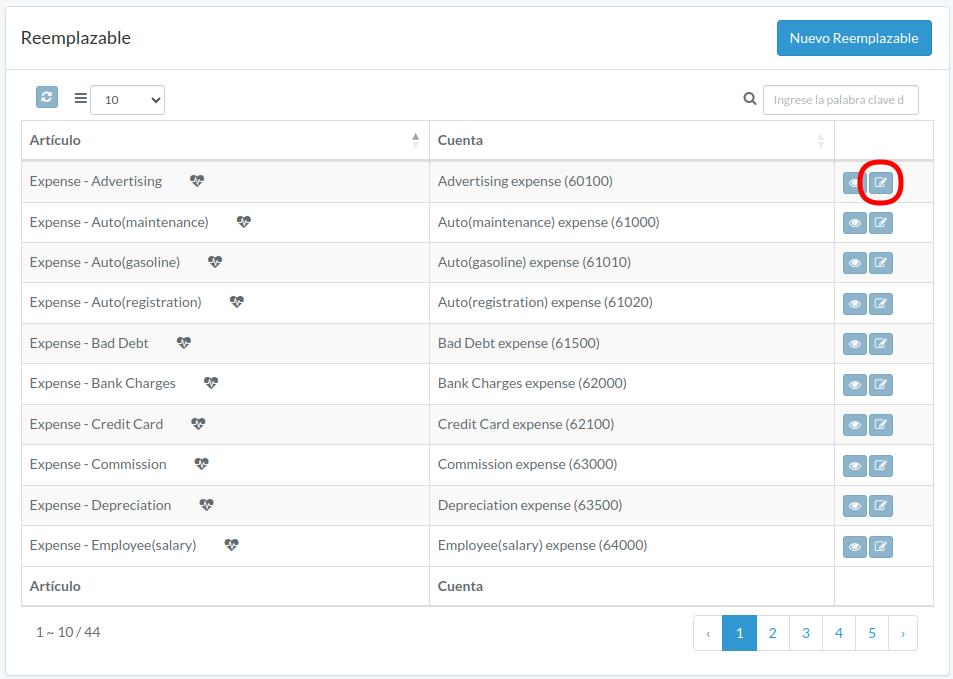
Actualizar reemplazable
Click "Update" button on the right of expendable
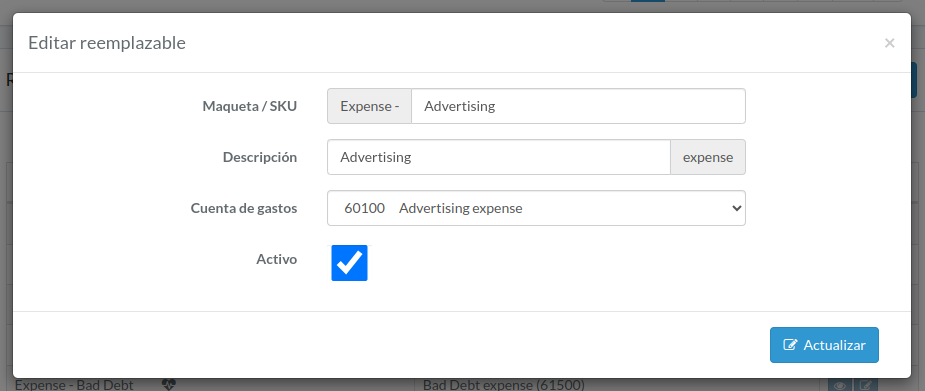
Update information, then click "Update".
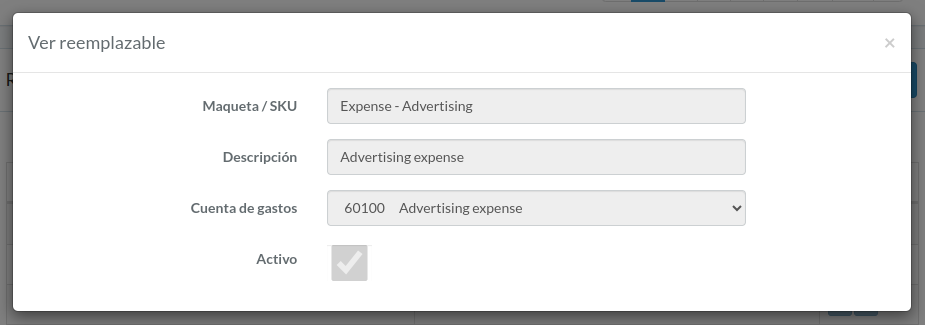
Ver reemplazable
Expendable modal appears.
Informe
Introducción
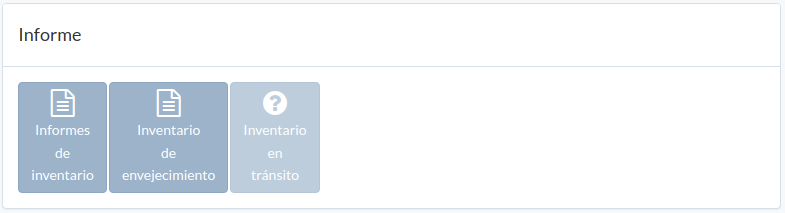
Following shows a sample window.
The chapter describes features available within the window.
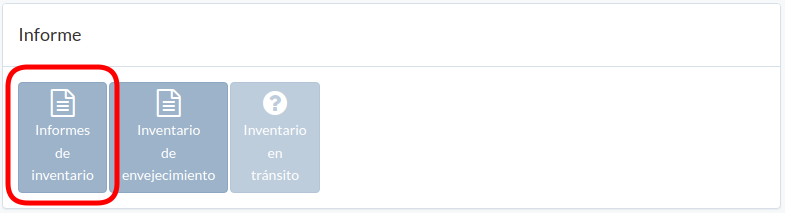
Informes de inventario
Click "Inventory Report"; then a PDF inventory report is downloaded.
Inventario de envejecimiento
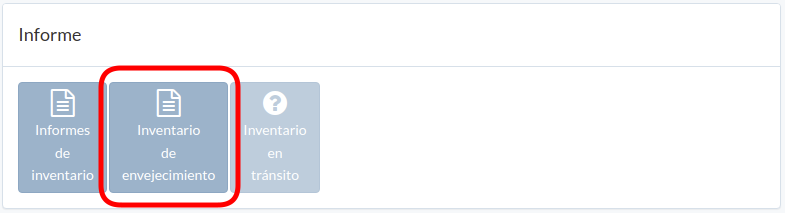
Click "Aging inventory"
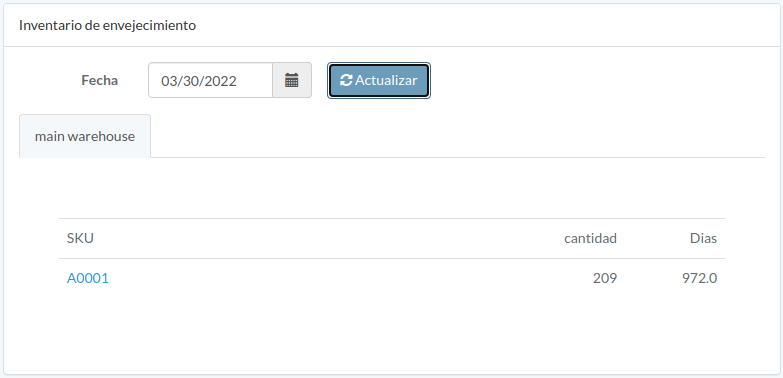
Select date and then click "Update"
Utensil
Introducción
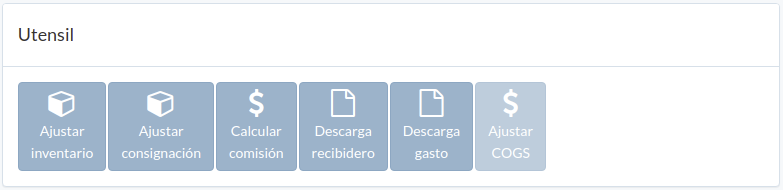
Following shows a sample window.
The chapter describes features available within the window.
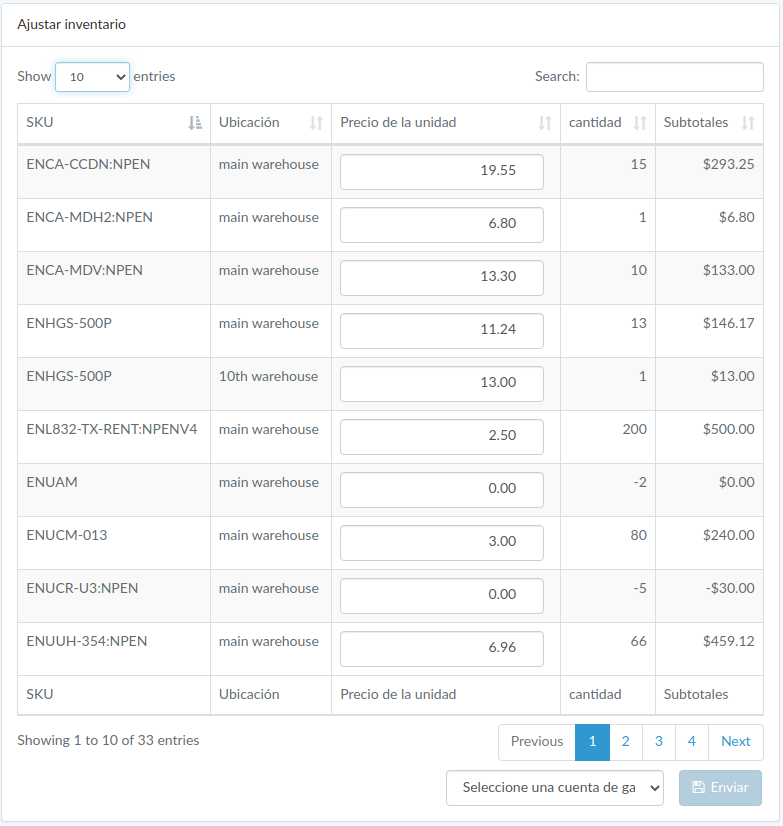
Ajustar inventario
Click "Adjust inventory" in tool window
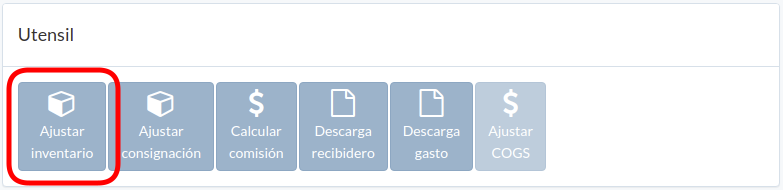
Update unit price, select an expense account, and click "Submit"
Ajustar consignación
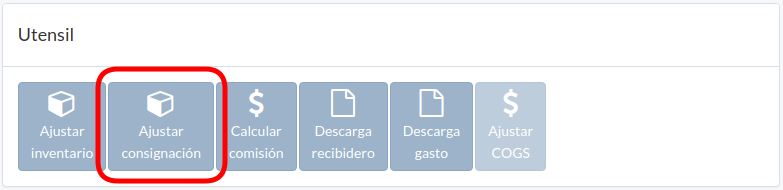
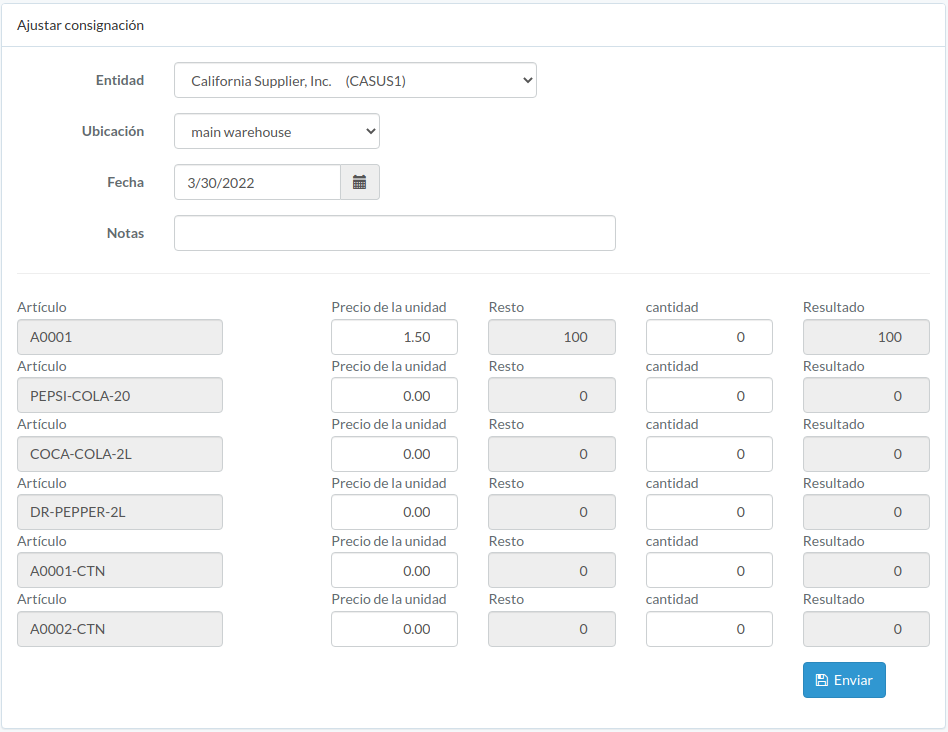
Click "Adjust consignment" in tool window
Select appropriate supplier, warehouse
Update unit price, quantity, and click "Submit"
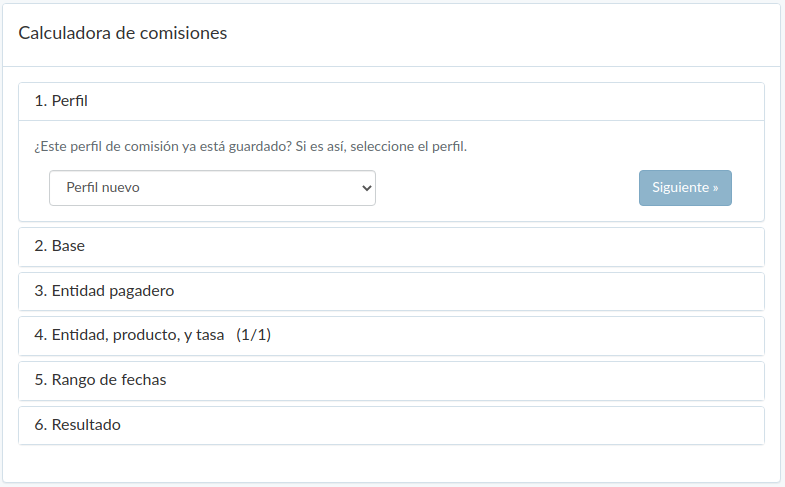
Calcular comisión
Click "Calculate commission" in tool window
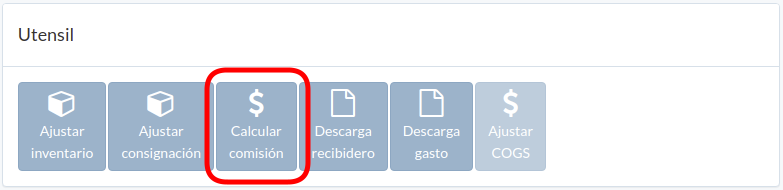
Follow guided steps to calculate commission.
Confirmed result can be converted into expense on last step.
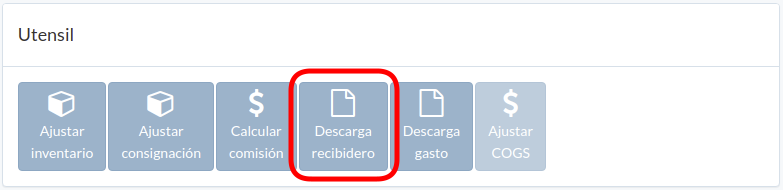
Descarga recibidero
Click "Receivable download" in tool window
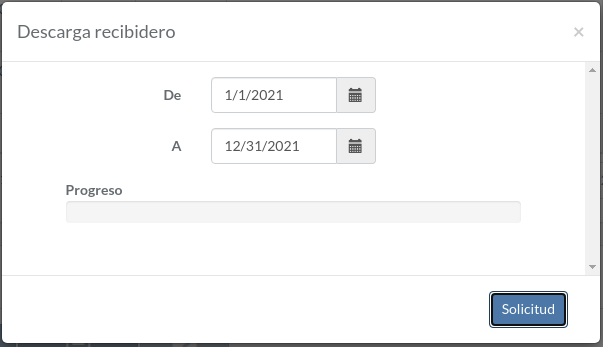
Select date range, and click "Request"
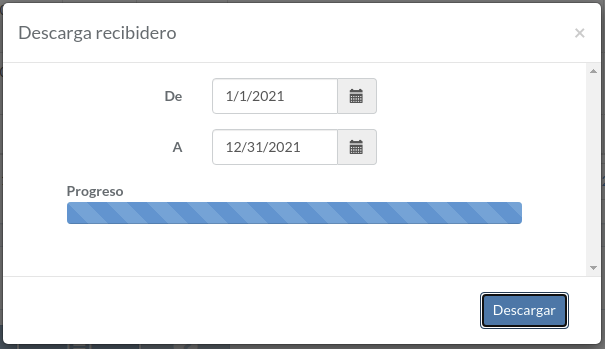
After progress is completed, click "Download" to download zipfile
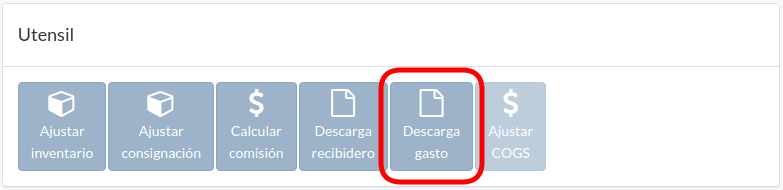
Descarga gasto
Click "Expense download" in tool window
Select date range, and click "Request"
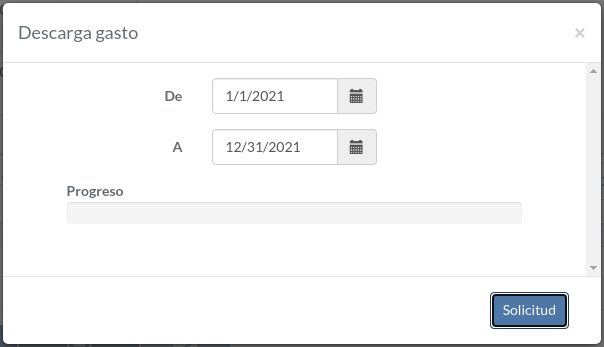
After progress is completed, click "Download" to download zipfile